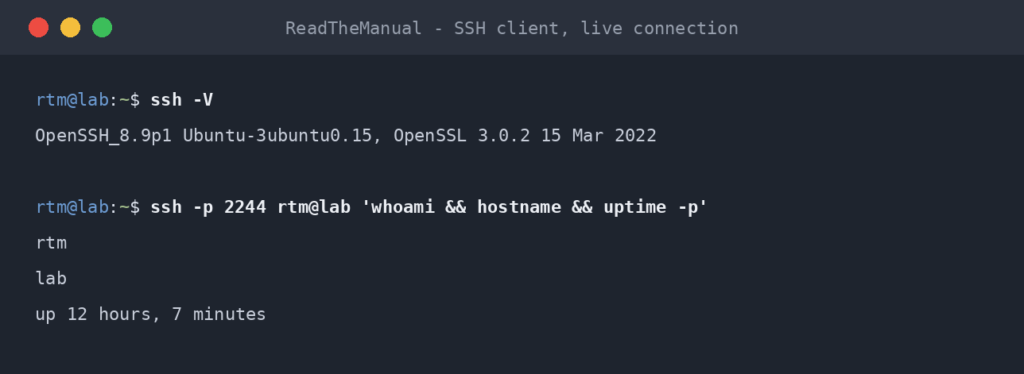
Enable SSH on Ubuntu Server (Short Answer)
Four commands enable SSH on every current Ubuntu Server release: sudo apt update, sudo apt install openssh-server, sudo systemctl enable --now ssh, sudo ufw allow ssh. The complication is that Ubuntu now starts SSH through systemd socket activation (introduced in 22.10, so 24.04 is the first LTS with it, and 26.04 keeps it), so systemctl status ssh reports inactive (dead) until the first connection after boot even though SSH is working. Changing the port is different too: on 24.04 and 26.04 a new Port only takes effect after sudo systemctl daemon-reload and sudo systemctl restart ssh.socket. Those two changes are why most older tutorials appear to fail.
Tested on: Ubuntu Server 22.04.4 LTS and Ubuntu Server 24.04.1 LTS. Ubuntu 26.04 LTS (OpenSSH 10.2) uses the same socket activation and the same port-change procedure as 24.04; that is checked against Ubuntu’s 26.04 OpenSSH package documentation rather than a separate test run. Last reviewed 1 October 2026.
If you ran sudo apt install openssh-server on Ubuntu 24.04 and SSH still did not seem to work, this is the post for you. Ubuntu 24.04 changed how SSH starts in a way that almost every existing tutorial gets wrong, and the symptoms look identical to a broken install.
This guide covers the full setup across Ubuntu 22.04 LTS, 24.04 LTS and 26.04 LTS, including the differences between them, the firewall step everyone forgets, and the errors that account for nearly every “I followed a guide and it did not work” thread on Ask Ubuntu.
Quick path: the four commands that work on every Ubuntu version
If you just want SSH running and you already know your way around a server, this is the minimum:
sudo apt update
sudo apt install openssh-server
sudo systemctl enable --now ssh
sudo ufw allow ssh
Verify it is running:
sudo systemctl status sshIf you see Active: active (running) or Active: active (listening), you are done. SSH is reachable on port 22 from anywhere your firewall allows.
If you are new to Ubuntu Server administration, or you are on 24.04 and the steps above did not behave as expected, keep reading.
Why your tutorial probably did not work on Ubuntu 24.04
Since Ubuntu 22.10, and so on every LTS from 24.04 onwards (26.04 included), OpenSSH ships with socket activation enabled by default. Instead of ssh.service running constantly, systemd watches port 22 via ssh.socket. When a connection arrives, systemd starts ssh.service on demand.
For everyday use this is invisible: SSH still answers on port 22, ssh user@host still works, and once the first connection has started ssh.service it stays running. The visible differences are what systemctl status ssh shows before that first connection, and how you change the port (covered below).
Why it breaks tutorials
Older tutorials tell you to do things like this:
sudo systemctl restart ssh.service     # on 24.04+ this does NOT apply a Port change
sudo systemctl status ssh              # shows "inactive (dead)" until the first connection since boot
On 24.04 these can leave you convinced SSH is not running when it is. The fix is to think in terms of either the socket or the service, depending on what you are doing:
| Action | 22.04 | 24.04 and newer |
|---|---|---|
| Start SSH listening | systemctl start ssh |
systemctl start ssh.socket |
| Stop SSH listening | systemctl stop ssh |
systemctl stop ssh.socket |
Restart after editing sshd_config (any setting except Port or ListenAddress) |
systemctl restart ssh |
systemctl restart ssh.service |
Apply a changed Port or ListenAddress |
systemctl restart ssh |
systemctl daemon-reload then systemctl restart ssh.socket |
| Check if it is listening | systemctl status ssh |
systemctl status ssh.socket |
| Disable SSH entirely | systemctl disable --now ssh |
systemctl disable --now ssh.socket ssh.service |
The shorthand ssh (no suffix) means ssh.service. On 22.04 that is the whole story. On 24.04 and 26.04 the package has already enabled ssh.socket, and systemctl enable --now ssh additionally sets ssh.service to start at boot, so sshd runs all the time instead of on demand. SSH works either way, which is why the four-command Quick Path above is version-agnostic. If you would rather keep the on-demand behaviour on 24.04 and later, use sudo systemctl enable --now ssh.socket instead.
Quick check on your version:
lsb_release -dstells you which Ubuntu you’re on. Of the LTS releases, 24.04 and 26.04 use socket activation; 22.04 and older use the classic service model.
Changing the SSH port on 24.04 and 26.04
With socket activation, ssh.socket owns the listening port, not sshd. A systemd generator reads Port and ListenAddress from /etc/ssh/sshd_config (and any file in /etc/ssh/sshd_config.d/) and writes them into the socket configuration, but only when systemd reloads. Edit the port and restart ssh.service, and SSH is still listening on 22. Ubuntu’s own package documentation gives the fix: systemctl daemon-reload, then systemctl restart ssh.socket.
The safe order, so you cannot lock yourself out:
# 1. Set the new port (for example Port 2222) and check the file parses
sudo nano /etc/ssh/sshd_config
sudo sshd -t

# 2. Open the new port in the firewall BEFORE moving to it
sudo ufw allow 2222/tcp

# 3. Regenerate the socket configuration and restart the listener
sudo systemctl daemon-reload
sudo systemctl restart ssh.socket

# 4. Confirm what is listening now
sudo ss -tlnp | grep -E ':(22|2222)\b'
Your current session survives the restart. From a second terminal, connect with ssh -p 2222 user@host. Only when that works, remove the old rule with sudo ufw delete allow ssh (or sudo ufw delete allow 22/tcp if that is how you added it). On 22.04 the classic sudo systemctl restart ssh applies a port change on its own; steps 1, 2 and the second-terminal test still apply.
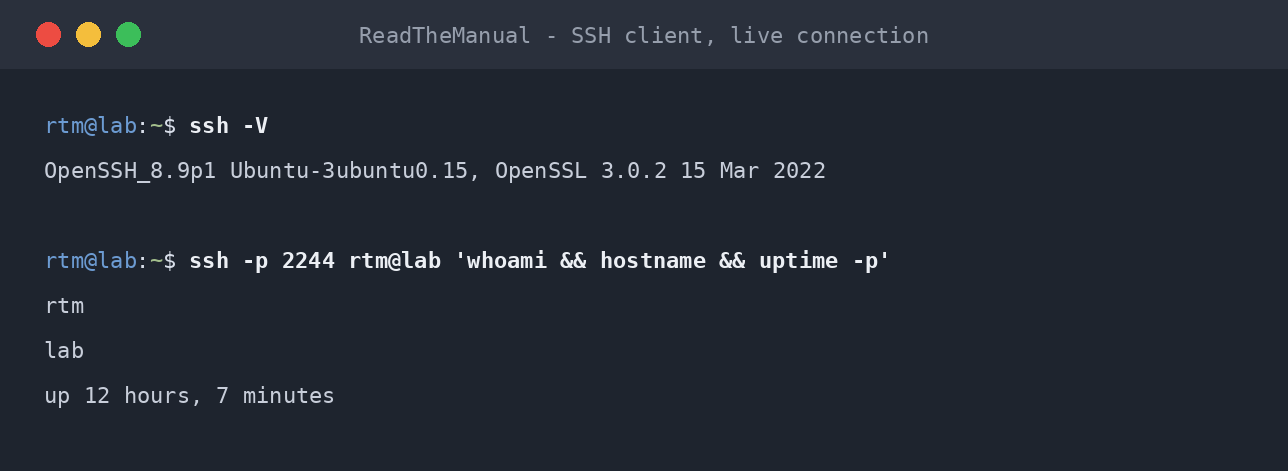
Step-by-step setup (verbose path)
If you’ve not set up SSH on Ubuntu before, here’s the version with explanations.
1. Update package lists
sudo apt update
This pulls the latest package information from Ubuntu’s archive servers. Without it, you might install an outdated openssh-server that has known security fixes available.
2. Install OpenSSH server
sudo apt install openssh-server
The openssh-server package gives you the sshd daemon (which accepts incoming connections) and a default /etc/ssh/sshd_config configuration file. Ubuntu Server has it if you ticked “Install OpenSSH server” in the installer, and Ubuntu cloud images ship with it; Ubuntu Desktop does not install it by default.
The package install will also install openssh-client if it isn’t already present, which gives you the ssh, scp, and sftp commands for outbound connections.
3. Verify the service is running
sudo systemctl status ssh
What you want to see depends on your version:
On 22.04:
● ssh.service - OpenBSD Secure Shell server
     Loaded: loaded (/lib/systemd/system/ssh.service; enabled; vendor preset: enabled)
     Active: active (running) since [date]
On 24.04 and newer, check the socket instead with sudo systemctl status ssh.socket (plain status ssh shows ssh.service, which is inactive (dead) until the first connection, and that is normal):
● ssh.socket - OpenBSD Secure Shell server socket
     Loaded: loaded (/usr/lib/systemd/system/ssh.socket; enabled; preset: enabled)
     Active: active (listening) since [date]
Either output means SSH is reachable. If ssh.service on 22.04, or ssh.socket on 24.04 and later, says inactive, run:
sudo systemctl enable --now ssh
This enables SSH to start at boot and starts it now, regardless of which activation method your version uses.
4. Configure the firewall
If you have ufw enabled (Ubuntu’s default firewall front-end), you need to explicitly allow SSH or all your inbound connections will be blocked.
sudo ufw allow ssh
sudo ufw enable
ufw allow ssh adds a rule for TCP port 22. ufw enable activates the firewall if it isn’t already on. If ufw was already enabled and you skipped the allow ssh step before turning it on, you’ll lock yourself out the moment your current session ends.
If you are remote (e.g. SSH’d in from another machine to set up SSH): the order matters. Run
ufw allow sshBEFOREufw enable. Otherwise the next command can drop your existing session.
Verify your rules:
sudo ufw status
You should see 22/tcp ALLOW Anywhere in the output.
5. Find your IP address
hostname -I
This prints all the machine’s IP addresses on one line, separated by spaces. The first is usually the LAN IP you want (e.g. 192.168.1.50). On most cloud VMs the public address is mapped by the provider and does not appear here; find it in the provider’s console or with curl ifconfig.me.
6. Connect from another machine
From a Linux or macOS terminal:
ssh [email protected]
Replace username with your Ubuntu account username (run whoami on the Ubuntu server if you don’t know it) and the IP with what hostname -I reported.
The first time you connect, SSH asks you to verify the server’s host key:
The authenticity of host '192.168.1.50' can't be established.
ED25519 key fingerprint is SHA256:...
Are you sure you want to continue connecting (yes/no)?
Type yes. The fingerprint is saved to ~/.ssh/known_hosts on the client; on subsequent connections SSH verifies the server is the same one and warns you if the key has changed (which usually means you re-installed the OS or someone is doing something nefarious).
You’ll then be prompted for your Ubuntu user’s password. After that, you have a shell on the server.
Connect from each major OS
Linux / macOS
OpenSSH client is pre-installed on every modern Linux distribution and on macOS. Just use ssh username@host from a terminal.
Windows 10 and 11
Windows 10 (build 1809 or newer) and Windows 11 ship with OpenSSH client pre-installed. From PowerShell or Command Prompt:
ssh [email protected]
If Windows says ssh is not recognised, install OpenSSH Client via Settings -> Apps -> Optional features -> Add a feature -> OpenSSH Client.
Older Windows or environments without OpenSSH
PuTTY is the long-standing alternative. Download, run, enter the IP and port 22, click Open. Slightly different key format — if you generated keys for OpenSSH later, use puttygen to convert.
Phones / tablets
Termius, Blink Shell (iOS), JuiceSSH (Android). Useful for emergency reboots from the pub.
Five errors that account for almost every SSH problem
If your SSH setup isn’t working, one of these is almost certainly the cause.
“Connection refused”
The server is reachable on the network but nothing is listening on the port you’re hitting.
- Check the service is actually running:
sudo systemctl status sshon the server. - On 24.04+, check the socket specifically:
sudo systemctl status ssh.socket. - Verify SSH is listening on port 22:
sudo ss -tnlp | grep :22. - If you changed the port in
/etc/ssh/sshd_config, are you connecting to the new port? Usessh -p 2222 user@hostto specify a non-default port. - On 24.04 and 26.04, if
ssstill shows the old port after you changedPort, the socket was never told: runsudo systemctl daemon-reloadthensudo systemctl restart ssh.socket.
“Connection timed out”
The packet isn’t reaching the server. Almost always a firewall issue.
- Did you run
sudo ufw allow ssh? - Is there an upstream firewall between you and the server (router, cloud provider security group, ISP block on inbound 22)?
- For cloud VMs: check the cloud provider’s security group / network ACL allows port 22 from your IP.
“Permission denied (publickey)”
The server only accepts SSH key authentication and your key isn’t being offered or accepted.
- Default Ubuntu permits both password and key auth. If this error fires on a fresh install, check
/etc/ssh/sshd_configforPasswordAuthentication no— something disabled passwords. - On the client, ensure your key is in
~/.ssh/and named correctly (id_ed25519orid_rsa). - Run with
ssh -v user@hostto see exactly which keys are being tried.
The companion guide on SSH key authentication covers key generation, permissions, and the ~/.ssh/authorized_keys file in depth.
“Host key verification failed”
The server’s identity has changed since the last time you connected.
- Most innocent explanation: the server was rebuilt or reinstalled, so its host key changed.
- Less innocent: someone is doing a man-in-the-middle attack.
- To clear the old key for a known IP:
ssh-keygen -R 192.168.1.50then reconnect. - Verify the new host key fingerprint matches what the server actually has before accepting.
“Connection reset by peer”
The TCP connection was established and then immediately killed. Usually a server-side issue.
- A common cause:
fail2banbanned your IP after too many failed login attempts. Wait the configured ban time, or unban yourself from another machine:sudo fail2ban-client unban 1.2.3.4. - Less common: a misconfigured
sshd_configcausessshdto crash on connect. Checkjournalctl -u ssh.servicefor clues (on 24.04 and later,journalctl -u ssh.socketshows problems with the listener itself).
What to do next
Enabling SSH is the first step. Run any internet-facing server with default config and you’ll be picking brute-force attempts out of the logs within hours.
The follow-on tasks, in order of priority:
- Switch to SSH key authentication — much harder to brute-force than passwords. Companion guide: SSH Key Authentication on Ubuntu.
- Disable password authentication once your keys are working — closes off the brute-force vector entirely. Covered in the SSH hardening guide.
- Add fail2ban — bans IPs that fail too many times in a row. Helpful even with key-only auth, mostly because it cleans up your logs.
- Change the SSH port — mild security-by-obscurity, mostly useful for noise reduction. Many sysadmins consider this theatre; we cover the case for and against in the hardening guide.
If you’re running this on a Raspberry Pi instead of standard Ubuntu Server, see the companion Enable SSH on Raspberry Pi guide — the mechanics differ enough to warrant their own post.
Frequently asked questions
Does this work on Ubuntu Server vs Desktop?
Yes, identical. The difference is that Ubuntu Server installs openssh-server by default in many cases; Ubuntu Desktop usually doesn’t, so the apt install openssh-server step is required either way unless you explicitly opted in during install.
Why is SSH on port 22 by default? Should I change it?
Port 22 was assigned to SSH by IANA in 1995, when Tatu Ylönen released the first version of the protocol. Every SSH client tries port 22 unless you tell it otherwise.
Changing the port is a debated practice. The argument for: brute-force scanners hitting port 22 won’t see your service, so authentication logs stay clean. The argument against: anyone who actually wants in will scan all 65,535 ports anyway, so this is “security through obscurity.”
In practice, the noise reduction is genuinely useful. A non-standard port plus key-only auth plus fail2ban produces a server you basically never have to look at. If your only defence is “I’m on port 2222,” you have a problem.
Can I run SSH on multiple ports at once?
Yes. Edit /etc/ssh/sshd_config and add multiple Port lines:
Port 22
Port 2222
On 22.04, run sudo systemctl restart ssh. On 24.04 and 26.04, run sudo systemctl daemon-reload then sudo systemctl restart ssh.socket: ports are applied by the socket, so restarting ssh.service alone leaves the listener unchanged. Allow the new port in ufw before you rely on it.
Why do I see ssh.socket not ssh.service in 24.04?
Ubuntu has enabled systemd socket activation for SSH by default since 22.10, so 24.04 and 26.04 both use it. See “Why your tutorial probably didn’t work on Ubuntu 24.04” earlier in this guide for the full explanation.
I’m getting “permission denied” — what’s wrong?
If it says Permission denied (publickey), password auth is disabled and your key isn’t being accepted. See the companion SSH key authentication guide.
If it says Permission denied, please try again after you enter the password, you’re typing the wrong password OR the username doesn’t exist. Run whoami on the server itself to confirm the username; remember Ubuntu is case-sensitive.
Can I SSH from my phone?
Yes. Termius, Blink Shell (iOS), and JuiceSSH (Android) all work well. Generate a key on the phone, add the public key to ~/.ssh/authorized_keys on the server, and you have a portable terminal in your pocket. Useful when something needs rebooting and you’re not at a desk.
How do I disable SSH again?
# 22.04
sudo systemctl disable --now ssh.service

# 24.04+
sudo systemctl disable --now ssh.socket ssh.service
You may also want to remove the firewall rule: sudo ufw delete allow ssh.
Is SSH safe to expose to the internet?
With default settings: not really. With key-only authentication, fail2ban, and a non-default port, it’s been the standard way to administer Linux servers since the late 1990s and remains fine in 2026. The hardening guide covers exactly what to change.
Same Skill, Different Scale
Enabling SSH on an Ubuntu VM in your homelab is the exact same process as provisioning a cloud VM on Azure or AWS. The commands are identical. apt install openssh-server works the same whether the box is under your desk or in a data centre in Dublin. Cloud providers just hide the initial setup behind a web console checkbox, but the underlying mechanics are what you just did here.
If you can SSH into a Proxmox VM on your home network, you can SSH into an EC2 instance or an Azure VM. The protocol, the config files, the troubleshooting are all the same. Your homelab is not a toy version of production. It IS production, just at a smaller scale. Every hour you spend here transfers directly to the day job.
This is the canonical setup guide. Companion posts cover SSH Key Authentication, SSH Hardening, Fail2ban for SSH, SCP and SFTP, SSH Tunneling, Common SSH Errors, and SSH from Windows — linked from the relevant sections above as each ships.
If you found a gotcha not covered here, drop it in the comments — I update this post as new versions of Ubuntu and OpenSSH ship.
The Complete SSH Series
Getting connected
- Enable SSH on Ubuntu Server (you are here)
- Enable SSH on Raspberry Pi
- SSH Essentials: Remote Administration
- SSH from Windows to Ubuntu
Authentication and hardening
File transfer and tunnelling
Reference
Before you expose any of this: the seven steps that decide whether a home lab survives contact with the internet, in the order they matter, are in How to Secure a Homelab Network in 2026.
RTFM Apparel · printed in the UK


ReadTheManual is run, written and curated by Eric Lonsdale.
Eric has over 20 years of professional experience in IT infrastructure, cloud architecture, and cybersecurity, but started with PCs long before that.
He built his first machine from parts bought off tables at the local college campus, hoping they worked. He learned on BBC Micros and Atari units in the early 90s, and has built almost every PC he’s used between 1995 and now.
From helpdesk to infrastructure architect, Eric has worked across enterprise datacentres, Azure environments, and security operations. He’s managed teams, trained engineers, and spent two decades solving the problems this site teaches you to solve.
ReadTheManual exists because Eric believes the best way to learn IT is to build things, break things, and actually read the manual. Every guide on this site runs on infrastructure he owns and maintains.
Enjoyed this guide?
New articles on Linux, homelab, cloud, and automation every 2 days. No spam, unsubscribe anytime.