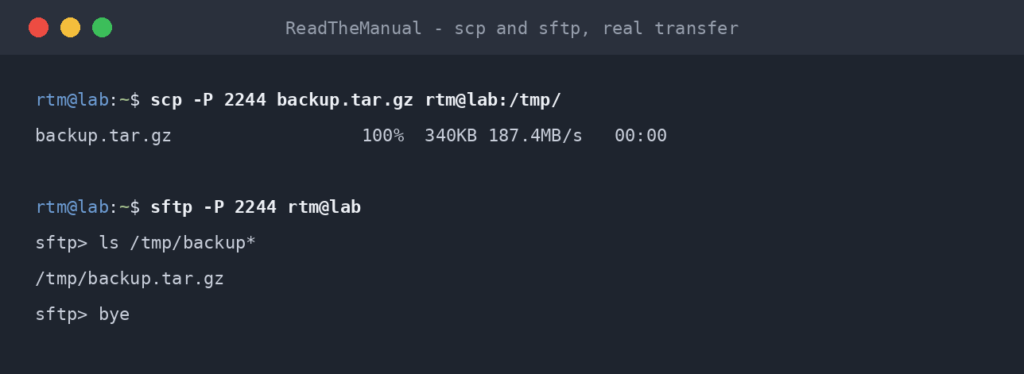
If SSH gets you a remote shell, SCP and SFTP get you remote files. Both ride on the same SSH connection — same authentication, same port, same firewall config. If ssh user@host works, both file transfer methods will too.
This guide covers the practical syntax you’ll actually use, plus when rsync is a better fit than either.
Tested on: Ubuntu Server 22.04 LTS, 24.04 LTS, Windows 11. The commands are the same on all modern Unix-like systems, but what
scpdoes underneath changed in OpenSSH 9.0 (see below): Ubuntu 22.04 ships OpenSSH 8.9, 24.04 ships 9.6 and 26.04 ships 10.2.
SCP basics
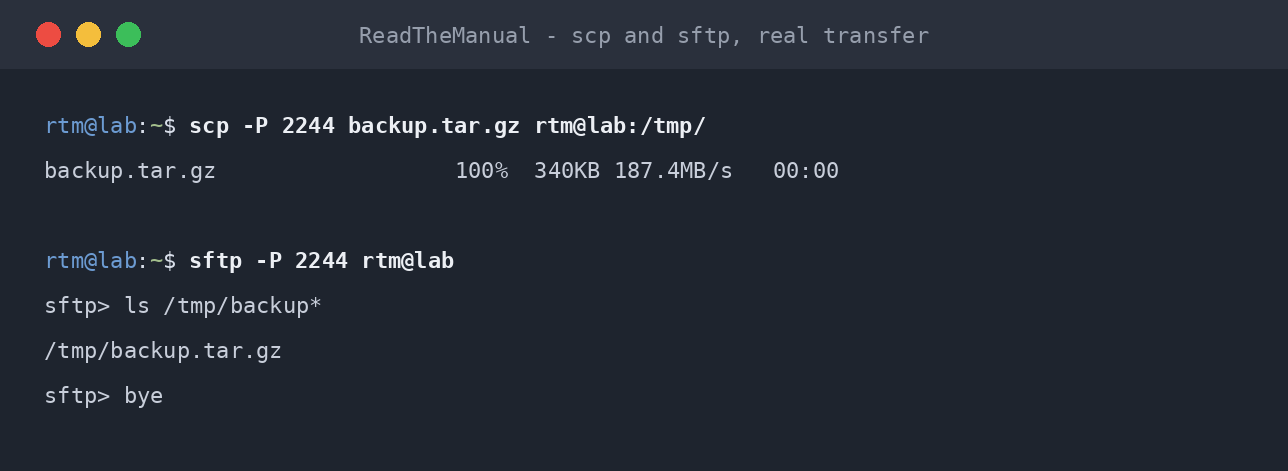
SCP copies files between machines over SSH. The syntax mirrors cp, with user@host:path for the remote side.
Upload a file to the server
scp ./local-file.txt user@server:/home/user/
This copies local-file.txt from your current directory to /home/user/ on the server. If the destination is an existing directory, the file goes inside it with or without a trailing slash. If it does not exist, scp creates a file with that name instead, so a trailing slash on a directory you mean to copy into is a cheap safety habit.
Download a file from the server
scp user@server:/home/user/remote-file.txt ./
Just reverse the source/destination.
Copy an entire directory (recursive)
scp -r ./local-folder/ user@server:/home/user/
The -r flag means recursive. Without it, SCP only copies regular files, not directories.
Preserve permissions and timestamps
scp -p ./file.txt user@server:/home/user/
The -p (preserve) flag keeps the modification time, access time, and permissions on the copied file. Useful for backup scripts.
Use a specific SSH key
scp -i ~/.ssh/id_ed25519_homelab ./file.txt user@server:/home/user/
By default SCP uses your default key (~/.ssh/id_ed25519 or id_rsa). For multiple keys, use -i or set up ~/.ssh/config with per-host IdentityFile (see the SSH Key Authentication guide).
Use a non-default SSH port
scp -P 2222 ./file.txt user@server:/home/user/
Important: SCP uses capital -P for port. SSH itself uses lowercase -p. They don’t agree. If you typo, you’ll get a confusing error — check your case.
Copy between two remote servers (less common)
scp user1@host1:/path/file.txt user2@host2:/dest/
Works. Since OpenSSH 8.7 (so every supported Ubuntu release) the data is routed through your local machine by default; the -3 flag that used to request this is now simply the default behaviour. Use -R if you want host1 to connect to host2 and copy directly, which needs host1 to be able to authenticate to host2 without a password. For frequent server-to-server copies, you probably want rsync over SSH from one of the hosts directly.
scp changed in OpenSSH 9.0
From OpenSSH 9.0, scp uses the SFTP protocol by default instead of the legacy SCP/RCP protocol. That covers Ubuntu 24.04 (OpenSSH 9.6) and 26.04 (OpenSSH 10.2); Ubuntu 22.04 (8.9) still uses the legacy protocol by default. The command line is unchanged, but three things behave differently:
- No more double quoting. The legacy protocol passed remote filenames through the remote shell, so names with spaces or shell characters needed extra quoting (
scp 'host:"my file.txt"' .). In SFTP mode that quoting is no longer needed and can make the transfer fail. Quote the path once, as you would locally. - Servers without SFTP. If the remote end has no SFTP subsystem (some embedded devices, appliances, or an
sshd_configwith theSubsystem sftpline removed), a new client fails, typically withsubsystem request failed on channel 0andscp: Connection closed. Add-Oto force the legacy protocol:scp -O file.txt user@device:/tmp/. ~paths and wildcards on older servers. Expanding a remote path such ashost:~/fileneeds support on the server side; against old SFTP servers, and for some wildcard patterns,-Ois the documented fallback.
SFTP basics
SFTP gives you an interactive prompt — like FTP, but over SSH. Useful for browsing remote directories or doing many file operations in one session.
Connect
sftp user@server
You get an sftp> prompt. Type help for the full command list. The most useful:
ls                  # list remote directory
cd /path            # change remote directory
lls                 # list LOCAL directory
lcd /path           # change LOCAL directory
get file.txt        # download
put file.txt        # upload
mget *.txt          # download multiple
mput *.txt          # upload multiple
mkdir foo           # create remote directory
rm file.txt         # delete remote file
quit                # exit
Recursive get / put
Same -r flag:
get -r /remote/folder
put -r /local/folder
When to use SCP vs SFTP
| Need | Tool |
|---|---|
| Quick one-off file copy | SCP |
| Multiple files in one session, browsing as you go | SFTP |
| Scripted file transfer with retry, partial transfer recovery | rsync (next section) |
| GUI file transfer | FileZilla, Cyberduck, WinSCP — all speak SFTP, so they work against any SSH server |
For most one-off transfers, SCP. For exploring a remote filesystem, SFTP.
Why rsync is usually better for anything non-trivial
Both SCP and SFTP transfer the entire file every time. rsync only transfers what’s changed. This matters when:
- Backing up a directory tree regularly (after the first run, only changed files are sent, so repeat copies are far faster)
- Resuming a transfer that got interrupted
- Mirroring large files where small changes happen
Basic rsync over SSH:
# Upload, recursively, preserving permissions, showing progress
rsync -av --progress ./local-folder/ user@server:/path/to/remote-folder/

# Download
rsync -av --progress user@server:/path/to/remote-folder/ ./local-folder/
Trailing slashes matter for rsync. ./local-folder/ (with slash) means “copy the contents of local-folder INTO remote-folder”. ./local-folder (no slash) means “copy local-folder AS A DIRECTORY into remote-folder”, creating remote-folder/local-folder/.
For backups: add --delete to mirror exactly, including removing files on the destination that no longer exist on the source. Be careful — --delete can wipe out files if you point it at the wrong directory.
For large file transfers over slow links: add -z for compression, --partial so interrupted transfers can resume.
rsync is the right tool for anything backup-shaped. SCP/SFTP are for one-off transfers.
Common errors
“Permission denied” during transfer
The SSH connection authenticates, but the destination directory isn’t writable by your user. Check ownership and permissions on the destination:
ls -ld /destination/path
If the directory is owned by another user, you need either sudo (which doesn’t work over SCP/SFTP directly — you’d need to copy to a writeable location first, then sudo mv on the server) or to fix ownership.
“scp: ambiguous target”
This comes from the legacy SCP protocol (the default on 22.04, or -O on newer releases): the remote shell split the destination path into more than one word, usually because it contains a space or shell character.
scp file.txt user@host:'/srv/my files/'        # fails in legacy mode: ambiguous target
scp -O file.txt user@host:'"/srv/my files/"'   # legacy mode: quote again for the remote shell
scp file.txt user@host:'/srv/my files/'        # fine on 24.04 and 26.04 (SFTP mode)
Separately, remember the trailing-slash rule from earlier: copying to /some/path creates a file called path if that directory doesn’t exist.
“sftp: command not found”
That message comes from your local shell: the sftp client isn’t installed on the machine you’re typing on. On Ubuntu or Debian, install it with sudo apt install openssh-client.
If the client runs but the connection fails with subsystem request failed on channel 0 and Connection closed, the problem is on the server: SFTP isn’t enabled. Check /etc/ssh/sshd_config (and files in /etc/ssh/sshd_config.d/) for:
Subsystem sftp /usr/lib/openssh/sftp-server
This line should be present and uncommented, and the openssh-sftp-server package installed. If you’ve manually edited sshd_config and removed it, SFTP won’t work, and on 24.04 and later plain scp stops working too unless you add -O.
Slow transfers on a fast network
Two common causes:
- CPU-bound encryption on slower hardware (Pi Zero, ancient laptops). Try a lighter cipher:
scp -c [email protected] ... - Compression hurting more than helping on already-compressed data. OpenSSH leaves compression off by default, so this only applies if you turned it on with
-CorCompression yesin~/.ssh/config; override it with-o "Compression=no".
Programmatic file transfer in scripts
For automation, prefer rsync over SCP — it handles edge cases better. If you must SCP in a script, use:
scp -B -i ~/.ssh/key file.txt user@host:/path/
-B is batch mode — fails fast instead of prompting for input. Combined with key auth, this works in unattended scripts.
For SFTP in a script:
sftp -b - user@host <<EOF
put file.txt
get remote-file.txt
quit
EOF
-b - reads commands from stdin (the heredoc). Useful for unattended SFTP.
What this doesn’t cover
- Cloud storage sync (rclone, gdrive, S3 cli) — different tools for different use cases.
- Continuous file sync (Syncthing, Resilio) — if you want bidirectional always-on sync between machines, neither SCP nor SFTP nor rsync is the right tool.
- SFTP with restricted users (chroot jails, scponly shells) — you might want this for users you don’t want to give shell access to but DO want to give file transfer to. Search “openssh chroot sftp” for canonical guides.
From Config Files to CI/CD Pipelines
SCP and SFTP are how you move config files around a homelab. They are also how CI/CD pipelines push build artifacts to staging servers, how Ansible copies playbooks to remote hosts, and how backup scripts pull database dumps offsite. Same protocol, same commands, different context.
If you can rsync your Jellyfin library to a backup drive over SSH, you can write the deployment step in a GitHub Actions workflow that pushes a release to a production server. The syntax is the same. The confidence to automate file transfers over SSH comes from doing it manually first, which is exactly what you are learning here.
Companion guides: Enable SSH on Ubuntu Server, SSH Key Authentication on Ubuntu, SSH Hardening, Common SSH Errors.
The Complete SSH Series
Getting connected
- Enable SSH on Ubuntu Server
- Enable SSH on Raspberry Pi
- SSH Essentials: Remote Administration
- SSH from Windows to Ubuntu
Authentication and hardening
File transfer and tunnelling
- SCP and SFTP: Transfer Files (you are here)
- SSH Tunnelling and Port Forwarding
Reference
Before you expose any of this: the seven steps that decide whether a home lab survives contact with the internet, in the order they matter, are in How to Secure a Homelab Network in 2026.
RTFM Apparel · printed in the UK


ReadTheManual is run, written and curated by Eric Lonsdale.
Eric has over 20 years of professional experience in IT infrastructure, cloud architecture, and cybersecurity, but started with PCs long before that.
He built his first machine from parts bought off tables at the local college campus, hoping they worked. He learned on BBC Micros and Atari units in the early 90s, and has built almost every PC he’s used between 1995 and now.
From helpdesk to infrastructure architect, Eric has worked across enterprise datacentres, Azure environments, and security operations. He’s managed teams, trained engineers, and spent two decades solving the problems this site teaches you to solve.
ReadTheManual exists because Eric believes the best way to learn IT is to build things, break things, and actually read the manual. Every guide on this site runs on infrastructure he owns and maintains.
Enjoyed this guide?
New articles on Linux, homelab, cloud, and automation every 2 days. No spam, unsubscribe anytime.