“Permission denied.” The two words every Linux user learns to hate. But file permissions are not a barrier — they are the security model that protects everything on a Linux system.
This guide explains how Linux permissions work, how to read them, how to change them, and the common permission sets you will use every day.
Permission Calculator
| Octal | Permissions | Meaning | Common Use |
|---|---|---|---|
755 |
rwxr-xr-x |
Owner: full. Group/Others: read+execute | Scripts, executables, directories |
644 |
rw-r--r-- |
Owner: read+write. Group/Others: read | Regular files, configs |
700 |
rwx------ |
Owner: full. Nobody else. | Private scripts, .ssh directory |
600 |
rw------- |
Owner: read+write. Nobody else. | SSH keys, secrets, .env files |
775 |
rwxrwxr-x |
Owner+Group: full. Others: read+execute | Shared project directories |
664 |
rw-rw-r-- |
Owner+Group: read+write. Others: read | Shared files in a team |
777 |
rwxrwxrwx |
Everyone: full access | Never use this. |
Reading File Permissions
Run ls -la to see permissions:
ls -la
drwxr-xr-x 2 eric eric  4096 Mar 10 09:00 scripts/
-rw-r--r-- 1 eric eric  1234 Mar 10 09:00 config.yml
-rwx------ 1 eric eric   512 Mar 10 09:00 deploy.sh
-rw------- 1 eric eric   401 Mar 10 09:00 .env
The permission string has 10 characters:
d rwx r-x r-x
| |   |   |
| |   |   +-- Others (everyone else)
| |   +------ Group
| +---------- Owner
+------------ Type (d=directory, -=file, l=symlink)
Each position is either the permission letter or a dash:
r(read) = can view contents / list directoryw(write) = can modify / create, rename or delete files in directory (together withx)x(execute) = can run as program / enter directory-= permission not granted
Octal (Numeric) Notation
Each permission has a numeric value:
r= 4w= 2x= 1
Add them up for each group (owner, group, others):
rwx = 4+2+1 = 7
r-x = 4+0+1 = 5
r-- = 4+0+0 = 4
--- = 0+0+0 = 0

So: rwxr-xr-- = 754
To work backwards from an octal number:
755:
  7 = rwx (owner can read, write, execute)
  5 = r-x (group can read and execute)
  5 = r-x (others can read and execute)
Changing Permissions with chmod
Octal Method
# Make a script executable
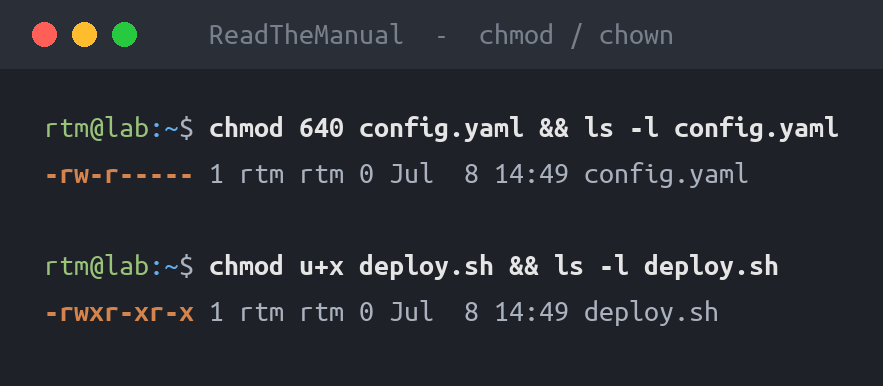
chmod 755 deploy.sh

# Protect a private key
chmod 600 ~/.ssh/id_ed25519

# Secure a config file
chmod 644 config.yml

# Lock down a directory
chmod 700 ~/.ssh
Symbolic Method
# Add execute permission for owner
chmod u+x script.sh

# Remove write permission from group and others
chmod go-w file.txt

# Add read permission for everyone
chmod a+r readme.txt

# Set exact permissions
chmod u=rwx,g=rx,o=r file.txt
The targets are: u (user/owner), g (group), o (others), a (all).
The operators are: + (add), - (remove), = (set exactly).
Recursive Changes
# Apply to directory and all contents
chmod -R 755 /var/www/html/

# Better: set directories and files separately
find /var/www -type d -exec chmod 755 {} \;
find /var/www -type f -exec chmod 644 {} \;
Directories need execute permission to be entered. Files generally do not. Using find to set them separately is the correct approach.
Changing Ownership with chown
# Change owner
sudo chown eric file.txt

# Change owner and group
sudo chown eric:developers file.txt

# Change group only
sudo chown :developers file.txt

# Recursive ownership change
sudo chown -R www-data:www-data /var/www/html/
You need sudo to change ownership because only root can give files to other users. This prevents users from bypassing disk quotas by assigning large files to other accounts.
Common Permission Scenarios
Web Server Files
sudo chown -R www-data:www-data /var/www/html/
find /var/www -type d -exec chmod 755 {} \;
find /var/www -type f -exec chmod 644 {} \;
SSH Keys
chmod 700 ~/.ssh
chmod 600 ~/.ssh/id_ed25519
chmod 644 ~/.ssh/id_ed25519.pub
chmod 600 ~/.ssh/authorized_keys
chmod 644 ~/.ssh/config
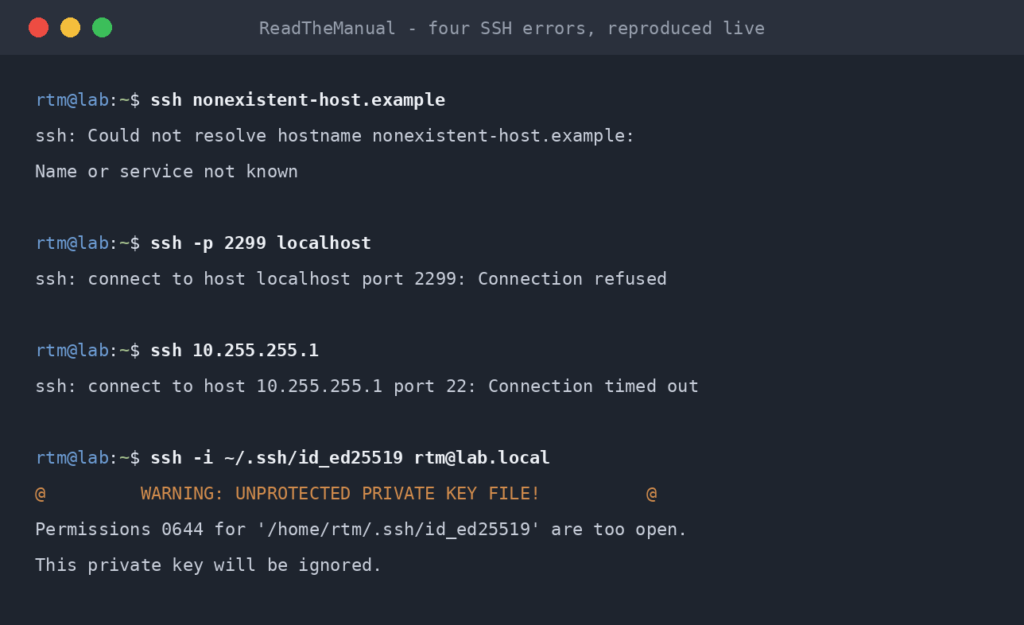
SSH refuses to use keys with overly permissive permissions. If SSH key authentication fails silently, check permissions first.
Docker Bind Mounts
# Common issue: container runs as different UID
sudo chown -R 1000:1000 ./data/
# Or match the container's user
sudo chown -R 33:33 ./nextcloud-data/  # www-data = UID 33
Shared Directory for a Team
sudo mkdir /opt/project
sudo chown root:developers /opt/project
sudo chmod 775 /opt/project
sudo chmod g+s /opt/project  # setgid: new files inherit group
Troubleshooting “Permission Denied”
- Check the file permissions:
ls -la filename - Check who you are:
id(shows your UID and groups) - Check directory permissions: You need
xon every directory in the path - Check ownership:
ls -lashows owner:group - Check if executable: Scripts need
chmod +x - Check SELinux/AppArmor:
getenforce(SELinux) oraa-status(AppArmor)
The most common cause: you are not the owner, not in the right group, and the “others” permissions do not include what you need.
Why This Matters
- Interview favourite — “What does chmod 755 mean?” is a common Linux sysadmin interview question
- Security audits — overly permissive files (especially 777) are audit findings
- Container debugging — permission mismatches between host and container are the most common bind mount issue
- Web server troubleshooting — “403 Forbidden” is often a permission problem (the other usual causes are a missing index file or a deny rule in the server config)
Next Steps
- List Users in Linux — manage the accounts that permissions apply to
- Remove Files and Directories — deletion requires write permission on the parent directory
- Linux Fundamentals Series — the full series
This guide is part of the Linux Fundamentals series. See the full series for more guides like this.
Want the interview angle? See Linux File Permissions: The Interview Question Everyone Gets Wrong.
Frequently Asked Questions
What does chmod 755 mean in Linux?
chmod 755 sets the file permissions to rwxr-xr-x. The owner (7) gets read, write, and execute. The group (5) and others (5) get read and execute only. This is the standard permission for scripts, executables, and directories that need to be accessible but not writable by other users.
What is the difference between chmod and chown?
chmod changes what actions (read, write, execute) are allowed on a file. chown changes who owns the file (which user and which group). Both affect access: chown determines which permission set applies to you (owner, group, or others), and chmod determines what each set can do.
Why should I never use chmod 777?
chmod 777 gives every user on the system full read, write, and execute access to the file or directory. This means any user or compromised service can modify or delete the file. It is a security audit finding and indicates misconfigured permissions. Use 755 for directories and executables, 644 for regular files.
How do I fix ‘Permission denied’ errors in Linux?
Check the file permissions with ls -la, check your user and groups with id, verify you have execute permission on all parent directories in the path, and check file ownership. Common fixes: chmod +x for scripts that need to be executable, chown to correct ownership, or adding your user to the required group with sudo usermod -aG groupname username.
How do I calculate Linux file permissions from octal numbers?
Each octal digit represents three permission bits: read (4), write (2), and execute (1). Add them together for each position: owner, group, others. For example, 754 means owner=7 (rwx: 4+2+1), group=5 (r-x: 4+0+1), others=4 (r–: 4+0+0). To go the other way, convert each rwx group to its sum.
RTFM Apparel · printed in the UK


ReadTheManual is run, written and curated by Eric Lonsdale.
Eric has over 20 years of professional experience in IT infrastructure, cloud architecture, and cybersecurity, but started with PCs long before that.
He built his first machine from parts bought off tables at the local college campus, hoping they worked. He learned on BBC Micros and Atari units in the early 90s, and has built almost every PC he’s used between 1995 and now.
From helpdesk to infrastructure architect, Eric has worked across enterprise datacentres, Azure environments, and security operations. He’s managed teams, trained engineers, and spent two decades solving the problems this site teaches you to solve.
ReadTheManual exists because Eric believes the best way to learn IT is to build things, break things, and actually read the manual. Every guide on this site runs on infrastructure he owns and maintains.
Enjoyed this guide?
New articles on Linux, homelab, cloud, and automation every 2 days. No spam, unsubscribe anytime.