Deleting files in Linux is permanent. There is no recycle bin, no undo, no “are you sure?” prompt by default. One wrong command and production data disappears.
This guide covers every method for removing files and directories, from the safe basics to the dangerous power tools, with clear warnings about what can go wrong.
Quick Reference
| Task | Command | Notes |
|---|---|---|
| Delete a file | rm file.txt |
Immediate, no confirmation |
| Delete with confirmation | rm -i file.txt |
Prompts before each file |
| Delete empty directory | rmdir mydir |
Fails if directory has contents |
| Delete directory and contents | rm -r mydir |
Recursive deletion |
| Force delete (no prompts) | rm -rf mydir |
Dangerous. No confirmation, no errors. |
| Delete files by pattern | find . -name "*.log" -delete |
Safer than rm with wildcards |
| Dry run before deleting | find . -name "*.log" -print |
Preview what would be deleted |
Removing Files with rm
The rm command removes files. It does not move them to a trash folder.
# Delete a single file
rm file.txt

# Delete multiple files
rm file1.txt file2.txt file3.txt

# Delete all .log files in current directory
rm *.log
Important: There is no undo. Once rm completes, the file is gone. On ext4 filesystems, recovery tools like extundelete sometimes work, but do not rely on it.
Interactive Mode (-i)
Add -i to get a confirmation prompt for each file:
rm -i *.log
# rm: remove regular file 'app.log'? y
# rm: remove regular file 'error.log'? y
Some administrators alias rm to rm -i in their .bashrc for safety. This is fine for interactive use but will break scripts that expect non-interactive deletion.
Verbose Mode (-v)
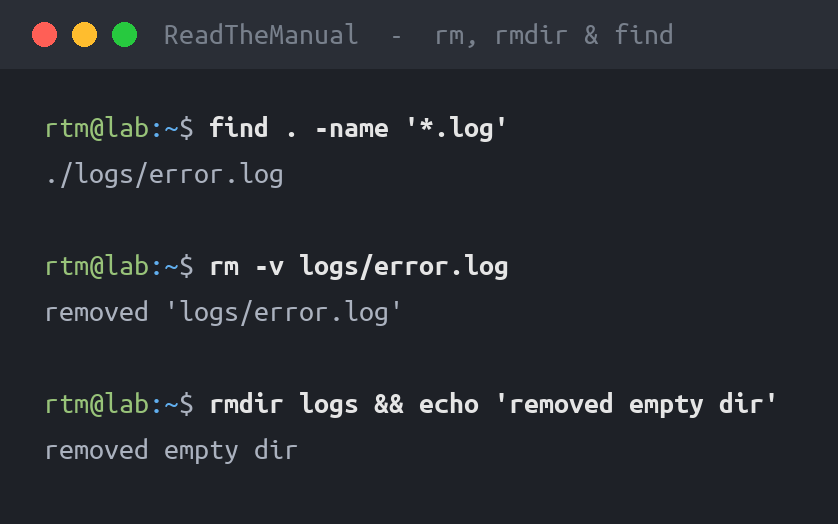
rm -v file1.txt file2.txt
# removed 'file1.txt'
# removed 'file2.txt'
Removing Directories
Empty Directories: rmdir
rmdir only removes empty directories. If the directory contains anything, it fails safely:
rmdir empty-folder     # Works
rmdir folder-with-files  # rmdir: failed to remove: Directory not empty
This is the safe option when you expect a directory to be empty.
Directories with Contents: rm -r
The -r (recursive) flag tells rm to descend into directories and delete everything inside:
# Delete a directory and everything in it
rm -r old-project/

# Delete with confirmation for each file
rm -ri old-project/
The Nuclear Option: rm -rf
Adding -f (force) suppresses all confirmation prompts and ignores nonexistent files:
rm -rf /tmp/build-output/This is the most dangerous command in Linux. It deletes everything recursively with no confirmation, no errors, and no recovery. A misplaced space or wrong path can wipe entire filesystems.
What NOT to Do
# NEVER run these
rm -rf /              # Deletes everything. Modern systems block this.
rm -rf /*             # Bypasses the / protection. Destroys everything.
rm -rf $UNDEFINED_VAR/  # If variable is empty, becomes rm -rf /
Always double-check your path before pressing Enter. If using variables, quote them and validate they are not empty:
# Safe pattern
DIR="/tmp/build-output"
if [ -n "$DIR" ] && [ -d "$DIR" ]; then
    rm -rf "$DIR"
fi
Deleting Files by Pattern with find
Using find is safer than rm with wildcards because you can preview what will be deleted before running the actual deletion.
Step 1: Preview
# See what would be deleted
find /var/log -name "*.log.gz" -mtime +30 -print
Step 2: Delete
# Delete files older than 30 days
find /var/log -name "*.log.gz" -mtime +30 -delete
Common Patterns
# Delete all .tmp files recursively
find . -name "*.tmp" -delete

# Delete empty directories
find . -type d -empty -delete

# Delete files larger than 100MB
find /var -size +100M -delete

# Delete files not accessed in 90 days
find /tmp -atime +90 -delete
Always run with -print first. When you are confident the results are correct, change -print to -delete.
Safer Alternatives to rm
If permanent deletion makes you nervous (it should), consider these approaches:
trash-cli
# Install
sudo apt install trash-cli

# Move to trash instead of deleting
trash-put file.txt

# List trashed files
trash-list

# Restore a file
trash-restore

# Empty trash
trash-empty
Move Before Deleting
# Move to a "to-delete" folder, review, then delete
mv old-files/ /tmp/to-delete/
# Later, when you are sure:
rm -rf /tmp/to-delete/
Why This Matters
File deletion is a basic skill with serious consequences. In production environments:
- Log rotation — automated cleanup of old logs to prevent disk full alerts
- Build pipelines — cleaning up temporary build artifacts
- Incident response — knowing what was deleted and when (audit logs)
- Backup verification — confident deletion only when backups are confirmed
Every sysadmin has an “rm -rf” horror story. The good ones learned from it and now use find -print first.
Next Steps
- Linux Fundamentals Series — the complete guide from basics to job-ready
- List Users in Linux — find who has access and manage accounts
- Check Your Linux Version — identify your distro and kernel
- Scripting Fundamentals — automate file management with Bash
This guide is part of the Linux Fundamentals series. See the full series for more guides like this.
Frequently Asked Questions
How do I delete a directory and all its contents in Linux?
Use rm -r followed by the directory name: rm -r mydir. The -r flag means recursive, which tells rm to descend into the directory and delete everything inside including subdirectories. Add -i for confirmation prompts on each file: rm -ri mydir.
What is the difference between rm and rmdir?
rmdir only removes empty directories and fails safely if the directory contains files. rm -r removes directories and all their contents recursively. Use rmdir when you expect a directory to be empty (it acts as a safety check), and rm -r when you intentionally want to delete a directory with contents.
Can I recover files deleted with rm in Linux?
Generally no. The rm command permanently removes files without moving them to a trash folder. On ext4 filesystems, tools like extundelete or testdisk can sometimes recover recently deleted files, but success is not guaranteed. For important data, use backups. Consider installing trash-cli as a safer alternative to rm.
How do I safely delete files matching a pattern in Linux?
Use find with -print first to preview what will be deleted, then change -print to -delete. For example: find . -name “*.log” -print shows matching files, then find . -name “*.log” -delete removes them. This is safer than rm *.log because you verify the matches before deletion.
Why is rm -rf dangerous?
rm -rf deletes everything recursively with no confirmation prompts, no error messages for missing files, and no recovery option. A mistyped path, an empty variable, or a misplaced space can wipe entire filesystems. Always double-check the path before running it, validate variables are not empty in scripts, and consider using find -print to preview first.
RTFM Apparel · printed in the UK


ReadTheManual is run, written and curated by Eric Lonsdale.
Eric has over 20 years of professional experience in IT infrastructure, cloud architecture, and cybersecurity, but started with PCs long before that.
He built his first machine from parts bought off tables at the local college campus, hoping they worked. He learned on BBC Micros and Atari units in the early 90s, and has built almost every PC he’s used between 1995 and now.
From helpdesk to infrastructure architect, Eric has worked across enterprise datacentres, Azure environments, and security operations. He’s managed teams, trained engineers, and spent two decades solving the problems this site teaches you to solve.
ReadTheManual exists because Eric believes the best way to learn IT is to build things, break things, and actually read the manual. Every guide on this site runs on infrastructure he owns and maintains.
Enjoyed this guide?
New articles on Linux, homelab, cloud, and automation every 2 days. No spam, unsubscribe anytime.