You have inherited a server, taken over a project, or just need to audit who has access. The first question: who has an account on this machine?
Linux stores user information in a few well-defined places. Once you know where to look, listing users, checking their groups, and managing accounts becomes straightforward.
Quick Reference
| Task | Command |
|---|---|
| List all users | cat /etc/passwd |
| List usernames only | cut -d: -f1 /etc/passwd |
| List human users only | awk -F: '$3 >= 1000 {print $1}' /etc/passwd |
| List local users plus any directory users your NSS setup enumerates | getent passwd |
| Check a specific user | id username |
| List groups for a user | groups username |
| List who is logged in | who or w |
| List recent logins | last |
Understanding /etc/passwd
Every user account on a Linux system has an entry in /etc/passwd. Despite the name, this file does not contain passwords (those are in /etc/shadow, which requires root access).
cat /etc/passwdEach line follows this format:
username:x:UID:GID:comment:home_directory:shellExample:
eric:x:1000:1000:Eric Lonsdale:/home/eric:/bin/bash
www-data:x:33:33:www-data:/var/www:/usr/sbin/nologin
nobody:x:65534:65534:nobody:/nonexistent:/usr/sbin/nologin
The seven fields are:
- Username — the login name
- Password placeholder — always
x(actual hash is in /etc/shadow) - UID — user ID number (0 = root, 1-999 = system accounts, 1000+ = human users)
- GID — primary group ID
- Comment/GECOS — full name or description
- Home directory — the user’s home folder
- Shell — the login shell (
/bin/bashfor interactive users,/usr/sbin/nologinfor service accounts)
List All Usernames
The full /etc/passwd output is noisy. To see just the usernames:
cut -d: -f1 /etc/passwdThis cuts each line at the colon delimiter and prints field 1 (the username).
Alternative using awk:
awk -F: '{print $1}' /etc/passwdBoth produce the same result. Use whichever you remember.
List Human Users Only (Filter System Accounts)
Most Linux systems create dozens of system accounts (www-data, nobody, systemd-network, etc.). To see only real human user accounts, filter by UID 1000 or higher:
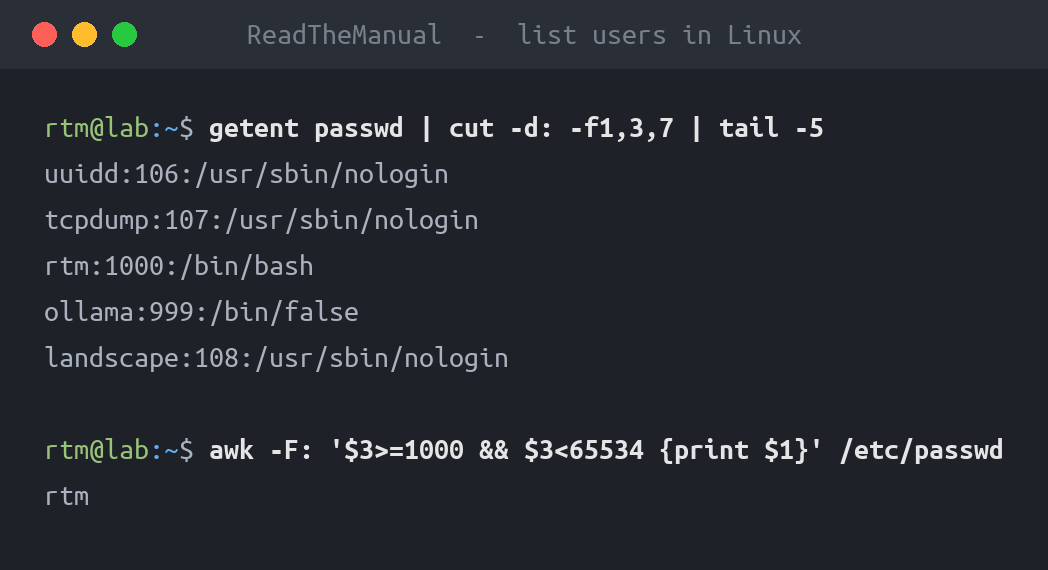
awk -F: '$3 >= 1000 && $3 < 65534 {print $1}' /etc/passwdThis works because:
- UID 0 = root
- UID 1-999 = system and service accounts
- UID 1000+ = human users created with
useraddoradduser - UID 65534 =
nobody(excluded)
You can also use compgen if you just want a quick list:
compgen -uThis lists every user name the system can enumerate, system accounts included (it is not filtered to UID 1000+). Like getent passwd below, it only includes LDAP or Active Directory users if the directory is set to allow enumeration, which SSSD does not do by default.
List Users Including LDAP and Active Directory
If your server is joined to Active Directory or uses LDAP for authentication, /etc/passwd only shows local accounts. getent queries the Name Service Switch (NSS) instead, which covers local files plus whatever /etc/nsswitch.conf points at (SSSD, LDAP, winbind). The output format is identical to /etc/passwd:
getent passwdThe catch: on a domain-joined machine this usually still shows only local accounts. SSSD (what realm join sets up on Ubuntu) has enumerate = false by default, so it never lists the whole directory; domain users only appear when looked up by name. Winbind behaves the same way unless enumeration is switched on. Look users up individually instead:
getent passwd eric
getent passwd [email protected]   # if fully qualified names are on (realm join's default)
id [email protected]
If the user exists (locally or via LDAP/AD), you will see their entry. If not, no output and a non-zero exit code. Setting enumerate = true for the domain in /etc/sssd/sssd.conf makes getent passwd list directory users too, but it is slow and loads the directory on large domains, which is why it is off by default. To list who is in a domain group, getent group "groupname" works without enumeration, though it may only show members SSSD has already resolved.
Check a Specific User's Details
The id command shows everything about a user in one line:
id ericOutput:
uid=1000(eric) gid=1000(eric) groups=1000(eric),4(adm),27(sudo),999(docker)This tells you:
- Their UID and primary group
- Every group they belong to (including sudo, docker, etc.)
For just the groups in a readable format:
groups ericOutput:
eric : eric adm sudo dockerSee Who Is Currently Logged In
To see active sessions:
# Simple list
who

# Detailed (includes load average, idle time, what they are running)
w
Example w output:
 14:23:01 up 42 days,  3:15,  2 users,  load average: 0.15, 0.10, 0.08
USER     TTY      FROM             LOGIN@   IDLE   JCPU   PCPU WHAT
eric     pts/0    192.168.1.50     14:20    0.00s  0.03s  0.00s w
deploy   pts/1    10.0.0.5         09:15    5:08m  0.01s  0.00s -bash
To see recent login history:
# Last logins
last

# Last 10 logins
last -n 10

# Failed login attempts (requires root; Ubuntu 24.04 and earlier)
sudo lastb
On Ubuntu 26.04 these tools changed: last comes from the wtmpdb package, lastb is no longer shipped, and lastlog is replaced by lastlog2. For failed SSH logins on any release, the journal works: sudo journalctl -u ssh.service | grep -i 'failed password'.
Security tip: Run last regularly to spot unexpected logins. On a server, you should recognise every IP address that connects. If you do not, investigate immediately.
Managing User Accounts
Add a New User
# Interactive (creates home dir, sets shell, prompts for password)
sudo adduser newuser

# Non-interactive (minimal, no home dir by default)
sudo useradd newuser

# Non-interactive with home dir and bash shell
sudo useradd -m -s /bin/bash newuser
sudo passwd newuser
Recommendation: Use adduser on Debian/Ubuntu for interactive setup. Use useradd with flags in scripts for automation.
Add a User to a Group
# Add to sudo group (gives admin privileges)
sudo usermod -aG sudo username

# Add to docker group (run Docker without sudo)
sudo usermod -aG docker username
The -a flag means append. Without it, usermod -G replaces all secondary groups, which can lock users out of sudo. Always use -aG.
Remove a User
# Remove user but keep their home directory
sudo userdel username

# Remove user AND their home directory
sudo userdel -r username
Lock and Unlock Accounts
# Lock the password (password logins fail)
sudo usermod -L username

# Also expire the account, so SSH key logins fail too
sudo usermod -L -e 1 username

# Unlock (and clear the expiry if you set one)
sudo usermod -U -e "" username

# Check status (L in the second field means the password is locked)
sudo passwd -S username
usermod -L on its own only locks the password by putting ! in front of the hash in /etc/shadow. A user with an SSH key in ~/.ssh/authorized_keys can still log in. The usermod manual says to set the expiry date to 1 as well if you want to lock the account rather than just the password, which is what -e 1 does.
Locking is better than deleting when you need to disable access temporarily or preserve the user's files and audit trail.
Useful One-Liners
# Count total users on the system
wc -l /etc/passwd

# Count human users only
awk -F: '$3 >= 1000 && $3 < 65534' /etc/passwd | wc -l

# List users with sudo access
getent group sudo

# List users with shell access (can log in)
grep -v '/nologin\|/false' /etc/passwd | cut -d: -f1

# Find users who have never logged in (Ubuntu 24.04 and earlier; 26.04 uses lastlog2)
lastlog | grep "Never logged in"

# List all groups on the system
cut -d: -f1 /etc/group
Quick User Audit Script
Here is a script you can drop onto any server for a fast user audit:
#!/bin/bash
echo "=== System: $(hostname) ==="
echo "=== Date: $(date) ==="
echo ""
echo "--- Human Users (UID >= 1000) ---"
awk -F: '$3 >= 1000 && $3 < 65534 {printf "  %-20s UID:%-6s Shell:%s\n", $1, $3, $7}' /etc/passwd
echo ""
echo "--- Users With Sudo Access ---"
getent group sudo | cut -d: -f4 | tr ',' '\n' | sed 's/^/  /'
echo ""
echo "--- Currently Logged In ---"
who | sed 's/^/  /'
echo ""
echo "--- Last 5 Logins ---"
last -n 5 | head -5 | sed 's/^/  /'
Why This Matters
User management is a daily sysadmin task:
- Onboarding -- create accounts, assign groups, set permissions
- Offboarding -- disable or remove accounts when people leave (a common security audit finding)
- Incident response -- check who is logged in, review login history, identify compromised accounts
- Compliance -- auditors want to see that access is reviewed regularly and stale accounts are removed
- Automation -- Ansible playbooks that manage users across fleets need these same commands under the hood
Next Steps
- Check Your Linux Version -- know what OS and kernel you are running
- Scripting Fundamentals -- automate user management with Bash scripts
- Linux Fundamentals Series -- the full series from basics to job-ready
- Secure Linux Servers with Ansible -- automate security hardening including user account policies
Frequently Asked Questions
How do I list all users in Linux?
Run cat /etc/passwd to see all local user accounts, or cut -d: -f1 /etc/passwd for just the usernames. getent passwd also queries LDAP or Active Directory sources, but SSSD does not enumerate directory users by default, so on a domain-joined machine look users up by name with getent passwd username or id username.
How do I list only human users in Linux?
Run awk -F: '$3 >= 1000 && $3 < 65534 {print $1}' /etc/passwd. This filters by UID 1000 or higher, which is where human user accounts start on most Linux distributions. System and service accounts use UIDs below 1000.
How do I check what groups a user belongs to?
Run id username to see the user's UID, primary group, and all secondary groups. For a simpler output, run groups username which lists just the group names. Checking group membership is important for verifying sudo access, Docker permissions, and file sharing.
How do I see who is currently logged into a Linux server?
Run the w command for a detailed view showing usernames, login times, idle time, and what command they are running. The who command gives a simpler list. For historical login data, use last to see recent logins or sudo lastb to see failed login attempts (on Ubuntu 26.04, which no longer ships lastb, check the journal with sudo journalctl -u ssh.service).
How do I add a user to the sudo group in Linux?
Run sudo usermod -aG sudo username. The -a flag means append (add to the group without removing from other groups) and -G specifies the group. Always use -aG together. Without the -a flag, usermod replaces all secondary groups, which can accidentally remove the user from other important groups.
RTFM Apparel · printed in the UK


ReadTheManual is run, written and curated by Eric Lonsdale.
Eric has over 20 years of professional experience in IT infrastructure, cloud architecture, and cybersecurity, but started with PCs long before that.
He built his first machine from parts bought off tables at the local college campus, hoping they worked. He learned on BBC Micros and Atari units in the early 90s, and has built almost every PC he’s used between 1995 and now.
From helpdesk to infrastructure architect, Eric has worked across enterprise datacentres, Azure environments, and security operations. He’s managed teams, trained engineers, and spent two decades solving the problems this site teaches you to solve.
ReadTheManual exists because Eric believes the best way to learn IT is to build things, break things, and actually read the manual. Every guide on this site runs on infrastructure he owns and maintains.
Enjoyed this guide?
New articles on Linux, homelab, cloud, and automation every 2 days. No spam, unsubscribe anytime.