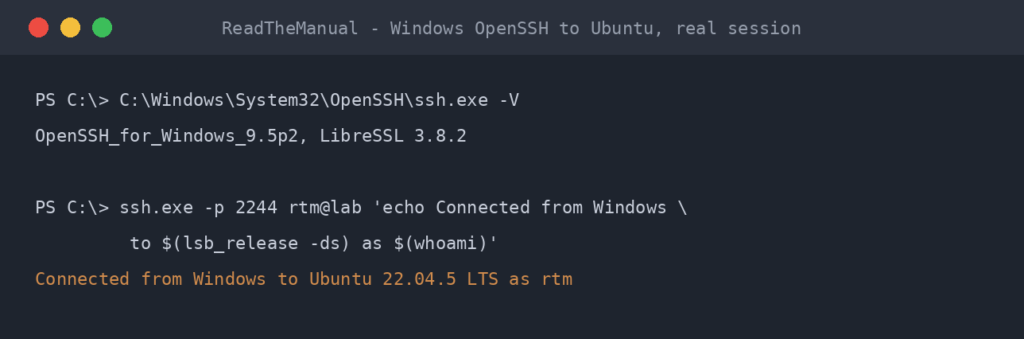
You have just SSH’d into a server and need to know what you are working with. Is it Ubuntu 22.04? Debian 12? CentOS Stream 9? The commands are simple but there are several options, and each reveals different information.
This guide covers five methods to check your Linux distribution and version. All work over SSH, all work without sudo, and at least one will work on every distro you will encounter.
Quick Reference
| Command | Shows | Works On |
|---|---|---|
cat /etc/os-release |
Distro name, version, ID, codename | All modern Linux (systemd-based) |
lsb_release -a |
Distro ID, description, release, codename | Ubuntu, Debian (may need install on others) |
uname -a |
Kernel version, architecture, hostname | Every Linux and Unix system |
hostnamectl |
OS, kernel, architecture, hostname, chassis type | All systemd-based distros |
cat /etc/issue |
Login banner with distro name and version | Most distros (may be customised) |
Method 1: cat /etc/os-release (Recommended)
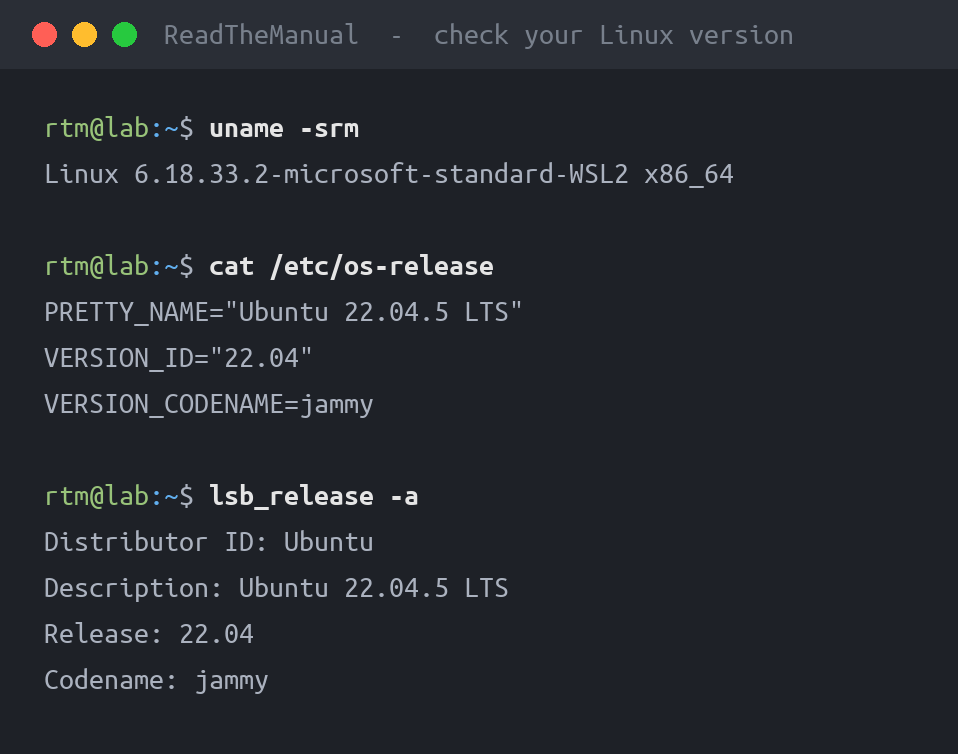
This is the most reliable method on any modern Linux distribution. The /etc/os-release file is standardised across distros and always present on systems using systemd.
cat /etc/os-releaseExample output on Ubuntu 24.04 (first lines; the file continues with URLs and UBUNTU_CODENAME):
PRETTY_NAME="Ubuntu 24.04.1 LTS"
NAME="Ubuntu"
VERSION_ID="24.04"
VERSION="24.04.1 LTS (Noble Numbat)"
VERSION_CODENAME=noble
ID=ubuntu
ID_LIKE=debian
Key fields:
PRETTY_NAME— the human-readable full name and versionVERSION_ID— just the version number (useful in scripts)ID— the distro identifier in lowercase (ubuntu, debian, fedora, centos)ID_LIKE— the parent distro family (debian, rhel, suse)
Pro tip: Use this in scripts to handle distro-specific logic:
source /etc/os-release
echo "Running on $NAME $VERSION_ID"

if [ "$ID" = "ubuntu" ]; then
    apt update
elif [ "$ID" = "fedora" ]; then
    dnf update
fi
Method 2: lsb_release -a
The LSB (Linux Standard Base) release command gives a clean, formatted output. It comes pre-installed on Ubuntu and Debian. On other distros you may need to install the lsb-release package first.
lsb_release -aExample output:
Distributor ID: Ubuntu
Description:    Ubuntu 24.04.1 LTS
Release:        24.04
Codename:       noble
Useful flags:
lsb_release -d— description only (one line)lsb_release -r— release number onlylsb_release -c— codename onlylsb_release -i— distributor ID only
If you get command not found on Debian or Ubuntu, install it:
# Debian/Ubuntu
sudo apt install lsb-release
On RHEL 9 and its rebuilds (Rocky, AlmaLinux) the old redhat-lsb-core package that used to provide lsb_release is no longer shipped, so use cat /etc/os-release there instead.
Method 3: uname -a (Kernel Version)
The uname command works on every Linux and Unix system ever made. It shows the kernel version rather than the distribution version, but it is universally available.
uname -aExample output on the same Ubuntu 24.04 server (the build date after PREEMPT_DYNAMIC varies by kernel build):
Linux webserver01 6.8.0-45-generic #45-Ubuntu SMP PREEMPT_DYNAMIC [build date] x86_64 x86_64 x86_64 GNU/LinuxBreaking that down:
Linux— kernel namewebserver01— hostname6.8.0-45-generic— kernel version (Ubuntu 24.04 shipped with the 6.8 kernel; later point releases can move to a newer hardware-enablement kernel)#45-Ubuntu— build info (often hints at the distro)x86_64— CPU architecture (important for Docker images and package selection); it is repeated for machine, processor and hardware platform
Useful flags:
uname -r— kernel release onlyuname -m— machine architecture only (x86_64, aarch64, armv7l)uname -n— hostname only
When this matters: Kernel version is critical when troubleshooting driver issues, checking if a security patch has been applied, or verifying compatibility with software that requires a minimum kernel version (like Docker, WireGuard, or eBPF tools).
Method 4: hostnamectl
On any system running systemd (which is virtually every modern distro), hostnamectl gives you a clean summary of both OS and hardware information.
hostnamectlExample output (trimmed; recent versions also show hardware vendor, model and firmware lines):
 Static hostname: webserver01
       Icon name: computer-vm
         Chassis: vm
      Machine ID: a1b2c3d4e5f6...
         Boot ID: f6e5d4c3b2a1...
  Virtualization: kvm
Operating System: Ubuntu 24.04.1 LTS
          Kernel: Linux 6.8.0-45-generic
    Architecture: x86-64
This is particularly useful because it also shows:
- Chassis — whether you are on a VM, container, physical server, or laptop
- Virtualization — the hypervisor type (kvm, vmware, microsoft, oracle, xen)
- Architecture — CPU architecture in a readable format
This is the command to use when you need to quickly understand what kind of machine you are on, not just what OS it runs.
Method 5: cat /etc/issue
The /etc/issue file contains the text displayed on the login screen before you authenticate. It usually shows the distro name and version.
cat /etc/issueExample output:
Ubuntu 24.04.1 LTS \n \lThe \n and \l are escape codes for hostname and terminal line that get replaced on the actual login screen.
Warning: Some organisations customise this file with legal banners or security warnings, replacing the version info. It is also sometimes empty on minimal or container images. Use /etc/os-release as your primary method and fall back to this if needed.
Which Method Should You Use?
| Scenario | Best Command | Why |
|---|---|---|
| General purpose check | cat /etc/os-release |
Most reliable, standardised, scriptable |
| Clean one-line output | lsb_release -d |
Formatted description, no parsing needed |
| Kernel troubleshooting | uname -r |
Shows exact kernel release for patch verification |
| VM or hardware detection | hostnamectl |
Shows virtualisation type and chassis info |
| In a script | source /etc/os-release |
Variables ready to use without parsing |
| Minimal/container image | cat /etc/os-release |
Often the only file present in stripped-down images |
Bonus: Check Version in Docker Containers
Inside Docker containers, many of these files are stripped down. The most reliable approach:
# From outside the container
docker exec my-container cat /etc/os-release

# Inside the container
cat /etc/os-release
uname -a inside a container shows the host kernel, not the container’s OS. This catches people out. Use /etc/os-release for the container’s base image info.
Why This Matters for Your Career
Checking the OS version is one of the first things you do when:
- SSH’ing into an unfamiliar server for the first time
- Writing scripts that need to work across distros
- Troubleshooting package availability (packages differ between Ubuntu, Debian, RHEL)
- Verifying security patches are applied
- Documenting infrastructure for handover or audit
- Checking if a server meets minimum requirements for new software
It is a basic skill, but knowing which command to use and why is what separates someone who Googles it every time from someone who just knows.
Next Steps
Now you know what you are running, put that knowledge to use:
- Scripting Fundamentals — automate tasks with Bash and PowerShell
- Linux Fundamentals Series — the complete guide from basics to job-ready
- Cron and Task Scheduler — schedule your scripts to run automatically
Frequently Asked Questions
How do I check my Ubuntu version?
Run cat /etc/os-release in the terminal. The PRETTY_NAME field shows your Ubuntu version (e.g., Ubuntu 24.04.1 LTS). Alternatively, run lsb_release -a for a clean formatted output showing the distributor ID, description, release number, and codename.
What is the difference between Linux version and kernel version?
The Linux distribution version (e.g., Ubuntu 24.04) identifies the OS release with its package set and support lifecycle. The kernel version (e.g., 6.8.0-45-generic, shown by uname -r) identifies the core of the operating system that manages hardware and processes. A single Ubuntu version may receive multiple kernel updates.
How do I check my Linux version in a script?
Source the os-release file with source /etc/os-release, then use the variables directly. For example: if [ “$ID” = “ubuntu” ]; then apt update; fi. The VERSION_ID variable gives you the version number and ID gives you the distro name in lowercase.
Which command works on every Linux distribution?
The uname -a command works on every Linux and Unix system. However, it shows the kernel version, not the distribution version. For distro information, cat /etc/os-release works on all modern systemd-based distributions, which covers Ubuntu, Debian, Fedora, CentOS Stream, Arch, and most others.
How do I check the Linux version inside a Docker container?
Run cat /etc/os-release inside the container. The uname -a command shows the host kernel, not the container OS, which catches many people out. From outside, use docker exec my-container cat /etc/os-release to check what base image the container is built from.
RTFM Apparel · printed in the UK


ReadTheManual is run, written and curated by Eric Lonsdale.
Eric has over 20 years of professional experience in IT infrastructure, cloud architecture, and cybersecurity, but started with PCs long before that.
He built his first machine from parts bought off tables at the local college campus, hoping they worked. He learned on BBC Micros and Atari units in the early 90s, and has built almost every PC he’s used between 1995 and now.
From helpdesk to infrastructure architect, Eric has worked across enterprise datacentres, Azure environments, and security operations. He’s managed teams, trained engineers, and spent two decades solving the problems this site teaches you to solve.
ReadTheManual exists because Eric believes the best way to learn IT is to build things, break things, and actually read the manual. Every guide on this site runs on infrastructure he owns and maintains.
Enjoyed this guide?
New articles on Linux, homelab, cloud, and automation every 2 days. No spam, unsubscribe anytime.