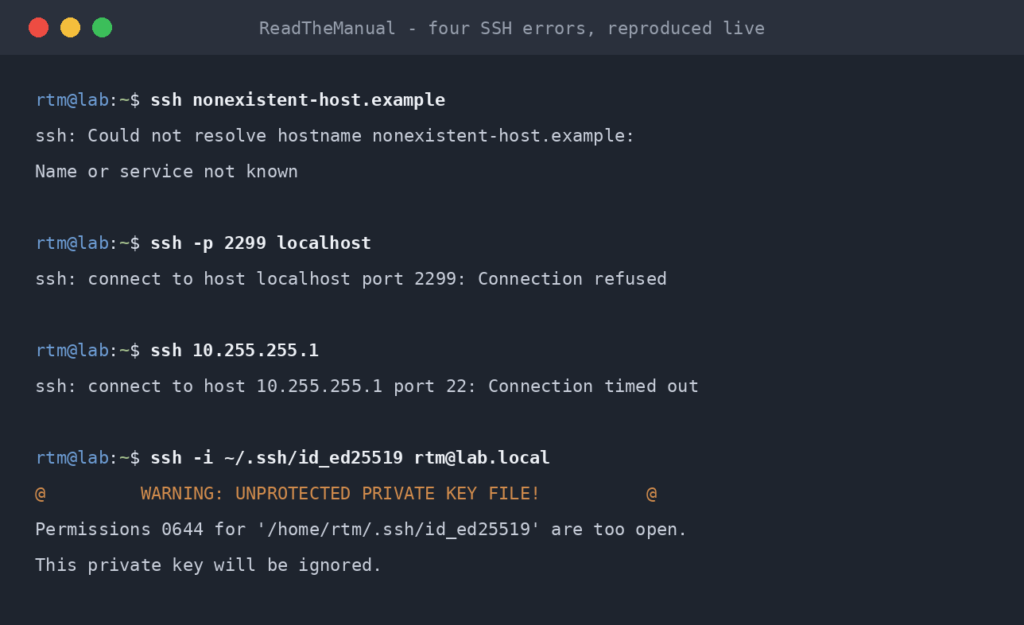
SSH error messages are terse. Most of them mean exactly one specific thing, but you have to know which thing. This is a reference list of the 20 errors you’ll actually hit running Ubuntu servers in production and at home, with diagnoses and fixes for each.
Tested against: Ubuntu Server 22.04 LTS, 24.04 LTS. OpenSSH 8.9 and 9.6. Most errors apply to other Linux distros and to OpenSSH on macOS/Windows.
1. Connection refused
ssh: connect to host 192.168.1.50 port 22: Connection refused
Cause: Server is reachable but nothing is listening on port 22.
Fix:
– sudo systemctl status ssh (or ssh.socket on 24.04+) — is it running?
– sudo ss -tnlp | grep :22 — is anything actually bound to port 22?
– Did you change the port in sshd_config? Use ssh -p NEWPORT user@host.
– On Ubuntu 24.04 and 26.04, a changed Port does nothing until the socket is regenerated: sudo systemctl daemon-reload then sudo systemctl restart ssh.socket. Restarting ssh.service alone leaves SSH on the old port, which is the usual cause of “refused after I changed the port”.
– On a fresh install: did you actually apt install openssh-server? It’s not installed by default on Ubuntu Desktop.
2. Connection timed out
ssh: connect to host 1.2.3.4 port 22: Connection timed out
Cause: Packets aren’t reaching the server. Firewall, routing, or the server is offline.
Fix:
– Can you ping the server? ping host. If no, network/routing issue.
– If ping works but SSH times out, firewall is blocking. Check ufw status on the server.
– Cloud server: check the cloud provider’s security group / network ACL.
– Home network: check the router’s port forwarding rules.
3. Permission denied (publickey)
user@host: Permission denied (publickey).
Cause: The server only accepts SSH key auth and your key isn’t being offered or accepted.
Fix:
– ssh -v user@host 2>&1 | grep -A2 'Offering public key' — which keys are being offered?
– On the server, check ~/.ssh/authorized_keys exists for the user, contains your key, and has correct permissions (600, owner = the user).
– Server-side directory perms: use 700 for ~/.ssh and 600 for ~/.ssh/authorized_keys. With the default StrictModes yes, sshd ignores the key if these (or the home directory) are writable by group or others; the client just sees this error, and the reason is only in the server log.
– sudo sshd -T | grep pubkeyauthentication — must be yes (it is by default; this catches a no in sshd_config or a drop-in under /etc/ssh/sshd_config.d/).
4. Permission denied (publickey,password)
user@host: Permission denied (publickey,password).
Cause: Both auth methods failed. You typed the wrong password, OR the username doesn’t exist on the server.
Fix:
– On the server, run whoami to confirm the username you should use.
– Try the password again, slowly. Check Caps Lock.
– If you’re certain the credentials are right, check /etc/ssh/sshd_config for AllowUsers — if it’s set, only listed users can SSH in.
5. Host key verification failed
@@@@@@@@@@@@@@@@@@@@@@@@@@@@@@@@@@@@@@@@@@@@@@@@@@@@@@@@@@@
@    WARNING: REMOTE HOST IDENTIFICATION HAS CHANGED!     @
@@@@@@@@@@@@@@@@@@@@@@@@@@@@@@@@@@@@@@@@@@@@@@@@@@@@@@@@@@@
Cause: The server’s host key has changed since the last time you connected.
Fix:
– Most innocent: server was reinstalled or rebuilt, so it has a new host key.
– Less innocent: someone is doing a man-in-the-middle attack.
– To clear the cached old key: ssh-keygen -R 192.168.1.50
– Reconnect, accept the new fingerprint (verify it’s correct first if security is a concern).
6. Connection reset by peer
kex_exchange_identification: read: Connection reset by peer
(Older OpenSSH releases print ssh_exchange_identification instead of kex_exchange_identification.)
Cause: Server actively dropped the TCP connection during handshake.
Fix:
– A common cause: fail2ban or similar tool banned your IP (depending on its ban action, a ban can also show up as “Connection refused” or a timeout). Wait the configured ban time, or unban from another machine: sudo fail2ban-client unban 1.2.3.4.
– Less common: sshd has a misconfiguration causing it to crash on connect. Check journalctl -u ssh.service on the server.
– MaxStartups: sshd starts dropping new unauthenticated connections when too many are open at once (default 10:30:100). On an internet-facing server a burst of bot traffic can trigger this for legitimate users too.
7. Port 22: No route to host
ssh: connect to host 1.2.3.4 port 22: No route to host
Cause: Network layer can’t find the destination. Either the server is down, or routing/DNS resolves to an unreachable network.
Fix:
– Check the IP is correct. dig host if using a hostname.
– traceroute host to see where the route dies.
– Cloud server: confirm it’s running in the provider console.
8. kex_exchange_identification: Connection closed by remote host
Cause: Server accepted the TCP connection but closed it before the SSH handshake completed.
Fix:
– Same checklist as #6 (fail2ban, sshd misconfiguration).
– Check /etc/hosts.deny on the server — if your IP is listed there, sshd refuses you instantly.
– Server out of disk space (no, really — sshd can fail to fork new connections if / is full).
9. Permissions are too open
@@@@@@@@@@@@@@@@@@@@@@@@@@@@@@@@@@@@@@@@@@@@@@@@@@@@@@@@@@@
@         WARNING: UNPROTECTED PRIVATE KEY FILE!          @
@@@@@@@@@@@@@@@@@@@@@@@@@@@@@@@@@@@@@@@@@@@@@@@@@@@@@@@@@@@
Permissions 0644 for '/home/you/.ssh/id_ed25519' are too open.
Cause: SSH refuses to use a private key that’s readable by anyone other than you.
Fix:
chmod 600 ~/.ssh/id_ed25519
chmod 700 ~/.ssh
10. Could not open a connection to your authentication agent
Could not open a connection to your authentication agent.
Cause: ssh-add was run but ssh-agent isn’t started.
Fix:
eval "$(ssh-agent -s)"
ssh-add ~/.ssh/id_ed25519
11. WARNING: REMOTE HOST IDENTIFICATION HAS CHANGED
Same as #5. See above.
12. ssh: Could not resolve hostname
ssh: Could not resolve hostname server: Name or service not known
Cause: DNS lookup failed.
Fix:
– Check the hostname is spelled right.
– dig server to see if DNS resolves.
– For .local mDNS hostnames: needs avahi-daemon running on the server and mDNS name resolution on the client. May not work over corporate VPNs or cellular.
– Use the IP address directly to bypass DNS.
13. Read from socket failed: Connection reset by peer
Cause: Network connection dropped mid-session. Could be router restart, ISP outage, or server side.
Fix:
– Reconnect.
– For sessions you don’t want to lose: use tmux or screen on the server. ssh user@host then tmux. If the SSH session drops, reconnect and tmux attach — you’re back in your session with all your work.
14. error: kex_exchange_identification: client sent invalid protocol identifier
Cause: Something is connecting to port 22 that isn’t SSH. Often a misconfigured load balancer or health check probing the wrong protocol.
Fix:
– Check what’s hitting your SSH port: journalctl -u ssh.service | grep kex
– If it’s a load balancer / monitoring tool, point it elsewhere.
15. Could not chdir to home directory
Could not chdir to home directory /home/username: No such file or directory
Cause: The user account exists in /etc/passwd but their home directory is missing or unreadable. You still get a shell, but it starts in /, and key login fails because ~/.ssh/authorized_keys is not there.
Fix:
– ls -ld /home/username on the server — does the home directory exist?
– If missing, recreate it: sudo mkhomedir_helper username (or restore from backup).
16. Disconnected: No supported authentication methods available
Cause: Server has disabled every auth method this client offers. Common after disabling password auth without first deploying keys. (This wording comes from PuTTY; the OpenSSH client shows Permission denied (publickey) for the same situation.)
Fix:
– This is the “you locked yourself out” message. You need physical/console access to fix sshd_config.
– Edit /etc/ssh/sshd_config from the local console: re-enable PasswordAuthentication yes temporarily, restart sshd, deploy your key, then disable passwords again.
17. Bind to port 22 on 0.0.0.0 failed: Address already in use
Cause: sshd can’t start because something else is on port 22.
Fix:
– sudo ss -tnlp | grep :22 — find what’s using the port.
– On Ubuntu 24.04 and 26.04, if the process shown is systemd, that is ssh.socket holding the port on sshd’s behalf, which is normal. The error usually means sshd was started by hand alongside it; manage SSH with systemctl rather than running sshd directly.
– If it is a different program, stop that program or move one of them to another port.
– Do not run pkill sshd to clear it. On a remote server it can kill the sshd process carrying your own session. If a stray sshd really is holding the port, kill only that PID (the one ss shows), ideally from the console.
18. Too many authentication failures
Received disconnect from 1.2.3.4 port 22:2: Too many authentication failures
Cause: Your SSH agent has many keys, SSH offers them all, server rejects after MaxAuthTries (default 6).
Fix:
– Specify exactly which key to use: ssh -i ~/.ssh/id_ed25519 -o IdentitiesOnly=yes user@host
– Or set up ~/.ssh/config with explicit per-host IdentityFile and IdentitiesOnly yes.
19. Welcome message printed but immediate disconnect
Cause: The user’s login shell is broken. SSH authenticates, then tries to start the shell, and the shell exits immediately.
Fix:
– Check the user’s shell in /etc/passwd (last field). Is it a valid shell? /bin/bash is the safe default.
– Check ~/.bashrc and ~/.bash_profile for a syntax error or exit statement.
– Try logging in with a different shell: ssh user@host -t '/bin/sh'.
20. ssh.socket vs ssh.service confusion (Ubuntu 24.04 and 26.04)
Cause: Tutorial says systemctl status ssh shows Active: active (running). On 24.04 and 26.04, systemctl status ssh shows Active: inactive (dead) until the first connection after boot, because socket activation hasn’t fired yet. systemctl status ssh.socket is the one that shows Active: active (listening).
Fix:
– This is normal on 24.04+ with socket activation. SSH is working.
– See the Enable SSH on Ubuntu Server pillar for the full explanation. Short version: the socket waits for a connection, then starts the service, which then keeps running.
– The same split catches port changes: on 24.04 and 26.04, apply a new Port with sudo systemctl daemon-reload and sudo systemctl restart ssh.socket, not by restarting ssh.service.
Same Errors, Same Fixes, Any Environment
“Connection refused” on your Pi and on a production VM have the same diagnostic steps. “Permission denied (publickey)” means the same thing whether you are connecting to your homelab or to an Azure VM. These error messages do not change based on who owns the server or how much the infrastructure costs.
Troubleshooting SSH at home builds the same diagnostic instinct you need at work. Check the service, check the firewall, check the keys, check the permissions, read the verbose output. That sequence works everywhere. The person who has debugged these errors twenty times on their own kit is the person the team turns to when production SSH breaks at 2am.
Companion guides: Enable SSH on Ubuntu Server, SSH Key Authentication on Ubuntu, SSH Hardening, Fail2ban for SSH. If you’ve hit an SSH error not on this list, drop it in the comments and I’ll add it.
The Complete SSH Series
Getting connected
- Enable SSH on Ubuntu Server
- Enable SSH on Raspberry Pi
- SSH Essentials: Remote Administration
- SSH from Windows to Ubuntu
Authentication and hardening
File transfer and tunnelling
Reference
- SSH Configuration Guide (overview)
- 20 Common SSH Errors (you are here)
Before you expose any of this: the seven steps that decide whether a home lab survives contact with the internet, in the order they matter, are in How to Secure a Homelab Network in 2026.
RTFM Apparel · printed in the UK


ReadTheManual is run, written and curated by Eric Lonsdale.
Eric has over 20 years of professional experience in IT infrastructure, cloud architecture, and cybersecurity, but started with PCs long before that.
He built his first machine from parts bought off tables at the local college campus, hoping they worked. He learned on BBC Micros and Atari units in the early 90s, and has built almost every PC he’s used between 1995 and now.
From helpdesk to infrastructure architect, Eric has worked across enterprise datacentres, Azure environments, and security operations. He’s managed teams, trained engineers, and spent two decades solving the problems this site teaches you to solve.
ReadTheManual exists because Eric believes the best way to learn IT is to build things, break things, and actually read the manual. Every guide on this site runs on infrastructure he owns and maintains.
Enjoyed this guide?
New articles on Linux, homelab, cloud, and automation every 2 days. No spam, unsubscribe anytime.