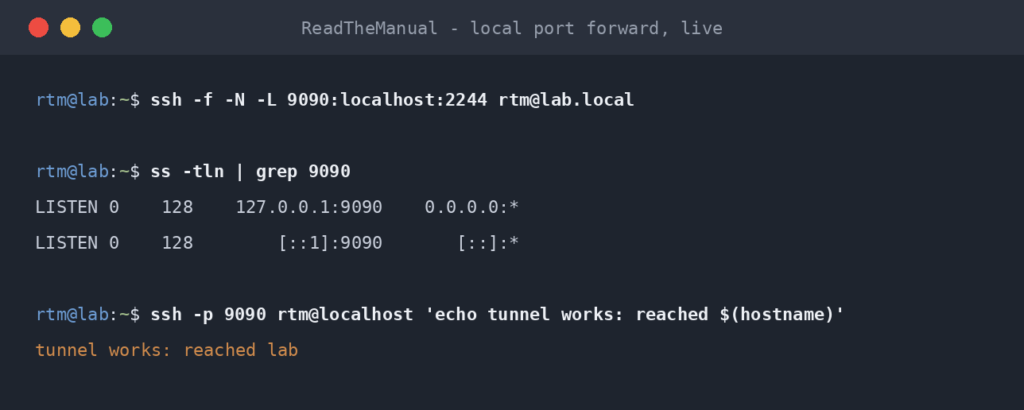
SSH isn’t just for remote shells. Three separate tunneling modes let you carry arbitrary TCP traffic over an SSH connection: a poor-man’s VPN, a way to reach services behind a firewall, or a SOCKS proxy for browsing through a remote machine.
The three modes — local forward (-L), remote forward (-R), dynamic forward (-D) — are subtly different and the names confuse most people on first encounter. This post walks through all three with worked examples.
Tested on: Ubuntu Server 22.04 LTS, 24.04 LTS, Windows 11 (OpenSSH client). Tunneling works identically across modern OpenSSH versions.
Mental model
All three modes share the same core idea: an SSH connection becomes a pipe that arbitrary TCP traffic can travel through. The difference is which end of the pipe is the client, which is the server, and what the pipe terminates into.
- Local forward (
-L): “I want to reach a service that’s reachable from the SSH server but not from me.” - Remote forward (
-R): “I want to expose a service on my local machine to clients that can reach the SSH server but not me.” - Dynamic forward (
-D): “I want a SOCKS proxy on my local machine that routes traffic via the SSH server.”
Local forward (-L) — the most common case
Use case: you can SSH into a jump server. The jump server can reach a database server on its private network. You can’t reach the database directly. You want to connect your local DB client to the database.
ssh -L 5432:database-internal.example.com:5432 user@jump-server
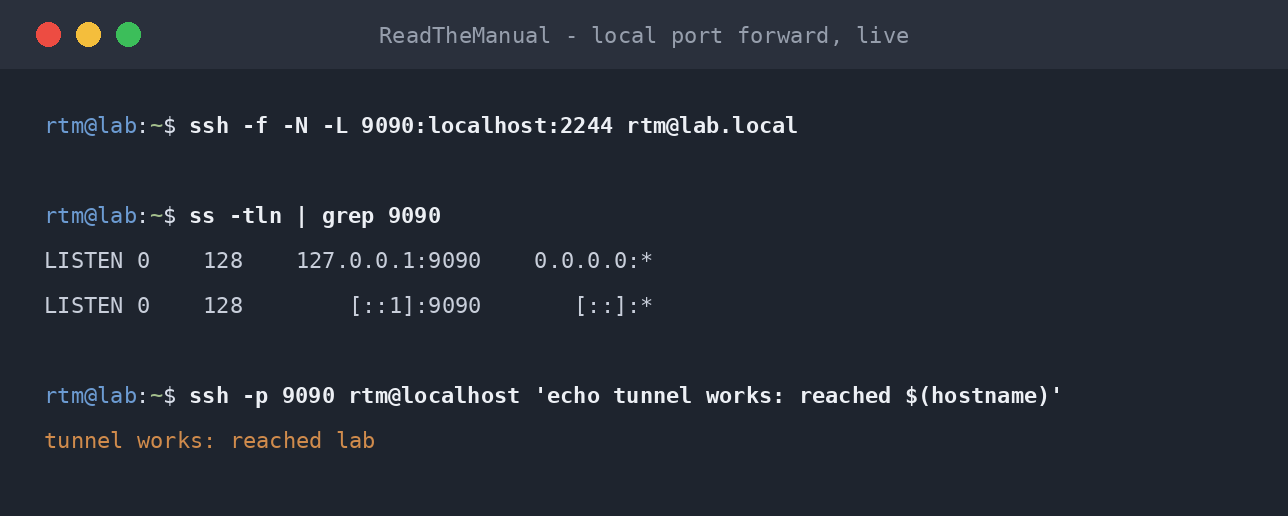
Reading right-to-left: SSH to jump-server as user, and while that session is open, listen on localhost:5432 on YOUR machine and forward any connections through the SSH tunnel to database-internal.example.com:5432 (resolved from the jump server’s perspective).
Your local DB client connects to localhost:5432. Traffic gets tunnelled to the jump server, then on to the actual database, returns the same way. Database thinks it’s being talked to by the jump server.
Common variants
Forward to a service on the SSH server itself:
ssh -L 8080:localhost:80 user@web-server
Reach web-server‘s port 80 via your local port 8080. The localhost here is from the SSH server’s perspective.
Bind to all local interfaces (so other machines on your LAN can use the tunnel too):
ssh -L 0.0.0.0:5432:database:5432 user@jump
Be careful — this exposes the tunnel to everyone on your LAN. Default behaviour binds only to your loopback (127.0.0.1).
Multiple forwards in one connection:
ssh -L 5432:db:5432 -L 6379:redis:6379 -L 9200:elastic:9200 user@jump
One SSH session, three tunnels.
Remote forward (-R) — the reverse
Use case: you’re working on a web app on your local laptop. You need to demo it to someone who can reach your jump server but not your laptop directly (you’re behind NAT).
ssh -R 8080:localhost:3000 user@jump-server
Reading: SSH to jump-server, and listen on jump-server:8080, forwarding connections back through the tunnel to localhost:3000 on YOUR machine.
Now anyone who can reach jump-server:8080 is actually hitting your local app on port 3000. Useful for demos, webhooks during development, or “I need to expose this to a colleague briefly without deploying it.”
GatewayPorts gotcha
By default, -R only binds the remote port to localhost on the SSH server. So localhost:8080 on the jump server works, but external clients hitting jump-server-public-ip:8080 get nothing.
To bind to a public-facing interface, the SSH server must have:
GatewayPorts yes
in /etc/ssh/sshd_config. Default is no for security reasons — this is intentional and you should think carefully before enabling it.
A safer pattern is GatewayPorts clientspecified plus an explicit bind from the client:
ssh -R 0.0.0.0:8080:localhost:3000 user@jump-server
This requires GatewayPorts clientspecified on the server, and the client explicitly opts in to the public bind.
Dynamic forward (-D) — SOCKS proxy
Use case: you want to browse the internet from the SSH server’s perspective (e.g. to access a company resource that’s IP-restricted to your office network, while you’re at home).
ssh -D 1080 user@office-server
This opens a SOCKS5 proxy on localhost:1080 on your laptop. Configure your browser (or system) to use 127.0.0.1:1080 as a SOCKS5 proxy. Now ALL your browser traffic routes through the SSH tunnel and exits via the office server.
Useful for:
- Accessing services that are firewalled to the office IP, while remote
- Testing geo-restricted content from a server in a different country
- Avoiding network-level surveillance on a hostile network (cafe WiFi, hotel)
In Firefox: Settings -> Network Settings -> Manual proxy configuration -> SOCKS Host 127.0.0.1 Port 1080, SOCKS v5, “Proxy DNS when using SOCKS v5” checked.
This is a real “VPN-lite” — not as comprehensive as WireGuard or OpenVPN, but adequate for light browsing through a remote IP.
Background tunnels
By default, -L, -R, and -D open a regular SSH session AND start the tunnel. You stay attached to the shell. Closing the shell closes the tunnel.
For a tunnel without a shell, use -N (no remote command) and -f (background):
ssh -fN -L 5432:db:5432 user@jump
This connects, sets up the tunnel, and forks to the background. The connection is still tied to the local terminal session — when you log out, the SSH connection terminates.
For a truly persistent tunnel, use autossh:
autossh -fN -L 5432:db:5432 user@jump
autossh monitors the tunnel and reconnects automatically if it drops. Far more reliable for long-running tunnels.
Disable tunneling on the server (if you don’t use it)
If you’re SSH’ing into a server that has no business tunnelling traffic, turn it off in sshd_config:
AllowTcpForwarding no
AllowAgentForwarding no
GatewayPorts no
PermitTunnel no
This closes a chunk of attack surface. See the SSH Hardening guide.
When NOT to use SSH tunnels
Tunnels are clever and they’re widely used because they “just work” without much setup. But for serious cases there are usually better tools:
- Long-term remote access to home services — use Tailscale or NetBird (mesh VPN). Easier setup, automatic reconnection, no SSH key permissions to manage.
- Securely exposing a service to the public internet — use Cloudflare Tunnel or a proper reverse proxy. Tunnel + auth-on-the-app is the modern pattern.
- Bulk traffic — SSH tunnels are CPU-bound on slow boxes (Pi Zero etc.). For high-throughput traffic between two networks, WireGuard outperforms SSH-tunnels significantly.
Quick reference
# Local forward: reach remote-side service via local port
ssh -L LOCAL_PORT:REMOTE_HOST:REMOTE_PORT user@ssh-server

# Remote forward: expose local service via SSH server
ssh -R REMOTE_PORT:LOCAL_HOST:LOCAL_PORT user@ssh-server

# Dynamic SOCKS proxy
ssh -D LOCAL_PORT user@ssh-server

# Background tunnel (no shell)
ssh -fN [-L|-R|-D] ... user@ssh-server

# Persistent reconnect-on-drop
autossh -fN [-L|-R|-D] ... user@ssh-server
Where Homelab Meets the Corporate Firewall
Local port forwarding to reach your homelab Grafana dashboard remotely is the same technique that developers use daily to access database servers behind a corporate firewall. Remote forwarding to demo a local app through a jump box is how webhook testing works in most dev teams. The -L, -R, and -D flags do not care whether the network is your home LAN or a segmented enterprise VLAN.
If you understand SSH tunnelling well enough to reach a service on your home network from a coffee shop, you understand enough to troubleshoot connectivity between application tiers in a corporate environment. The topology is more complex at work, but the tool and the thinking are the same.
Companion guides: Enable SSH on Ubuntu Server, SSH Hardening, SSH Key Authentication on Ubuntu, SSH from Windows.
The Complete SSH Series
Getting connected
- Enable SSH on Ubuntu Server
- Enable SSH on Raspberry Pi
- SSH Essentials: Remote Administration
- SSH from Windows to Ubuntu
Authentication and hardening
File transfer and tunnelling
- SCP and SFTP: Transfer Files
- SSH Tunnelling and Port Forwarding (you are here)
Reference
Before you expose any of this: the seven steps that decide whether a home lab survives contact with the internet, in the order they matter, are in How to Secure a Homelab Network in 2026.
RTFM Apparel · printed in the UK


ReadTheManual is run, written and curated by Eric Lonsdale.
Eric has over 20 years of professional experience in IT infrastructure, cloud architecture, and cybersecurity, but started with PCs long before that.
He built his first machine from parts bought off tables at the local college campus, hoping they worked. He learned on BBC Micros and Atari units in the early 90s, and has built almost every PC he’s used between 1995 and now.
From helpdesk to infrastructure architect, Eric has worked across enterprise datacentres, Azure environments, and security operations. He’s managed teams, trained engineers, and spent two decades solving the problems this site teaches you to solve.
ReadTheManual exists because Eric believes the best way to learn IT is to build things, break things, and actually read the manual. Every guide on this site runs on infrastructure he owns and maintains.
Enjoyed this guide?
New articles on Linux, homelab, cloud, and automation every 2 days. No spam, unsubscribe anytime.