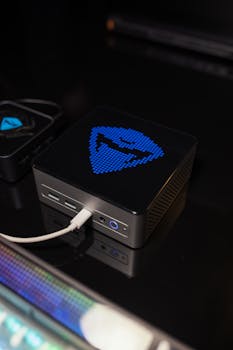
Raspberry Pi or mini PC for a homelab? It is a question I get asked weekly, and the answer is more “both, for different things” than people expect.
I have run both for years. The Pi handles lightweight services where low power and a small footprint matter. The mini PC runs everything else: virtualisation, databases, anything that needs real compute. Here is the honest comparison I wish someone had given me when I started, plus the power draw numbers, gathered from published reviews, that nobody seems to put in one place.
Raspberry Pi or Mini PC for a Homelab? (Short Answer)
Run both if you can: a Pi for always-on light services at 4-6W idle, and a mini PC for virtualisation and anything RAM-hungry at 12-18W. Avoid pressing an old 65W+ desktop into 24/7 duty – at UK electricity prices the “free” machine costs nearly three times a new Pi 5 4GB kit over three years. Use the calculator below with your own tariff.
Homelab Power Cost Calculator: Pi vs Mini PC vs Desktop
Wattage defaults are the typical idle and load figures discussed in this post, drawn from published reviews and spec sheets. Edit any number to match your hardware and tariff. Costs update instantly – nothing leaves your browser.
| Device | Watts | Hardware £ | £/month | £/year | 3-yr energy | 3-yr total |
|---|---|---|---|---|---|---|
| Raspberry Pi 5 4GB (kit) | ||||||
| Raspberry Pi 4 (used) | ||||||
| N100 mini PC | ||||||
| i5 mini PC (load) | ||||||
| SFF desktop (used) | ||||||
| Old tower you already own |
Want the full comparison sheet and the config library when it opens? Grab it from the RTM Toolbox.
From the homelab: How I Use Both
I run both Raspberry Pis and mini PCs in my homelab, and they serve very different purposes. The Pis handle lightweight services — DNS filtering, monitoring agents, and automation tasks. The mini PCs run Proxmox and host everything else — VMs, heavy containers, databases, and anything that needs real compute or storage. Here is the honest comparison I wish someone had given me when I started.
When to Choose a Raspberry Pi
A Raspberry Pi is the right choice when the workload is lightweight and the priority is low power consumption, small footprint, or GPIO access for hardware projects.
Ideal Pi workloads:
- DNS filtering — Pi-hole or AdGuard Home. A Pi handles this effortlessly and draws barely any power doing it.
- Monitoring agents — Running Uptime Kuma, node exporters, or lightweight dashboards.
- Automation — n8n or Node-RED for home automation workflows, scheduled scripts, webhook receivers.
- Learning Linux — A Pi is a brilliant first Linux box. SSH in, break things, re-image, repeat. The feedback loop is fast and the cost of failure is zero.
- GPIO and hardware projects — Sensors, LED displays, relay controllers. Mini PCs cannot do this.
Pi limitations to be aware of:
- ARM architecture. Most Docker images support ARM64 now, but some niche or enterprise software still only ships x86 binaries. Check before you commit.
- RAM ceiling. The Pi 5 tops out at 16GB (that model shipped in January 2025), soldered on and not upgradeable, and memory price rises have made the bigger models expensive: in October 2026 the Pi Hut lists the 8GB board at £168 and the 16GB at £293. For services like Nextcloud with a database, or anything Java-based, you will hit this ceiling faster than you expect.
- SD card reliability. MicroSD cards were never designed for the constant read/write cycles of a server OS. They fail — not if, but when. Boot from a USB SSD (or an NVMe drive on a Pi 5), not a USB flash stick. A flash stick uses the same kind of cheap flash as an SD card, with far less wear levelling and spare capacity than an SSD, and wears out the same way under constant server writes. Moving from SD card to USB stick changes the port, not the reliability.
When to Choose a Mini PC
A mini PC is the right choice when you need virtualisation, more RAM, real storage, or x86 compatibility. This is where serious homelab infrastructure lives.
Ideal mini PC workloads:
- Proxmox or any hypervisor. Running multiple VMs and containers on a single box. This is the backbone of most homelabs.
- Databases. PostgreSQL, MariaDB, or anything that benefits from fast SSD storage and available RAM.
- Media servers. Jellyfin with transcoding needs CPU grunt that a Pi simply cannot deliver.
- Windows Server or Active Directory labs. You need x86 for this. No Pi will run Windows Server.
- Anything compute-heavy. AI inference, build servers, CI/CD runners — anywhere that CPU and RAM matter.
Mini PC advantages over Pis:
- x86 compatibility. Every Docker image, every VM image, every piece of enterprise software runs on x86 without question.
- Expandable RAM. Most refurbished ThinkCentres accept 32GB or even 64GB. A Pi 5 gives you 16GB maximum, fixed at purchase.
- Real SSDs. M.2 NVMe or 2.5-inch SATA. Proper storage that does not degrade over time like SD cards.
- Silent operation. Modern mini PCs are virtually silent at idle. Some models are fanless entirely.
Real-World Power Consumption
One of the most common questions is “how much will it cost to run?” The answer, for both options, is very little.
| Device | Idle Power | Under Load | Yearly Cost (24/7, at 30p/kWh) |
|---|---|---|---|
| Raspberry Pi 5 | 3-5W | 10-15W | ~8-13 quid |
| Raspberry Pi 4 | 2-4W | 6-8W | ~5-10 quid |
| Lenovo ThinkCentre M720q (i5) | 8-12W | 35-65W | ~21-32 quid |
| HP EliteDesk 800 G5 Mini | 10-15W | 40-70W | ~26-39 quid |
Neither option is going to make a meaningful dent in your electricity bill. Even running a three-node Proxmox cluster 24/7, you are looking at roughly 60-100 quid per year — less than a Netflix and Spotify subscription combined.
Head-to-Head Comparison
| Feature | Raspberry Pi 5 (8GB) | Refurbished Mini PC (i5, 16GB) |
|---|---|---|
| Price | ~168 quid for the board alone (Pi Hut, October 2026), plus PSU, case and SSD | ~100-150 quid |
| RAM | 8GB (not upgradeable) | 16-32GB (upgradeable) |
| Storage | USB SSD or NVMe HAT | M.2 NVMe + 2.5″ SATA |
| Power Draw | 3-15W | 8-65W |
| Noise | Silent (passive cooling available) | Near-silent at idle |
| Architecture | ARM64 | x86_64 |
| Virtualisation | Limited (no nested virt) | Full Proxmox/ESXi support |
| GPIO | Yes — 40-pin header | No |
| Best For | DNS, monitoring, automation, learning | VMs, containers, databases, media |
My Recommendation
Start with whichever you already have lying around. An old laptop, a Pi from a previous project, a dusty NUC — it does not matter. Install Docker, deploy a service, and see if the homelab bug bites.
If you are buying new and want a clear recommendation:
- Budget around 150 quid: Raspberry Pi 5 4GB (about 106 quid for the board in October 2026) with the official power supply and a USB SSD. You get a genuine Linux server for learning, DNS filtering, lightweight containers, and automation. It is a serious machine for the price.
- Budget 100-150 quid: A refurbished Lenovo ThinkCentre M720q or similar with an i5, 16GB RAM, and an SSD. Install Proxmox and you have a proper virtualisation host that will run a dozen containers without breaking a sweat.
- Budget ~300 quid: Get both. A Pi for the lightweight always-on services and a mini PC for the heavy lifting. This is genuinely all you need for a serious homelab, and the two devices together will draw less power than a single light bulb.
Do not overthink it. The best homelab hardware is the hardware you actually set up and use.
Why This Matters for Your Career
Both platforms work as the foundation for the kind of homelab that gets you noticed in interviews. The Pi shows you can run lean and document your decisions. The mini PC shows you can stand up enterprise-style infrastructure on your own time. Either platform, with the work documented and the failures recorded, is what hiring managers want to see when they ask “what have you built outside of work?”
The platform matters less than the evidence you produce. Pick the one that fits your budget and start documenting.
Still deciding what to run it all on? The homelab quiz matches your goals and budget to a build path, free and ungated like everything in the RTM Toolbox.
Frequently Asked Questions
Is a Raspberry Pi or mini PC better for a homelab?
It depends on your goals. A Raspberry Pi 5 board costs from about £43 (1GB) to £168 (8GB) at October 2026 UK prices and uses 5-12W, making it ideal for learning and always-on lightweight services. A refurbished mini PC (around £100-150) offers x86 compatibility, more RAM, and can run VMs via Proxmox. Start with a Pi for learning, upgrade to a mini PC when you need more power.
How much power does a Raspberry Pi use compared to a mini PC?
A Raspberry Pi 5 draws 5-12W under typical homelab workloads. An Intel N100 mini PC draws 10-25W. Over a year, the Pi costs roughly £10-15 in electricity versus £20-30 for a mini PC — both far cheaper than running a full server.
Can a Raspberry Pi run Docker and Proxmox?
A Raspberry Pi can run Docker containers natively on ARM64, but cannot run Proxmox (which requires x86_64). For virtualisation with Proxmox, you need a mini PC or x86 system. For containers-only workloads, a Pi works perfectly.
What should I buy first for a homelab — Raspberry Pi or mini PC?
Start with a Raspberry Pi 5 4GB (about £106 for the board in October 2026) or a used Pi 4. It teaches you Linux, Docker, networking, and SSH. Once you outgrow it or need VMs, add a mini PC. Many homelabbers run both — Pi for lightweight always-on services, mini PC for heavier workloads.
RTFM Apparel · printed in the UK


ReadTheManual is run, written and curated by Eric Lonsdale.
Eric has over 20 years of professional experience in IT infrastructure, cloud architecture, and cybersecurity, but started with PCs long before that.
He built his first machine from parts bought off tables at the local college campus, hoping they worked. He learned on BBC Micros and Atari units in the early 90s, and has built almost every PC he’s used between 1995 and now.
From helpdesk to infrastructure architect, Eric has worked across enterprise datacentres, Azure environments, and security operations. He’s managed teams, trained engineers, and spent two decades solving the problems this site teaches you to solve.
ReadTheManual exists because Eric believes the best way to learn IT is to build things, break things, and actually read the manual. Every guide on this site runs on infrastructure he owns and maintains.
Enjoyed this guide?
New articles on Linux, homelab, cloud, and automation every 2 days. No spam, unsubscribe anytime.