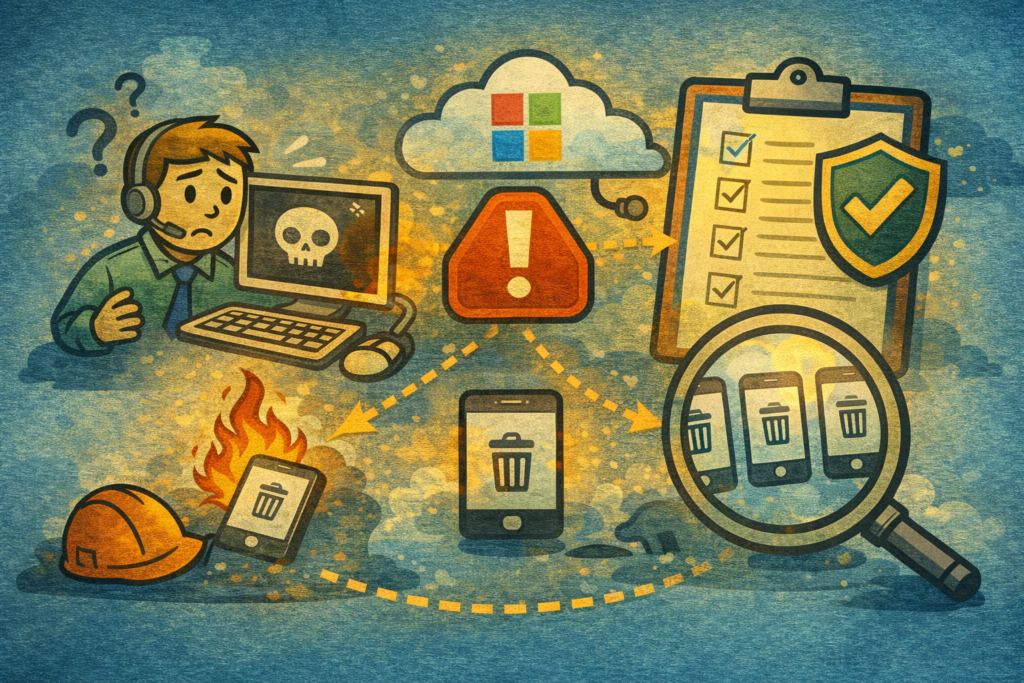
This week a global medical technology company had their Microsoft tenant compromised. The attackers didn’t deploy custom malware. They logged into the Intune admin console and used the built-in device management tools to trigger a bulk wipe across the entire managed device fleet.
From the field: This is the detection rule I would want in place before any bulk device action can run. The incident below shows why: the damage was done before anyone noticed.
The company has around 56,000 employees, and the attackers claimed to have wiped more than 200,000 systems and devices, including personal phones enrolled through BYOD. Overnight.
The tool performed exactly as designed. It just wasn’t the right person using it.
This article covers the controls Microsoft provides to prevent this, the ones most organisations haven’t enabled, and the Sentinel KQL queries that would detect it happening in your environment.
How Intune Bulk Wipe Works
Intune supports bulk remote actions on up to 100 devices per operation. Any admin with the right permissions can select devices, choose “Wipe,” and execute. There’s a confirmation prompt, but no secondary approval by default.
The only rate limit is a tenant-wide daily cap (covered below), and it is set far higher than most organisations’ normal wipe volume. Nothing stops a single admin account from running bulk wipes repeatedly across device groups until that cap is reached.
Three built-in actions can destroy your device fleet:
- Wipe – factory resets the device, removing all data
- Retire – removes corporate data but leaves personal data intact
- Delete – removes the device record from Intune
For an attacker with admin access, Wipe is the nuclear option. And it’s available to anyone with the right RBAC permissions.
The Controls That Already Exist
Microsoft provides several layers of protection. The problem is that most of them aren’t enabled by default, and many organisations don’t know they’re there.
1. Multi Admin Approval (MAA)
This is the single most important control for preventing what happened this week.
When enabled, a wipe, retire, or delete action requires approval from a second administrator before it executes. The initiating admin provides a business justification, and the request sits in a queue until a second admin explicitly approves it.
Where to find it: Intune admin center > Tenant administration > Multi Admin Approval > Access policies, then create a policy with the Device actions profile type
Requirements:
- By default, every admin taking part (requester and approver) needs an Intune licence assigned. A tenant setting can allow unlicensed admins, but once switched on it can’t be turned off
- At least two admin accounts must exist (you can’t approve your own requests, and Global Administrator or Intune Administrator requests still need a different approver)
- The approver group must be a security group with direct members, assigned to an Intune role
- The Device actions policy type covers Wipe, Retire, and Delete. It also applies to the same actions sent through the Microsoft Graph API by automation, unless you exclude that app
What to watch for: It’s not fully clear from Microsoft’s documentation whether MAA triggers once per bulk operation or once per device within a bulk operation. If you’re relying on MAA as your primary control, test this in your environment. A compromised admin who can bulk-wipe 100 devices with a single approval is better than no approval at all, but it’s not the same as per-device approval.
Enable this today. If you do nothing else from this article, turn on Multi Admin Approval for wipe actions. It takes minutes to configure, and it means a single compromised admin account can no longer wipe devices without a second administrator approving the request.
2. RBAC Role Scoping
Intune’s role-based access control lets you create custom roles with granular permissions. The “Wipe” permission sits under Remote Tasks and can be removed from any custom role.
Practical approach:
- Create a “Standard Admin” role without Wipe/Retire/Delete permissions. This covers 95% of daily device management work.
- Create a “Device Recovery” role with Wipe permissions, scoped to specific device groups via scope tags.
- Assign the recovery role only to senior admins, ideally through PIM (see below).
Scope tags limit which devices an admin can see and manage. If an admin’s scope tag doesn’t match a device’s scope tag, they can’t touch it. This means even a compromised admin account can only affect the devices within its scope, not the entire fleet.
The gotcha: When a user is assigned multiple Intune roles, permissions are additive. Intune grants ALL permissions from ALL assigned roles across ALL scopes. Multiple role assignments compound permissions rather than restrict them. Audit your role assignments regularly.
3. Privileged Identity Management (PIM)
PIM provides just-in-time admin access. Instead of standing Intune Administrator permissions, admins must actively request elevation before they can access the admin console.
Two approaches:
Option A: PIM for the built-in Intune Administrator role
- Can require MFA and approval as activation conditions
- Good for small teams where a single Intune role is sufficient
Option B: PIM for Groups with custom RBAC roles
- Create a security group that maps to your “Device Recovery” RBAC role
- Put the group membership behind PIM
- Activation can take longer to take effect than a directory role, because Intune has to pick up the group membership change
- Better for larger environments where you need role separation
Both approaches add:
- A timestamped activation event in audit logs
- Mandatory business justification
- Optional approval from a second person
- Time-limited access (e.g., 4 hours maximum)
An attacker with stolen credentials can’t just log in and wipe devices. They’d need to activate the role first, which triggers MFA, logs the activation, and optionally requires a second person to approve.
4. Phishing-Resistant MFA (Hardware Security Keys)
All the controls above assume authentication is solid. If an attacker phishes an admin’s password and SMS code, they bypass MFA entirely. Phishing-resistant MFA removes that vector.
FIDO2 hardware security keys like the YubiKey Security Key bind authentication to the physical device and the specific site. An attacker can’t replay the credential because it’s cryptographically tied to the legitimate domain. No code to intercept, no push notification to fatigue-approve.
For Entra ID / Intune admins:
- Register FIDO2 security keys as an authentication method in Entra ID
- Require phishing-resistant MFA strength in Conditional Access policies (see below)
- Combine with PIM so elevation requires the physical key
Practical note: Buy two keys. Register both. Keep one on your keyring and one in a safe. If you lose your primary key, the backup prevents a lockout that sends you crawling back to password-based recovery.
The Snowflake and Change Healthcare breaches both used stolen credentials with no MFA, or MFA that could be phished. A £25 hardware key would have stopped both.
5. Conditional Access on the Admin Portal
Conditional Access policies can restrict who accesses the Intune admin console and under what conditions.
Target the “Microsoft Admin Portals” resource in your CA policy, scoped to your admin accounts or roles. It covers the Intune admin center along with the other Microsoft admin portals. Don’t confuse it with the “Microsoft Intune” and “Microsoft Intune Enrollment” resources, which also apply to ordinary users’ device check-in and enrolment.
Recommended conditions:
- Require phishing-resistant MFA (FIDO2 key) for all Intune admin portal access
- Require a compliant or hybrid-joined device (admins managing devices from unmanaged devices is a risk)
- Restrict to trusted/named locations (corporate network, VPN)
- Set sign-in frequency to re-authenticate every few hours
Limitation: Conditional Access controls authentication, not actions. Once an admin is authenticated, CA doesn’t prevent them from executing wipes. It does create an authentication audit trail tied to the session where wipes occurred, which matters for forensics and Sentinel detection.
The Gap: Rate Limiting Is Tenant-Wide, Not Per Admin
Intune now applies a daily limit per tenant on destructive device actions: 500 Wipe, 1,000 Retire and 1,000 Delete requests a day, counted across single-device actions, bulk actions and Graph API calls. Microsoft support can change the limits on request.
That cap is the only throttle. There is no per-admin limit, no cooldown between bulk operations and no devices-per-hour threshold. An admin (or attacker) can execute bulk wipe on 100 devices, immediately execute another bulk wipe on the next 100, and keep going until the tenant hits 500 wipes for the day. For most organisations, 500 wiped devices is already a disaster.
This is a design choice. Intune assumes admins are trusted. The entire security model depends on preventing unauthorised access (via MAA, PIM, CA, RBAC) rather than limiting what authorised admins can do.
If your prevention controls fail, the daily cap only limits the size of the damage. Which is why detection matters.
Sentinel KQL: Detecting Bulk Wipes
If you’re running Microsoft Sentinel with the Intune data connector, device management actions are logged in the IntuneAuditLogs table.
Query 1: Bulk Wipe Detection (Threshold Alert)
Alert when any single admin triggers more than 5 wipe/retire/delete actions in a 15-minute window:
IntuneAuditLogs
| where TimeGenerated > ago(24h)
| where OperationName has "wipe"
    or OperationName has "retire"
    or OperationName has "Delete ManagedDevice"
| extend ActorUPN = tostring(todynamic(Properties).Actor.UPN)
| summarize
    ActionCount = count(),
    DeviceList = make_set(tostring(todynamic(Properties).TargetDisplayNames))
    by ActorUPN, bin(TimeGenerated, 15m)
| where ActionCount > 5
| project TimeGenerated, ActorUPN, ActionCount, DeviceList
Adjust the threshold based on your environment. If your team legitimately bulk-wipes devices (e.g., hardware refresh cycles), set the threshold above your normal operational volume.
Query 2: Out-of-Hours Wipe Actions
Any wipe action outside business hours or on weekends deserves scrutiny. TimeGenerated is in UTC, so shift the hours for your time zone (UK business hours are an hour earlier in UTC during British Summer Time):
IntuneAuditLogs
| where TimeGenerated > ago(7d)
| where OperationName has "wipe"
    or OperationName has "retire"
    or OperationName has "Delete ManagedDevice"
| extend ActorUPN = tostring(todynamic(Properties).Actor.UPN)
| extend HourOfDay = hourofday(TimeGenerated)
| extend DayOfWeek = dayofweek(TimeGenerated)
| where HourOfDay < 8 or HourOfDay >= 18 or DayOfWeek in (6d, 0d)
| project TimeGenerated, ActorUPN, OperationName, HourOfDay, DayOfWeek
Query 3: Wipe Velocity Spike
Compare the last 24 hours of wipe activity against the daily average of the 29 days before it. Alert if the count exceeds 3x the daily average:
let baseline = IntuneAuditLogs
| where TimeGenerated > ago(30d) and TimeGenerated < ago(1d)
| where OperationName has "wipe"
    or OperationName has "retire"
    or OperationName has "Delete ManagedDevice"
| summarize DailyAvg = count() / 29.0;
IntuneAuditLogs
| where TimeGenerated > ago(1d)
| where OperationName has "wipe"
    or OperationName has "retire"
    or OperationName has "Delete ManagedDevice"
| summarize TodayCount = count()
| extend DailyAvg = toscalar(baseline)
| where TodayCount > DailyAvg * 3
| project TodayCount, DailyAvg, Multiplier = TodayCount / DailyAvg
Query 4: First-Time Wipe Actor
Flag any admin executing their first-ever wipe action. Useful for detecting compromised accounts that have never previously performed device management:
let known_actors = IntuneAuditLogs
| where TimeGenerated > ago(90d) and TimeGenerated < ago(1d)
| where OperationName has "wipe"
| extend ActorUPN = tostring(todynamic(Properties).Actor.UPN)
| distinct ActorUPN;
IntuneAuditLogs
| where TimeGenerated > ago(1d)
| where OperationName has "wipe"
| extend ActorUPN = tostring(todynamic(Properties).Actor.UPN)
| where ActorUPN !in (known_actors)
| project TimeGenerated, ActorUPN, OperationName
Important Notes on These Queries
Table name: IntuneAuditLogs requires the Microsoft Intune data connector enabled in Sentinel.
Operation names: The confirmed values are wipe ManagedDevice, retire ManagedDevice, and Delete ManagedDevice. Microsoft also uses cleanWindowsDevice ManagedDevice for some wipe variants. Test against your own logs to confirm which operations appear in your environment.
Properties field: This is a JSON blob that requires parsing with todynamic(). The Actor UPN sits at Properties.Actor.UPN. Validate the nesting in your environment before deploying to production.
Retention: The Intune admin center shows up to a year of audit logs, and the Graph API returns up to two years of audit events. Your Sentinel workspace retention policy may differ. If you need to keep the audit trail for longer than the workspace does, a Log Analytics data export rule can copy supported tables to a storage account, where a lifecycle policy moves older data to a cheaper tier; our Azure Storage guide covers access tiers, lifecycle management and immutable storage.
Recommended Layered Approach
No single control would have prevented the Stryker incident. The answer is layering:
| Layer | Control | Prevents | Detects |
|---|---|---|---|
| 1 | Multi Admin Approval | Single-admin wipe execution | – |
| 2 | PIM | Standing admin access | Role activation anomalies |
| 3 | RBAC scope tags | Fleet-wide admin reach | – |
| 4 | Phishing-resistant MFA | Credential phishing, MFA bypass | – |
| 5 | Conditional Access | Untrusted device/location access | Authentication anomalies |
| 6 | Sentinel KQL | – | Bulk wipe patterns, velocity spikes, out-of-hours actions, first-time actors |
Layers 1-5 are prevention. Layer 6 is detection. You need both.
If the attacker bypasses your Conditional Access policy (trusted device, trusted location, valid MFA), phishing-resistant MFA with a hardware key stops credential replay. PIM adds another gate with just-in-time elevation. If they activate PIM, MAA adds a third. If MAA fails (or isn’t enabled), Sentinel catches the anomalous wipe pattern and alerts your SOC.
The controls existed before this week’s attack. Most of them are off until someone turns them on.
What You Should Do Today
If you manage Intune for your organisation:
- Enable Multi Admin Approval for Wipe, Retire, and Delete. This takes 10 minutes and is the highest-impact single change.
- Audit your RBAC roles. Who has Wipe permissions right now? Does everyone who has them need them?
- Put Intune Administrator behind PIM. No standing admin access. Just-in-time elevation with MFA and justification.
- Issue hardware security keys to all Intune admins. A YubiKey costs less than a single incident response hour. Require phishing-resistant MFA in your Conditional Access policies.
- Deploy the Sentinel KQL queries above (or adapt them for your SIEM). Even the basic threshold alert would flag a run of bulk wipes within minutes.
- Test MAA behaviour with bulk operations. Confirm whether approval triggers per-operation or per-batch in your environment. Document the result.
The tooling to prevent this exists. The gap isn’t technology. It’s configuration.
Some links in this article are affiliate links. I earn a small commission if you purchase through them, at no extra cost to you.
This article is part of a series on the recent Stryker incident. For more on self-hosted infrastructure, security hardening, and digital sovereignty, visit readthemanual.co.uk.
Related Guides
If you found this useful, these guides continue the journey:
- Azure Identity and Governance — the identity layer these detections monitor
- Azure AZ-104 Series — broader Azure administration context

RTFM Apparel · printed in the UK


ReadTheManual is run, written and curated by Eric Lonsdale.
Eric has over 20 years of professional experience in IT infrastructure, cloud architecture, and cybersecurity, but started with PCs long before that.
He built his first machine from parts bought off tables at the local college campus, hoping they worked. He learned on BBC Micros and Atari units in the early 90s, and has built almost every PC he’s used between 1995 and now.
From helpdesk to infrastructure architect, Eric has worked across enterprise datacentres, Azure environments, and security operations. He’s managed teams, trained engineers, and spent two decades solving the problems this site teaches you to solve.
ReadTheManual exists because Eric believes the best way to learn IT is to build things, break things, and actually read the manual. Every guide on this site runs on infrastructure he owns and maintains.
Enjoyed this guide?
New articles on Linux, homelab, cloud, and automation every 2 days. No spam, unsubscribe anytime.