
Not every homelab needs a Windows Server. If yours runs Jellyfin and a few containers, you can skip this one. But if you want to learn Active Directory, Group Policy and the Windows skills businesses actually pay for, you need one in your lab, and the 180-day evaluation from Microsoft means it costs nothing to start.
This is the written companion to the video: installing Windows Server 2025 as a VM on Proxmox, with the exact settings I used, why I picked them, and the two things that catch people out (the edition choice and the 10-day activation rule). At the end you have a clean server ready for whatever project comes next: a domain controller, a file server, or hybrid identity with Entra.
Last updated 23 October 2026. Built on Proxmox VE with the Windows Server 2025 evaluation ISO downloaded on 22 October 2026. Evaluation terms checked on the Microsoft Evaluation Center the same day.
Why I still put Windows Server in a homelab
When I started in IT it was Server 2003. I was working through the MCSE with the big blue Microsoft self-study books, because I couldn’t afford CBT Nuggets and nobody had a lab at home. Virtualisation wasn’t something you did on a desk.
So I took an old desktop, Windows 98 era, and made it a Server 2003 domain controller, then joined an old Windows XP laptop to the domain. That gave me somewhere to create users, set up groups, learn share and NTFS permissions and reset passwords. When I got my chance in IT support, around 2005, and someone asked “can you create a user?”, I could say “I know how to do that”, because I’d already done it at home.
Twenty years on, the skills are the same. Features get added, but the fundamentals of administering Windows Server haven’t changed. The box is just a VM now.
It still matters at work, too. Plenty of businesses are hybrid now, with Microsoft Entra in the cloud and Active Directory still on premises, even if what’s left is an old file share. If you understand both sides, you understand how most companies actually sign people in. (If hybrid identity is where you’re heading, Entra Connect Sync vs Cloud Sync is the next read after this.)
What you need
- A Proxmox VE host. Mine is a Beelink SER5 mini PC with a 2 TB NVMe drive for VM disks and a second, slower 2 TB SSD for data. If you haven’t built the host yet, start with How to Install Proxmox VE.
- The Windows Server 2025 evaluation ISO from the Microsoft Evaluation Center. Register, choose your language and the ISO download (64-bit edition). It’s a little over 5 GB.
- The VirtIO drivers ISO (
virtio-win.iso, stable) from the Proxmox VirtIO drivers page. These are Proxmox’s equivalent of VMware Tools. - Resources: I gave the VM 4 vCPUs, 8 GB of RAM and 150 GB of disk across two drives. 4 GB of RAM is enough for a lab domain controller; 8 GB is more comfortable with the desktop.
Upload both ISOs to your ISO storage in Proxmox (local > ISO Images > Upload, or Download from URL) before you start.
Step 1: Create the VM
Click Create VM and work through the tabs.
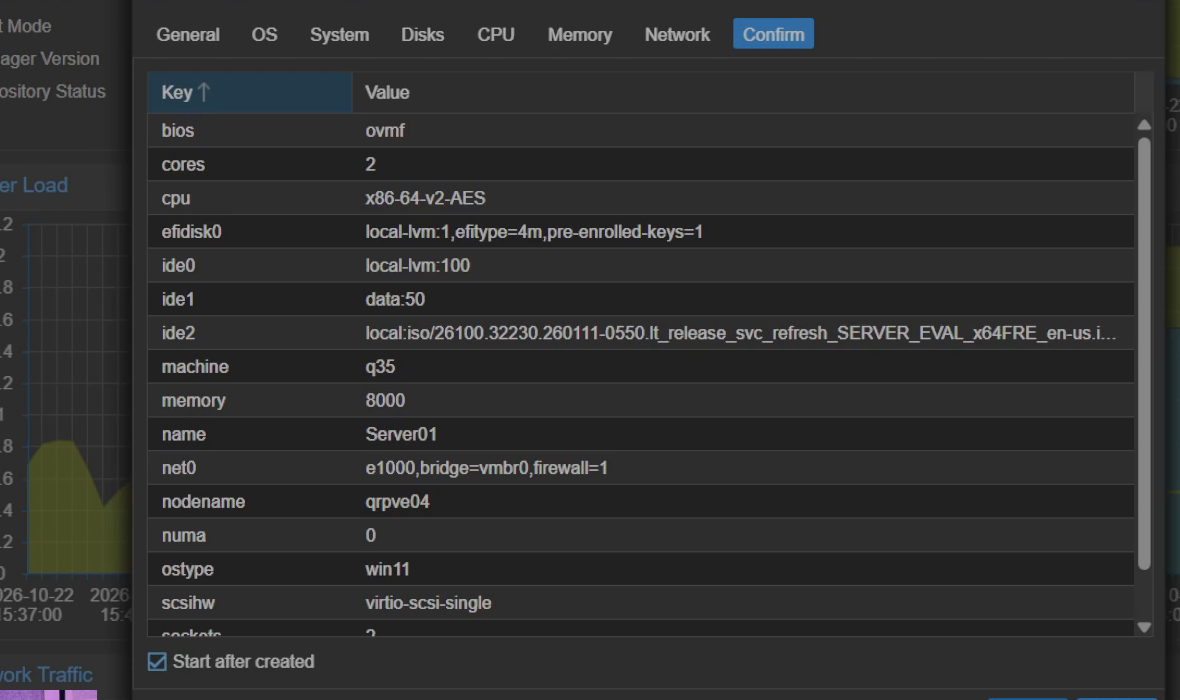
General. Give it a name. Mine is Server01.
OS. Pick the Server 2025 ISO and set the guest OS type to Microsoft Windows (Proxmox lists it as 11/2022/2025).
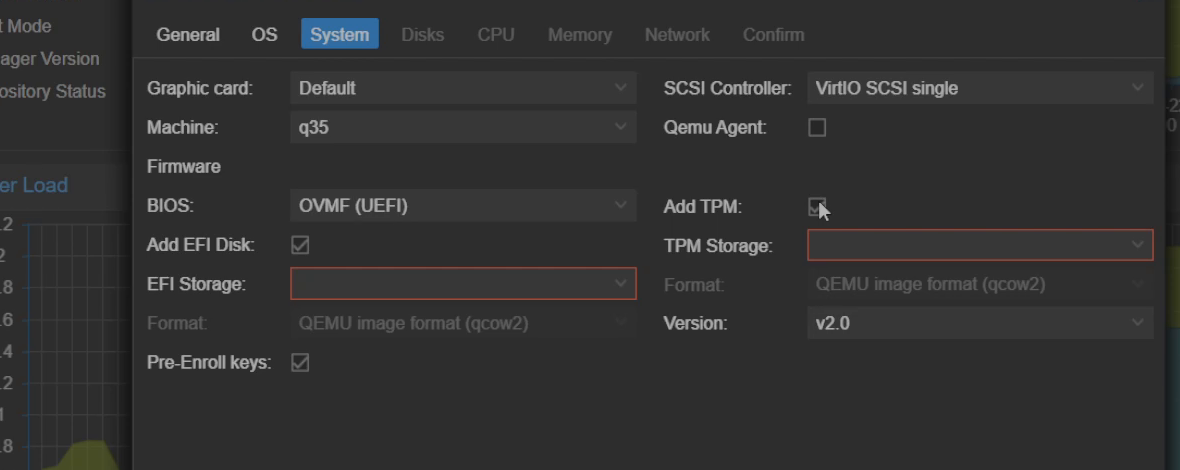
System. This is the tab that matters:
- Machine:
q35 - BIOS:
OVMF (UEFI), with an EFI disk on your fast storage (mine islocal-lvmon the NVMe) - TPM: I left it off. Windows Server doesn’t need one. Windows 11 clients do, so tick it when you build those.
- SCSI controller: VirtIO SCSI single (the default)
Disks. I added two:
- 100 GB on the fast NVMe for the operating system
- 50 GB on the slower SSD as a data disk
That’s the habit from real servers: the OS lives on its own disk, and data, software and logs go on separate ones. When you rebuild or move things later, you’ll be glad you did.
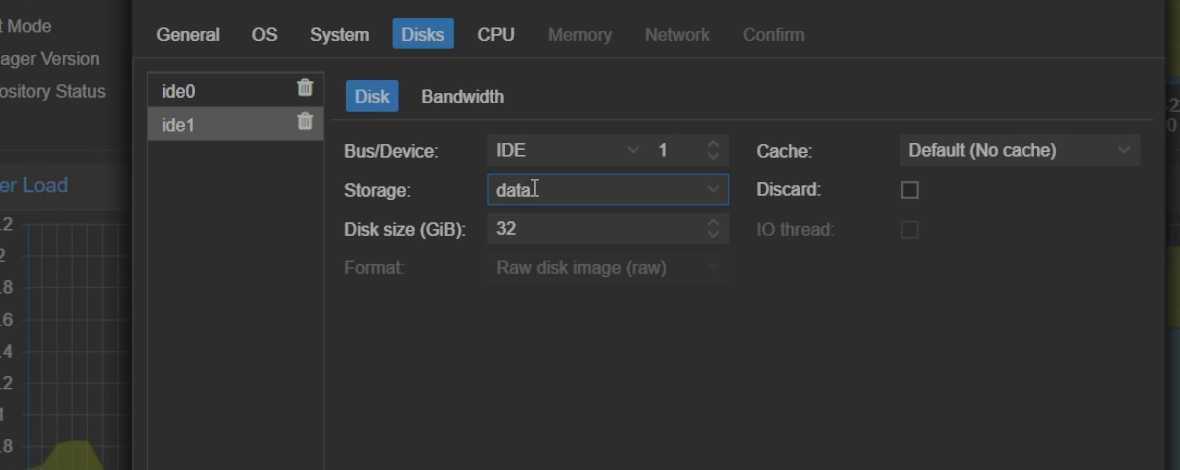
I put both disks on the IDE bus, which Windows recognises out of the box, so setup sees them without any extra drivers. The faster option is the VirtIO SCSI bus, which Proxmox’s own Windows 2025 best-practice guide recommends. If you choose it, Windows setup will show no drives at all until you load the driver: attach the VirtIO ISO as a second CD drive, click Load driver in setup and browse to vioscsi\2k25\amd64. For a lab, IDE works fine. For anything that does real disk work, use VirtIO SCSI.
CPU. 2 sockets and 2 cores (4 in total).
Memory. 8000 MiB.
Network. Your default bridge (vmbr0) is fine. I left the model at the default Intel E1000, which Windows also has a driver for. VirtIO network is faster once the drivers are in.
Step 2: Install Windows Server 2025
Start the VM, open the console and press a key when it asks you to boot from CD. Pick your language and region (I set English UK for the regional settings), then Install Windows Server.
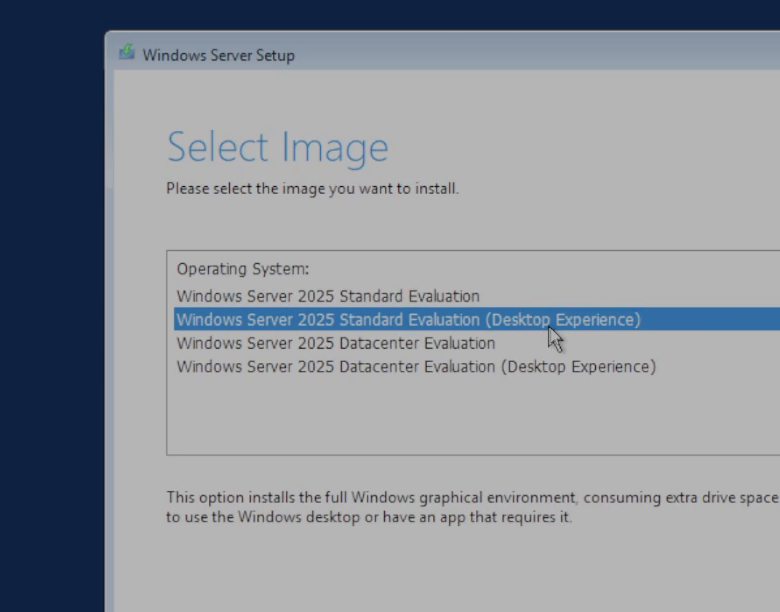
Standard or Datacenter, Core or Desktop Experience
The image list mixes two different choices, and it’s worth separating them.
Edition: Standard or Datacenter. In production the difference mostly comes down to licensing and cost. Datacenter lets you run unlimited virtual machines under the licence; Standard only covers a handful, and both are licensed per core. Datacenter also adds features like Storage Spaces Direct. Both run Active Directory, DNS and DHCP. Because this is a 180-day evaluation, licensing doesn’t apply, so pick either. For most lab use, Standard is fine. I chose Datacenter.
Install option: Server Core or Desktop Experience. Server Core has no desktop: you manage it from the command line or remotely, and it’s built for lightweight servers. Desktop Experience gives you the full Windows desktop. In businesses you’ll find both, but most Windows servers you’ll meet have the desktop. I used Desktop Experience because it’s easier to follow along with.
Decide up front. Switching between Core and Desktop Experience later means a reinstall. Microsoft’s installation options page spells it out, and the editions comparison has the full feature list. If you end up at a black screen with a command prompt, you’ve installed Core by mistake.
Disk and install
Accept the terms. On the disk screen you’ll see both drives, 100 GB and 50 GB. Select the unallocated space on the 100 GB disk and let setup partition it. Then click Install and go and get a coffee. On my setup the “Installing” stage was the longest part.
When it finishes, set a strong administrator password. To log in from the Proxmox console, open the side panel on the noVNC console and use the Ctrl+Alt+Delete button.
Step 3: Finish the setup
Set up the data disk
Open Disk Management (right-click the Start button > Disk Management). Initialise the 50 GB disk as GPT, create a new simple volume, give it a drive letter (E: is fine) and name it Data.
Install the VirtIO drivers and guest tools
In Proxmox, go to the VM’s Hardware tab and point the CD drive at the VirtIO ISO. Back in Windows, open the CD and run the installer (virtio-win-gt-x64.msi, or virtio-win-guest-tools.exe, which also installs the guest agent). I installed everything. This brings in the drivers for Proxmox’s paravirtualised hardware, the balloon driver and the QEMU guest agent.
Turn on the QEMU guest agent
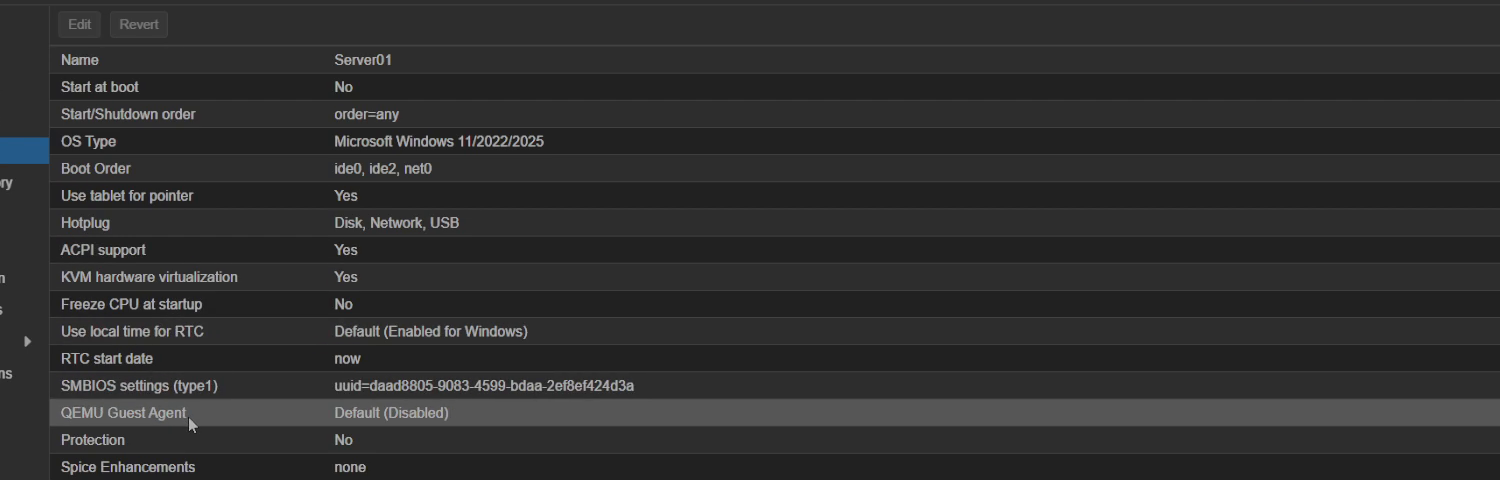
In Proxmox, go to the VM’s Options tab and set QEMU Guest Agent to enabled. Then shut the VM down completely and start it again. A reboot from inside Windows isn’t enough for this one. Once it’s back, the VM Summary page shows the guest’s IP address and real memory usage, and Proxmox can shut it down cleanly.
The 10-day activation rule
The evaluation is free for 180 days, with no credit card. The catch is in Microsoft’s own wording: evaluation versions “must be activated over the internet in the first 10 days to avoid automatic shutdown.” If your lab network has no internet access, the server will start shutting itself down. Give it internet access in the first 10 days and let it activate. You don’t need a key.
Troubleshooting
- Setup shows no drives. Your disks are on VirtIO SCSI and Windows has no driver for them. Attach the VirtIO ISO, click Load driver and browse to
vioscsi\2k25\amd64. Or rebuild with IDE or SATA disks for a quick lab. - Black screen with a command prompt after install. You picked a Server Core image. Reinstall and choose the Desktop Experience option.
- Proxmox doesn’t show the VM’s IP address. The guest agent is either not installed or not enabled. Check Options > QEMU Guest Agent, then fully power off and start the VM.
- The server shuts down on its own after a week or so. It couldn’t activate. Give it internet access.
- The mouse pointer is out of line in the console. Install the guest tools from the VirtIO ISO.
What this gives you, and what to build next
You now have a clean Windows Server 2025 VM on Proxmox: UEFI, a separate data disk, drivers in and the guest agent talking to the host. Take a Proxmox snapshot now and call it something like clean-install. That’s your undo button for every project that follows.
From here, give it a job:
- Active Directory: promote it to a domain controller and join a client. Active Directory Essentials walks through it.
- Windows Server basics: roles, features and Server Manager in Windows Server Basics.
- Hybrid identity: connect it to Entra, starting with Entra Connect Sync vs Cloud Sync.
If an interviewer asks about Windows Server, “I built a domain on Proxmox at home, here’s how I set the disks up and why” is a better answer than any certificate on its own. Why your homelab belongs on your CV covers how to present it.
Resources
- Windows Server 2025 evaluation (Microsoft Evaluation Center)
- Windows Server 2025 editions comparison (Microsoft Learn)
- Server Core vs Desktop Experience (Microsoft Learn)
- Windows 2025 guest best practices (Proxmox wiki)
- Windows VirtIO drivers (Proxmox wiki)
The Beelink link is an Amazon link; ReadTheManual may earn a commission if you buy through it, at no cost to you.

ReadTheManual is run, written and curated by Eric Lonsdale.
Eric has over 20 years of professional experience in IT infrastructure, cloud architecture, and cybersecurity, but started with PCs long before that.
He built his first machine from parts bought off tables at the local college campus, hoping they worked. He learned on BBC Micros and Atari units in the early 90s, and has built almost every PC he’s used between 1995 and now.
From helpdesk to infrastructure architect, Eric has worked across enterprise datacentres, Azure environments, and security operations. He’s managed teams, trained engineers, and spent two decades solving the problems this site teaches you to solve.
ReadTheManual exists because Eric believes the best way to learn IT is to build things, break things, and actually read the manual. Every guide on this site runs on infrastructure he owns and maintains.
Enjoyed this guide?
New articles on Linux, homelab, cloud, and automation every 2 days. No spam, unsubscribe anytime.