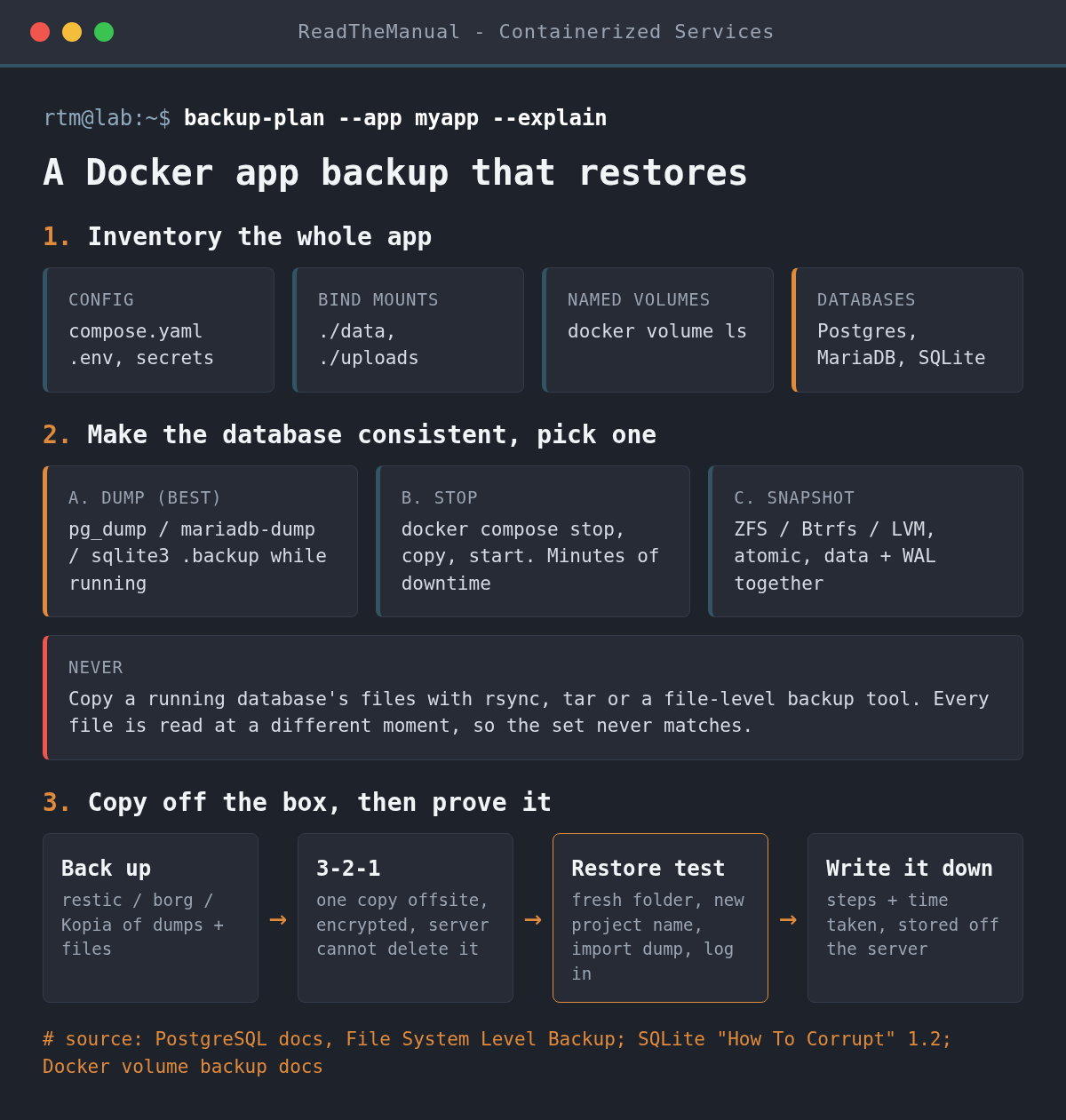
A nightly Docker backup can go green and still be useless, because copying a running database’s files captures them mid-write. Back up each app whole, make every database consistent with a dump, a brief stop or an atomic snapshot, keep a copy off the server, and prove it by restoring one app into a fresh folder.
Last updated 16 October 2026. Sources are linked in the text and listed at the end.
Why do file-level copies of a running database fail to restore?
A database does not keep its state in one file that changes all at once. PostgreSQL spreads a cluster across data files, a write-ahead log (WAL) and commit status files, and holds recent changes in memory before writing them out. MariaDB’s InnoDB works the same way with its redo log. SQLite in WAL mode keeps recent commits in a separate -wal file next to the database.
A file-level backup tool (rsync, tar, restic, Borg, Duplicati) reads those files one after another while the database keeps writing. The result is a set of files from slightly different moments that never existed together. The backup job has no way to know: every file was read without error, so it reports success. The PostgreSQL documentation is blunt about it: the server must be shut down to get a usable file-system backup, and half-way measures such as blocking connections do not work. The SQLite documentation warns that a copy taken mid-transaction “might contain some old and some new content, and thus be corrupt”.
On restore, that shows up in one of three ways: the database container refuses to start, it starts after a recovery attempt but is missing recent data, or it starts and an app fails later on a damaged table. The last is the worst, because you find out weeks after you have deleted the old copies.
Two other gaps catch people at restore time. Many apps keep keys outside the database: n8n encrypts stored credentials with a key held in its data folder or .env, and Vaultwarden keeps its signing keys in its data folder. Restore the database without them and logins or credentials stop working. And if your compose file uses postgres:latest, a restore months later can pull a newer major version that will not open the old data files. Pin database image tags to a major version.
What does a complete Docker app backup include?
Think in apps, not folders. For each Compose project you need the compose file, the .env file and any secrets files, every bind mount, every named volume, and a consistent copy of each database. These commands show you what each app actually uses:
# every Compose project on this host and where its compose file lives
docker compose ls --all

# the fully resolved config (careful: it prints interpolated secrets)
docker compose config

# every mount of a container: bind paths and named volumes
docker inspect -f '{{range .Mounts}}{{.Type}} {{.Name}} {{.Source}} -> {{.Destination}}{{println}}{{end}}' myapp-db-1

docker volume ls
A predictable layout makes this far easier: one folder per app, such as /srv/docker/myapp/, holding the compose file, .env, bind-mounted data and a backups/ folder for dumps. Prefer bind mounts inside that folder over named volumes for anything you care about, so a single path covers the app. If you keep named volumes, they live under /var/lib/docker/volumes/ and need backing up separately.
How do you take a consistent database dump?
A dump asks the database itself for a consistent copy while it keeps running, so it is the best default. Dumps also restore into a newer major version, which raw data files do not. Run these from the app folder; db is the database service name in your compose file. The single quotes make the variables expand inside the container, using the official images’ environment variable names. If your app uses different names, adjust them.
PostgreSQL (custom format, compressed, restorable with pg_restore):
mkdir -p backups
docker compose exec -T db sh -c 'pg_dump -U "$POSTGRES_USER" -d "$POSTGRES_DB" -Fc' \
  > backups/myapp-db.dump.tmp && mv backups/myapp-db.dump.tmp backups/myapp-db.dump
MariaDB (--single-transaction gives a consistent snapshot for InnoDB tables without locking; older images use mysqldump and MYSQL_ROOT_PASSWORD):
docker compose exec -T db sh -c 'mariadb-dump --single-transaction --all-databases -uroot -p"$MARIADB_ROOT_PASSWORD"' \
  > backups/myapp-db.sql.tmp && mv backups/myapp-db.sql.tmp backups/myapp-db.sql
SQLite (run on the host against the bind-mounted file; needs the sqlite3 package). The .backup command uses SQLite’s online backup API, which is safe on a live database:
sqlite3 ./data/app.db ".backup './backups/app.db'"Writing to a .tmp file and renaming it only on success means a failed dump never overwrites the last good one with a half-written file.
When should you stop the stack or use a snapshot instead?
Stop, copy, start is the simplest option when a few minutes of downtime at 3am does not matter, or when an app stores state in ways a dump will not cover. A stopped database has flushed everything to disk, so a plain file copy is consistent:
cd /srv/docker/myapp
docker compose stop
tar czf /srv/backups/myapp-$(date +%F).tar.gz -C /srv/docker myapp
# named volumes: mount read-only into a throwaway container and archive
docker run --rm -v myapp_dbdata:/data:ro -v /srv/backups:/backup alpine \
  tar czf /backup/myapp_dbdata-$(date +%F).tar.gz -C /data .
docker compose start
Filesystem snapshots on ZFS, Btrfs or LVM capture every file at the same instant. PostgreSQL’s documentation accepts this while the server runs, as long as the snapshot covers the whole data directory and the WAL together: on restore, the database behaves as if it lost power and replays its log. If the data and WAL sit on different filesystems, the snapshots will not be simultaneous and the approach fails. Back up from the snapshot, then release it. Hypervisor backups of a whole VM fall into the same crash-consistent category; they are a good second layer, not a reason to skip dumps.
How do you put it together in one nightly job?
Most backup tools can run a script before the backup. If yours cannot, wrap it yourself. This example dumps PostgreSQL, then has restic back up the app folder while excluding the live database directory (here a bind mount at ./postgres), so nobody later restores an inconsistent copy by mistake:
#!/usr/bin/env bash
set -euo pipefail
cd /srv/docker/myapp

docker compose exec -T db sh -c 'pg_dump -U "$POSTGRES_USER" -d "$POSTGRES_DB" -Fc' \
  > backups/myapp-db.dump.tmp
mv backups/myapp-db.dump.tmp backups/myapp-db.dump

# RESTIC_REPOSITORY and RESTIC_PASSWORD_FILE come from the environment
restic backup /srv/docker/myapp --exclude /srv/docker/myapp/postgres
Then apply 3-2-1: three copies, on two kinds of media, one off site. Encrypt anything that leaves your control (restic, Borg and Kopia all encrypt by default). And make sure a compromised server cannot delete its own history: a restic REST server started with --append-only, a Borg repository in append-only mode, or a backup box that pulls from the server rather than accepting pushes.
How do you run a restore test?
Pick a low-risk app with a database and restore it next to the live one, or better, onto a spare VM. First restore the app folder from your backup tool into /srv/restore-test/myapp. Before starting anything, check the compose file for three things that would collide with production: published ports (change them), container_name: lines (remove them) and volumes marked external: true (point them elsewhere, or the test will write to the live volume). Then:
cd /srv/restore-test/myapp

# a separate project name gives fresh, separately named volumes
docker compose -p myapp-restoretest up -d db
sleep 15   # let the empty database initialise

docker compose -p myapp-restoretest exec -T db \
  sh -c 'pg_restore -U "$POSTGRES_USER" -d "$POSTGRES_DB" --clean --if-exists' \
  < backups/myapp-db.dump

docker compose -p myapp-restoretest up -d
docker compose -p myapp-restoretest logs -f
For MariaDB, feed the .sql file to mariadb -uroot -p"$MARIADB_ROOT_PASSWORD" the same way. Now check the things a green job never does. Does the app start without errors? Can you log in with a real account (which proves the encryption key and secrets came back)? Is the newest item, a photo, a password entry or a workflow, from around the time of the backup? Do uploaded files open, not just appear in a list?
Time the whole thing, write the steps down and store that note somewhere other than the server you are restoring. Then clean up; -v removes only the test project’s volumes:
docker compose -p myapp-restoretest down -vRepeat with a different app each month or so, and after any change to how you back up. The first test nearly always finds something: a missing .env, a volume nobody listed, or a dump that was zero bytes for weeks.
Career Context: “Have you tested a restore?” is a standard interview question for sysadmin and cloud roles, and the honest answer most people give is no. Being able to explain crash-consistent versus application-consistent backups, quote a recovery time you measured yourself and show the runbook you wrote is the same discipline enterprise tools like Veeam and Azure Backup build in with pre- and post-snapshot scripts.
Sources
- File System Level Backup (PostgreSQL documentation)
- How To Corrupt An SQLite Database File, section 1.2 (SQLite documentation)
- mariadb-dump (MariaDB documentation)
- Volumes: back up, restore or migrate data volumes (Docker documentation)
- Your Docker Backups Might Be Useless When You Need Them Most (noted.lol, which prompted this guide)

ReadTheManual is run, written and curated by Eric Lonsdale.
Eric has over 20 years of professional experience in IT infrastructure, cloud architecture, and cybersecurity, but started with PCs long before that.
He built his first machine from parts bought off tables at the local college campus, hoping they worked. He learned on BBC Micros and Atari units in the early 90s, and has built almost every PC he’s used between 1995 and now.
From helpdesk to infrastructure architect, Eric has worked across enterprise datacentres, Azure environments, and security operations. He’s managed teams, trained engineers, and spent two decades solving the problems this site teaches you to solve.
ReadTheManual exists because Eric believes the best way to learn IT is to build things, break things, and actually read the manual. Every guide on this site runs on infrastructure he owns and maintains.
Enjoyed this guide?
New articles on Linux, homelab, cloud, and automation every 2 days. No spam, unsubscribe anytime.