Ollama on Raspberry Pi 5: Run Local AI Models on Your Own Hardware
Let me set expectations immediately: a Raspberry Pi 5 is not going to replace ChatGPT. It’s not going to run Llama 3 70B. It’s not going to generate images or do real-time voice transcription at any useful speed.
What it will do is run 1-4 billion parameter models at genuinely usable speeds for text summarisation, classification, data extraction, and automated processing tasks. It will do this without sending a single byte of your data to anyone else’s server. It will do it for free after the initial hardware cost. And it will teach you the fundamentals of model serving, inference infrastructure, and ML Ops — the fastest-growing specialisation in tech right now.
I run Ollama on a dedicated GPU server in my homelab for heavy lifting, but the Pi 5 instance handles lightweight automation tasks perfectly well. It processes RSS summaries, classifies incoming data, and generates structured outputs for n8n workflows. Is it fast? No. Is it fast enough? For automated background tasks, absolutely.
Career Value: AI infrastructure is not a niche anymore — it’s the fastest-growing area of hiring in tech. ML Ops Engineers, AI Platform Engineers, and Model Serving Specialists command £70-100k+ and the demand outstrips supply by a wide margin. Understanding model deployment, resource management, inference APIs, and the operational reality of running AI workloads is a genuine career differentiator. “I deploy and manage self-hosted LLM infrastructure” on a CV carries real weight in 2026, even at homelab scale.
What You’ll Learn
- Why local AI matters beyond the privacy argument
- Installing Ollama via Docker on Raspberry Pi 5
- Model selection for ARM architecture with 8GB RAM
- Memory management techniques — critical on constrained hardware
- Setting up Open WebUI for a browser-based chat interface
- Using the Ollama API for automation tasks
- Connecting Ollama to n8n for AI-powered workflows
- When a Pi isn’t enough — and what to do about it
Why Local AI Matters in 2026
The privacy argument is obvious — your data stays on your hardware. But there are three other reasons that matter just as much:
Cost Control
API calls to OpenAI, Anthropic, or Google add up. If you’re running automated workflows that process hundreds of items daily — RSS feeds, email classification, document summarisation — the API costs accumulate. A local model running on hardware you already own costs electricity and nothing else. For bulk processing of non-critical tasks, the economics are clear.
Air-Gapped Capability
If your internet goes down, cloud AI goes with it. A local model keeps working. For a homelab that’s also your production infrastructure, having AI capabilities that don’t depend on an external service is resilience planning.
Understanding the Stack
Using an AI API is like using a database as a service — you learn the interface but not the infrastructure. Running your own model teaches you about quantisation, context windows, memory management, inference speed, and the operational trade-offs that ML Ops teams deal with daily. You can’t learn these from API documentation.
Installation: Ollama via Docker
Create the project directory:
mkdir -p ~/ollama
cd ~/ollama
Create docker-compose.yml:
services:
  ollama:
    image: ollama/ollama:latest
    container_name: ollama
    restart: unless-stopped
    ports:
      - "11434:11434"
    volumes:
      - ollama_data:/root/.ollama
    environment:
      - OLLAMA_HOST=0.0.0.0

volumes:
  ollama_data:
Launch it:
docker compose up -dVerify it’s running:
# Check the API is responding
curl http://localhost:11434/api/tags

# You should see: {"models":[]}
# Empty because we haven't pulled any models yet
Why Docker and not the native install? Ollama has a native Linux installer that works on ARM. Either approach is fine. I use Docker for consistency — everything in my homelab is a container, which means everything is managed, backed up, and reproducible the same way. If you prefer the native install, curl -fsSL https://ollama.com/install.sh | sh works on Pi 5. The API and model management are identical either way.
Model Selection: What Actually Works on 8GB ARM
This is where honesty matters. The Pi 5 has 8GB of shared RAM (shared between the OS, all your containers, and the model). Realistically, you have 4-5GB available for a model after accounting for everything else running on the system.
Models are measured in parameters (billions) and quantisation level. A “Q4” quantised model uses roughly 4 bits per parameter. Quick rule of thumb: a Q4-quantised model needs roughly half its parameter count in gigabytes of RAM. So a 3B Q4 model needs about 1.5-2GB, a 7B Q4 model needs about 4GB.
Here’s what I’ve actually tested on a Pi 5 with 8GB, running alongside Docker, Portainer, and a couple of other containers:
The Sweet Spot: 1-3B Models
| Model | Size | RAM Usage | Speed (tokens/s) | Good For |
|---|---|---|---|---|
| TinyLlama (1.1B) | ~640MB | ~1.2GB | ~12-15 | Classification, simple extraction, fast responses |
| Phi-2 (2.7B) | ~1.6GB | ~2.5GB | ~6-8 | Reasoning, code understanding, structured output |
| Gemma 2 2B | ~1.6GB | ~2.3GB | ~7-9 | General purpose, good instruction following |
| Qwen2.5 3B | ~1.9GB | ~2.8GB | ~5-7 | Multilingual, strong at structured tasks |
Possible But Tight: 7-8B Models
| Model | Size | RAM Usage | Speed (tokens/s) | Notes |
|---|---|---|---|---|
| Llama 3.2 3B | ~2.0GB | ~3.0GB | ~5-6 | Excellent quality for size, recommended |
| Mistral 7B (Q4) | ~4.1GB | ~5.0GB | ~2-3 | Works but tight on RAM; stop other containers |
| Llama 3.1 8B (Q4) | ~4.7GB | ~5.5GB | ~1-2 | Barely fits; will swap if anything else needs RAM |
Pull your first model:
# Start with something small and fast
docker exec ollama ollama pull gemma2:2b

# Also grab TinyLlama for quick tasks
docker exec ollama ollama pull tinyllama

# If you want to push the limits
docker exec ollama ollama pull llama3.2:3b
Test it:
# Interactive chat
docker exec -it ollama ollama run gemma2:2b

# One-shot query (useful for scripts)
docker exec ollama ollama run gemma2:2b "Summarise the following in one sentence: Docker containers provide process isolation using Linux namespaces and cgroups, allowing multiple applications to run on the same host without interfering with each other."
Gotcha: First run is slow. The first time you run a model after pulling it, Ollama loads it into RAM. On a Pi 5, loading a 2-3B model takes 10-20 seconds. Subsequent queries are much faster because the model stays resident. By default, Ollama keeps the model loaded for 5 minutes after the last request. For automation tasks, consider sending a lightweight “keep-alive” request periodically to avoid the reload penalty.
Memory Management: Survival on 8GB
This is the most critical section for Pi 5 users. Memory management on constrained hardware is an operational skill, and getting it wrong means your Pi becomes unresponsive.
Monitor Before You Deploy
# Check current memory usage
free -h

# Watch memory in real-time (Ctrl+C to exit)
watch -n 2 free -h

# See per-container memory usage
docker stats --no-stream
On a typical Pi 5 running Docker, Portainer, Pi-hole, and a reverse proxy, you’ll see 2-3GB already in use. That leaves 5-6GB for models. But models need contiguous memory allocation, and the OS needs headroom for disk caching and general operations. Practically, plan for 4GB maximum for your model.
Set Memory Limits
Prevent Ollama from consuming all available RAM and crashing your other services:
# Updated docker-compose.yml with memory limits
services:
  ollama:
    image: ollama/ollama:latest
    container_name: ollama
    restart: unless-stopped
    ports:
      - "11434:11434"
    volumes:
      - ollama_data:/root/.ollama
    environment:
      - OLLAMA_HOST=0.0.0.0
      - OLLAMA_MAX_LOADED_MODELS=1
      - OLLAMA_NUM_PARALLEL=1
    deploy:
      resources:
        limits:
          memory: 5G

volumes:
  ollama_data:
OLLAMA_MAX_LOADED_MODELS=1 ensures only one model is resident at a time. OLLAMA_NUM_PARALLEL=1 prevents concurrent requests from multiplying memory usage. On a GPU server with 24GB of VRAM, you’d increase both. On a Pi 5, keep them at 1.
Enterprise Parallel: Setting resource limits on containers is standard practice in Kubernetes (resources.limits.memory) and Docker production deployments. The skill of right-sizing container resources — enough to function, not so much that one container starves others — is a daily task for platform engineers. Doing it on a Pi where the margins are razor-thin teaches you to think carefully about resource allocation.
Open WebUI: A Browser-Based Interface
Open WebUI gives you a ChatGPT-style interface for your local models. It’s genuinely well-built and provides features like conversation history, model switching, system prompts, and document upload for RAG (retrieval-augmented generation).
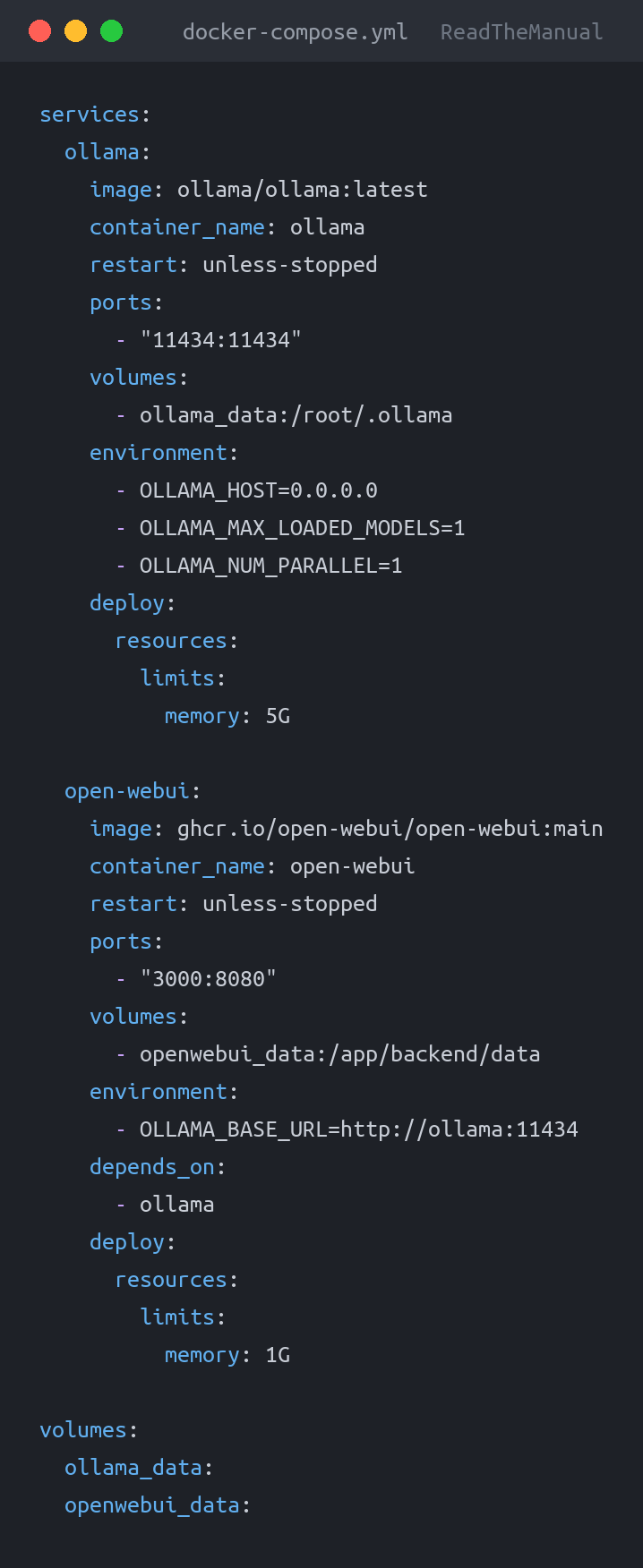
Add it to your docker-compose.yml:
services:
  ollama:
    image: ollama/ollama:latest
    container_name: ollama
    restart: unless-stopped
    ports:
      - "11434:11434"
    volumes:
      - ollama_data:/root/.ollama
    environment:
      - OLLAMA_HOST=0.0.0.0
      - OLLAMA_MAX_LOADED_MODELS=1
      - OLLAMA_NUM_PARALLEL=1
    deploy:
      resources:
        limits:
          memory: 5G

  open-webui:
    image: ghcr.io/open-webui/open-webui:main
    container_name: open-webui
    restart: unless-stopped
    ports:
      - "3000:8080"
    volumes:
      - openwebui_data:/app/backend/data
    environment:
      - OLLAMA_BASE_URL=http://ollama:11434
    depends_on:
      - ollama
    deploy:
      resources:
        limits:
          memory: 1G

volumes:
  ollama_data:
  openwebui_data:
Fair Warning: The Open WebUI image is large. At the time of writing, it’s around 2-3GB to download and takes a while to pull on a Pi. The initial startup also takes a minute or two as it sets up its internal database and dependencies. Don’t assume it’s broken if nothing happens for 60 seconds — check docker logs open-webui -f to watch the startup process. Once running, it uses around 300-500MB of RAM, which is manageable but worth accounting for in your memory budget.
Deploy and access at http://<your-pi-ip>:3000. Create an account on first visit (it’s local-only, no external authentication). You should see your pulled models available in the model selector.
Using the API: Where the Real Value Lives
The chat interface is nice for experimentation, but the real power of a local LLM is the API. Ollama exposes an OpenAI-compatible API, which means any tool that can talk to OpenAI can talk to your Pi instead.
# Simple completion
curl http://localhost:11434/api/generate -d '{
  "model": "gemma2:2b",
  "prompt": "Classify the following log entry as INFO, WARNING, or ERROR. Respond with only the classification.\n\nLog: Failed to connect to database after 3 retries",
  "stream": false
}'

# Chat-style API (OpenAI compatible)
curl http://localhost:11434/v1/chat/completions -d '{
  "model": "gemma2:2b",
  "messages": [
    {"role": "system", "content": "You are a log analyser. Respond only with JSON."},
    {"role": "user", "content": "Classify this: Connection timeout after 30s to upstream server"}
  ]
}'

# List available models
curl http://localhost:11434/api/tags
That OpenAI-compatible endpoint (/v1/chat/completions) is particularly important. It means you can point any OpenAI SDK, library, or integration at your Pi by just changing the base URL. n8n’s OpenAI nodes, LangChain, Python’s openai library — they all work with a one-line configuration change.
Connecting Ollama to n8n
If you’re running n8n from Project 9, connecting it to Ollama turns your automation platform into an AI-powered processing engine. Here are practical examples that work well on a Pi 5:
RSS Feed Summarisation
Fetch RSS feeds with n8n, send each article’s content to Ollama for a one-paragraph summary, and deliver a daily digest via Telegram or email. TinyLlama handles this at usable speed because each summarisation is a small, independent task.
Log Classification
Pipe system logs through Ollama to classify entries as routine, warning, or critical. A 2B model can do this reliably, and the structured output (just a category label) means even slow inference is fast enough.
Data Extraction
Feed unstructured text into Ollama and ask for structured JSON output. Names, dates, categories, sentiment — tasks that would require complex regex or NLP libraries can be handled with a simple prompt.
In n8n, use the HTTP Request node pointed at http://ollama:11434/api/generate (if n8n and Ollama are on the same Docker network) or http://<your-pi-ip>:11434/api/generate if they’re in separate compose stacks. n8n also has native Ollama and LangChain nodes if you prefer a visual configuration.
Practical Tip: For automation tasks, always set "stream": false in your API calls. Streaming responses are great for chat interfaces (you see tokens appear one by one), but automation workflows need the complete response in a single payload. Also set a reasonable "num_predict" value (e.g., 200) to cap output length — this prevents the model from rambling and speeds up response times.
When a Pi Isn’t Enough
I want to be honest about the limitations, because pretending a Pi 5 can do everything is unhelpful.
What Works on a Pi 5
- Text classification and categorisation
- Short summarisation (paragraph-length outputs)
- Data extraction from structured or semi-structured text
- Sentiment analysis
- Simple question-answering against provided context
- Generating structured outputs (JSON, CSV) from natural language
What Doesn’t
- Long-form content generation (too slow to be practical)
- Complex multi-step reasoning (larger models needed)
- Code generation beyond simple snippets
- Image generation or analysis
- Real-time conversational use (latency too high for 7B+ models)
- RAG with large document collections (memory constraints)
Upgrade Paths
When you outgrow the Pi, here’s where to go:
- Refurbished mini PC with 32GB RAM: £150-300. Runs 7-13B models comfortably on CPU. A Lenovo ThinkCentre or HP ProDesk with an i5 and 32GB DDR4 is the sweet spot for cost-effective AI.
- Used NVIDIA GPU (GTX 1660 / RTX 3060): £100-200 on the used market. Even 6GB of VRAM transforms inference speed. A 7B model on a GPU is 10-20x faster than CPU inference.
- Dedicated AI server: If you’re serious, a used workstation with an RTX 3090 (24GB VRAM) runs 30B+ models at conversation speed. This is what I run for my main Ollama instance.
The Pi 5 is a learning platform and a lightweight automation engine. Treat it as both, and it’s genuinely valuable. Expect it to be a GPU replacement, and you’ll be disappointed.
Gotchas and Troubleshooting
Out of Memory Kills
If your Pi becomes unresponsive when loading a model, the OOM (Out of Memory) killer has probably terminated processes. Check with:
# Check for OOM kills in system log
dmesg | grep -i "out of memory"
journalctl -k | grep -i oom

# Check if the Ollama container was killed
docker inspect ollama --format='{{.State.OOMKilled}}'
The fix: use a smaller model, or stop other containers before loading large models. This is a real operational trade-off — the same one cloud teams face when deciding instance sizes.
Slow First Response
Ollama unloads models from RAM after 5 minutes of inactivity. The next request triggers a full reload, which takes 10-30 seconds on a Pi. For automation workflows that run periodically, either accept the cold-start penalty or send a keep-alive ping:
# Add to crontab to keep model warm
*/4 * * * * curl -s http://localhost:11434/api/generate -d '{"model":"gemma2:2b","prompt":"ping","stream":false}' > /dev/null 2>&1
Or set the keep-alive duration in your API calls:
# Keep model loaded for 30 minutes
curl http://localhost:11434/api/generate -d '{
  "model": "gemma2:2b",
  "prompt": "Hello",
  "stream": false,
  "keep_alive": "30m"
}'
ARM Image Compatibility
Ollama’s official Docker image supports ARM64 natively, so the Pi 5 is fine. Open WebUI also publishes ARM64 images. If you ever see an “exec format error,” it means you’ve pulled an x86-only image by mistake — check that you’re using the official image tags, not community forks that may only build for amd64.
Storage Consumption
Models are stored in the ollama_data volume. Even small models add up:
# Check how much space models are using
docker exec ollama ollama list

# Remove models you're not using
docker exec ollama ollama rm mistral:7b
If you’re using an NVMe HAT (recommended from Project 1), storage shouldn’t be an issue. On an SD card, be more careful — three or four models can easily consume 10-15GB.
What You’ve Actually Learned
Running through this guide has taught you:
- Model serving infrastructure — Deploying, managing, and exposing ML models via API. This is the core of ML Ops.
- Resource management under constraints — Memory limits, model sizing, trade-offs between capability and available resources. The same decisions made at every scale from Pi to data centre.
- Quantisation and model selection — Understanding that model size, quantisation level, and hardware capability determine what’s possible. This is ML engineering fundamentals.
- API-first architecture — Exposing AI capabilities via standard REST APIs that any system can consume. The OpenAI-compatible endpoint pattern is becoming an industry standard.
- Operational monitoring — Using
docker stats, memory monitoring, and OOM detection to maintain system stability. SRE skills applied to AI workloads. - Integration patterns — Connecting AI inference to automation platforms, building AI-powered processing pipelines.
These skills map directly to ML Ops Engineer, AI Platform Engineer, and AI Infrastructure roles. The scale is different; the concepts are identical.

Where to Go Next
- Project 7: Uptime Kuma — Monitor your Ollama instance alongside everything else. Set up alerts for when the container crashes or the API stops responding.
- Project 9: n8n — Build AI-powered automation workflows. RSS summarisation, log classification, data extraction pipelines — n8n orchestrates the workflow, Ollama provides the intelligence.
- Project 5: Home Assistant — Combine real-time events from Home Assistant with AI analysis from Ollama. “When a service fails, ask the LLM to analyse recent logs and suggest causes.”
The emerging pattern across this series is services that communicate via APIs, each handling what it’s good at: Home Assistant for events, Ollama for intelligence, n8n for orchestration, Uptime Kuma for monitoring. You’re building a microservices architecture on a £80 computer. The fact that it runs on a Pi is almost irrelevant — the architectural patterns are what matter, and they’re the same patterns running behind every platform you use daily.
Start small. Pull TinyLlama. Classify some text. Hit the API from a script. Then build from there. The point isn’t to replace cloud AI — it’s to understand how AI infrastructure works, so when the job description says “experience with model deployment and serving,” you have a real answer.
RTFM Apparel · printed in the UK


ReadTheManual is run, written and curated by Eric Lonsdale.
Eric has over 20 years of professional experience in IT infrastructure, cloud architecture, and cybersecurity, but started with PCs long before that.
He built his first machine from parts bought off tables at the local college campus, hoping they worked. He learned on BBC Micros and Atari units in the early 90s, and has built almost every PC he’s used between 1995 and now.
From helpdesk to infrastructure architect, Eric has worked across enterprise datacentres, Azure environments, and security operations. He’s managed teams, trained engineers, and spent two decades solving the problems this site teaches you to solve.
ReadTheManual exists because Eric believes the best way to learn IT is to build things, break things, and actually read the manual. Every guide on this site runs on infrastructure he owns and maintains.
Enjoyed this guide?
New articles on Linux, homelab, cloud, and automation every 2 days. No spam, unsubscribe anytime.