If you run Exchange 2016 or 2019, the 13 October 2026 security update is its last: Microsoft’s paid Extended Security Update programme ends with October and will not be extended. Your options are Exchange Server Subscription Edition (SE) on-premises, a hybrid move to Exchange Online, or another mail platform. From 2019 CU14 or CU15, SE is an in-place upgrade.
Last updated 16 October 2026. Sources are linked in the text and listed at the end.
What changed
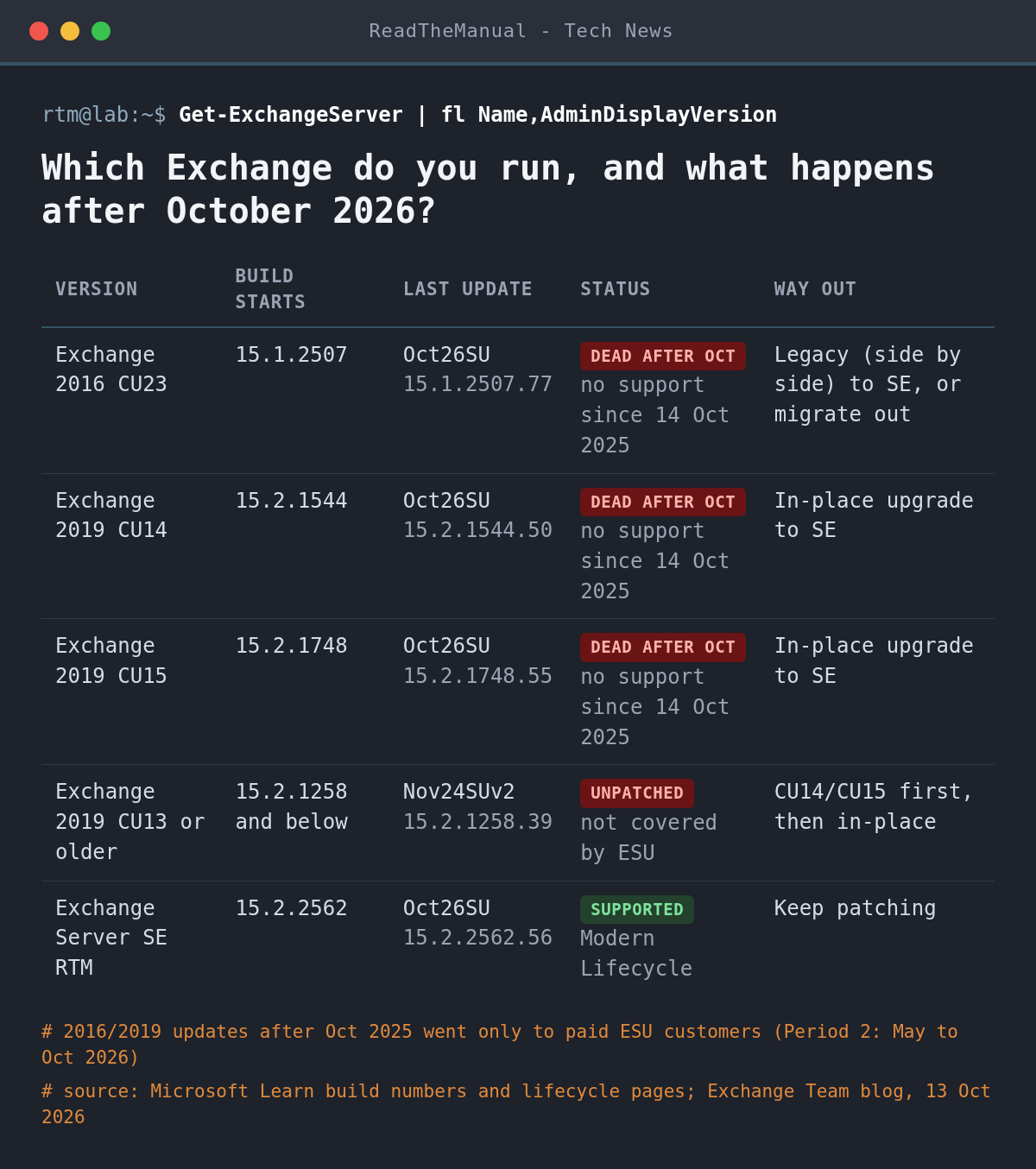
Exchange 2016 and 2019 actually left support a year ago, on 14 October 2025, according to Microsoft’s lifecycle pages. What kept them patched since then was the ESU programme, sold through Microsoft account teams to Enterprise Agreement customers. Period 1 ran from October 2025 to April 2026. Microsoft then added a Period 2 from May to the end of October 2026, as a separate purchase covering only Critical and Important fixes for Exchange 2016 CU23 and Exchange 2019 CU14/CU15. In July the Exchange team said plainly there would be no Period 3.
The October 2026 security updates, released on 13 October, are the final ones. From November, updates ship for Exchange SE only, Microsoft stops testing 2016 and 2019 for vulnerabilities, and new CVEs will stop listing them. That last point matters: a future advisory that only names Exchange SE does not mean 2016 or 2019 are safe, only that nobody checked. Period 2 can still be bought for a limited time, but it only brings you up to the October 2026 release.
What does end of support mean in practice?
- No security fixes. Exchange is an internet-facing server that attackers have targeted for years. The next Exchange vulnerability will be patched for SE and left open on everything older.
- No other fixes either. Under Microsoft’s Fixed Lifecycle Policy, non-security updates stopped at the end of extended support. A time-zone or daylight saving change that needs a product fix, or a bug introduced by a Windows update, stays broken.
- No support cases. Microsoft already will not take cases for 2016 or 2019 unless they relate to an ESU update.
- Mail flow to Microsoft 365 can suffer. Exchange Online throttles and then blocks mail from on-premises servers it considers persistently vulnerable. The Period 2 FAQ says October 2025 builds are not blocked yet, and warns “there will come a day” when they are.
- Compliance and insurance. UK Cyber Essentials requires in-scope software to be licensed and supported, and cyber insurance questionnaires commonly ask about unsupported software. An unsupported mail server fails that question.
The same week, Windows Server 2012 and 2012 R2 got their last ESU patch: Year 3 of ESU ended on 13 October 2026. That overlaps more than you might think. The supportability matrix lists Windows Server 2012, 2012 R2 and 2016 as the only operating systems for Exchange 2016, so plenty of 2016 boxes now have no patches at either layer. Microsoft also does not support an in-place OS upgrade with Exchange installed, so the fix is a new server, not a Windows upgrade.
How do you check which Exchange you run?
Microsoft’s build numbers page gives three methods. In the Exchange Management Shell, this lists every server and its cumulative update (CU) build:
Get-ExchangeServer | Format-List Name,Edition,AdminDisplayVersionThat shows the CU only, not the security update on top. For the full build on a server, check the version of ExSetup.exe:
Get-Command Exsetup.exe | ForEach-Object {$_.FileVersionInfo}15.1 is Exchange 2016, 15.2.1544 is 2019 CU14, 15.2.1748 is 2019 CU15 and 15.2.2562 is SE. Microsoft’s recommended option is the Exchange Health Checker script, which reports the build and flags missing updates and configuration problems. Run it as Administrator in the Exchange Management Shell:
.\HealthChecker.ps1 -Server EXCH1,EXCH2
.\HealthChecker.ps1 -BuildHtmlServersReport
Which option should you pick?
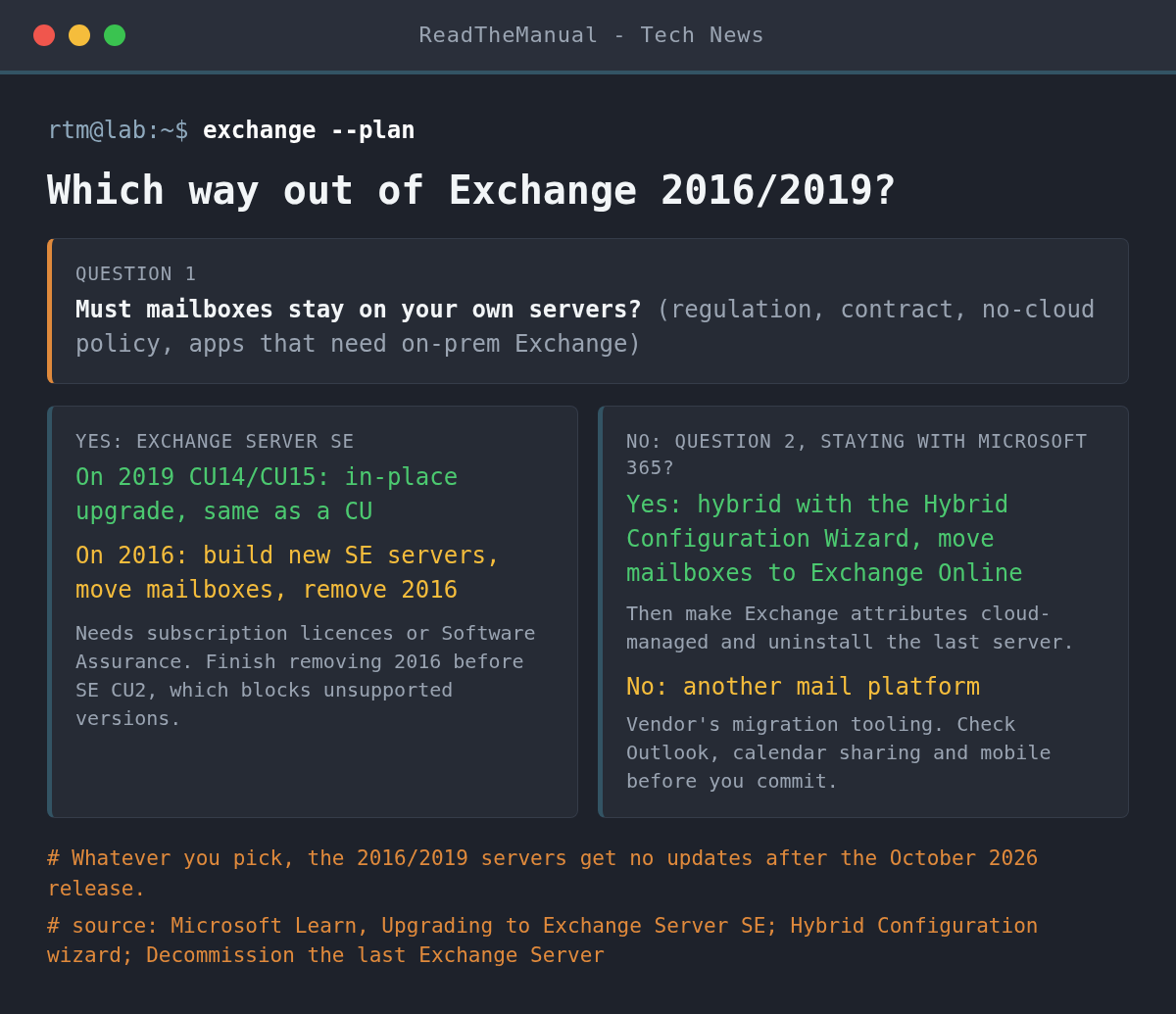
The first question is whether mailboxes have to stay on your own servers: a regulator, a contract, a no-cloud policy or an application that talks to on-premises Exchange. If yes, it is SE. If not, most organisations already paying for Microsoft 365 move to Exchange Online, and the rest pick another platform. Cost, the skills your team has and how long you have also count, but the final update has already shipped, so speed now favours whichever path is shortest from where you are.
Option 1: Exchange Server SE on-premises
SE came out on 1 July 2025 under the Modern Lifecycle Policy, so it has no fixed end date as long as you keep it current. Microsoft says SE RTM is code-equivalent to 2019 CU15, apart from the name, licence text and build number. The catch is licensing: per the Exchange roadmap, SE needs subscription licences or server and user licences with active Software Assurance. SE RTM needs no new product key; Microsoft says a later CU will.
From 2019 CU14 or CU15, Microsoft supports an in-place upgrade that follows the normal CU install process: a tested backup of Active Directory and Exchange, DAG members in maintenance mode, customisations saved, then Setup from the mounted SE ISO in an elevated prompt:
E:\Setup.exe /IAcceptExchangeServerLicenseTerms_DiagnosticDataOFF /Mode:UpgradeReboot, check every Exchange service started, then install the latest SE security update (Oct26SU, build 15.2.2562.56). A CU cannot be rolled back except by removing Exchange, which is why the backup comes first. On 2019 CU13 or older, install CU14 or CU15 first.
From 2016, there is no in-place path because 2016 is version 15.1 and SE is 15.2. You do a legacy upgrade: build new servers on Windows Server 2019, 2022 or 2025 (Server Core is recommended), install SE, move namespaces, certificates and mail flow, move mailboxes, then uninstall 2016. Microsoft also supports a legacy upgrade to 2019 CU14 or CU15 first, then in place to SE. Mailbox moves use New-MoveRequest, and the -WhatIf run is worth doing first:
New-MoveRequest -Identity '[email protected]' -TargetDatabase "DB01" -WhatIf
New-MoveRequest -Identity '[email protected]' -TargetDatabase "DB01"
Do not leave 2016 lingering. Microsoft says SE CU2 Setup will refuse to install alongside any Exchange version that is unsupported at the time, so a half-finished migration blocks your next SE update.
Option 2: Exchange Online with a hybrid migration
If users already have Microsoft 365 licences that include Exchange Online, this is usually the shortest route off ageing hardware. The Hybrid Configuration Wizard (HCW) checks your servers, certificates, accepted domains and directory sync, then configures both sides. You need Organization Management on-premises and Global Administrator in the tenant the first time. Rich coexistence (free/busy, MailTips) now needs the dedicated Exchange hybrid app, which Microsoft says requires a supported build on every server. Then move mailboxes in batches and switch MX and Autodiscover to Exchange Online.
The old sticking point was the last Exchange server, kept only to manage mail attributes for synced users. Microsoft’s decommissioning guide now covers removing it: make each mailbox’s Exchange attributes cloud-managed (Entra Connect Sync 2.5.190.0 or later, or Cloud Sync), wait one sync cycle plus 24 hours after each move, then remove the hybrid configuration and uninstall. The switch is one command in Exchange Online PowerShell:
Set-Mailbox -Identity <User> -IsExchangeCloudManaged $true
Get-Mailbox -Identity <User> | Format-List Identity, IsExchangeCloudManaged
If you stay hybrid for a while, the hybrid server is still an Exchange server that needs patching. Microsoft gives a free hybrid licence for SE through the HCW, so a 2016 or 2019 hybrid box should become SE too.
Option 3: another mail platform
Leaving Microsoft for mail is a bigger project than either of the above, because the server is the easy part. Check what your users rely on first: Outlook features, shared calendars and mailboxes, room booking, mobile sync, journaling and archiving, and any application that sends through Exchange. The new provider’s migration tooling sets the steps. Your 2016 or 2019 servers still need to be patched to October 2026 and kept off the internet until the cutover.
Before you patch anything this month
On 15 October Microsoft added a warning to its October post: the October 2026 Windows Server updates (KB5126646 for 2025, KB5126655 for 2022, KB5126651 for 2019 and KB5126868 for 2016) can make OWA fail with MapiExceptionMdbOffline and leave mail queues growing, even without the Exchange update installed. Microsoft is investigating. Check the post for the current status before you patch Exchange hosts, and have a rollback plan for the Windows update.
Career Context: End-of-support migrations are how plenty of helpdesk staff get their first project work, because the tasks split well. Running Health Checker across every server and turning the output into a build report, writing the mailbox batch list, testing moves on pilot users, and keeping the certificate and DNS checklist are all things a senior admin will hand to someone keen. Afterwards, write it up with numbers, something like “moved 250 mailboxes from Exchange 2016 to Exchange Online in six batches, including hybrid set-up and removing the last server”. That line reads better than a certificate on its own. To practise the identity side first, build an AD domain at home and connect it to a trial tenant with Entra Connect or Cloud Sync.
Sources
- Released: October 2026 Exchange Server Security Updates (Exchange Team blog, 13 October 2026, updated 15 October)
- Announcing Period 2 Exchange 2016/2019 ESU program (Exchange Team blog, 15 April 2026, updated 13 October)
- Reminder: Exchange 2016 and 2019 ESU Program Ends in October 2026 (Exchange Team blog, 20 July 2026)
- Exchange Server 2019, Exchange Server 2016 and Windows Server 2012 R2 lifecycle pages (Microsoft Learn)
- Exchange Server build numbers and release dates (Microsoft Learn)
- Upgrading to Exchange Server SE and Upgrade Exchange to the latest Cumulative Update (Microsoft Learn)
- Exchange Server supportability matrix (Microsoft Learn)
- Exchange Server Roadmap Update (Exchange Team blog, SE licensing and upgrade approach)
- Hybrid Configuration wizard, Deploy dedicated Exchange hybrid app and Decommission the last Exchange Server (Microsoft Learn)
- HealthChecker (Microsoft CSS-Exchange scripts)
- Fixed Lifecycle Policy (Microsoft Learn)

ReadTheManual is run, written and curated by Eric Lonsdale.
Eric has over 20 years of professional experience in IT infrastructure, cloud architecture, and cybersecurity, but started with PCs long before that.
He built his first machine from parts bought off tables at the local college campus, hoping they worked. He learned on BBC Micros and Atari units in the early 90s, and has built almost every PC he’s used between 1995 and now.
From helpdesk to infrastructure architect, Eric has worked across enterprise datacentres, Azure environments, and security operations. He’s managed teams, trained engineers, and spent two decades solving the problems this site teaches you to solve.
ReadTheManual exists because Eric believes the best way to learn IT is to build things, break things, and actually read the manual. Every guide on this site runs on infrastructure he owns and maintains.
Enjoyed this guide?
New articles on Linux, homelab, cloud, and automation every 2 days. No spam, unsubscribe anytime.