If your users sign in to Microsoft 365 with the same password they use on their Windows desktop, something is copying identities from on-premises Active Directory to Microsoft Entra ID. In 2026 that something is one of two Microsoft tools: Microsoft Entra Connect Sync, the server you install (the old Azure AD Connect), or Microsoft Entra Cloud Sync, a lightweight agent driven from the cloud. Microsoft now calls Cloud Sync its “strategic direction for hybrid identity”.
The choice has a deadline attached. Microsoft’s version history now says Connect Sync must be on version 2.6.84.0 or later, with application-based authentication configured, by 7 April 2027, or “synchronization services will stop working”. Before that, version 2.5.79.0 retires on 23 October 2026. Every Connect server in the world gets touched in the next six months either way, which makes this the cheapest moment you will get to decide whether it should be a Connect server at all.
Last updated 3 October 2026. Checked against Microsoft Learn: the Cloud Sync decision guide, Cloud Sync prerequisites and FAQ, the Connect Sync version history (updated 29 September 2026, latest release 2.6.92.0) and the provisioning agent version history (latest 1.1.2505.0, 21 September 2026). No tenant was changed for this article.
Short answer
For a new deployment or a straightforward single forest, use Entra Cloud Sync. It runs the sync engine in Microsoft’s cloud, needs only an outbound-connected agent on-premises (run three for resilience), has no SQL database or local configuration to protect, and is where Microsoft says new sync features are developed.
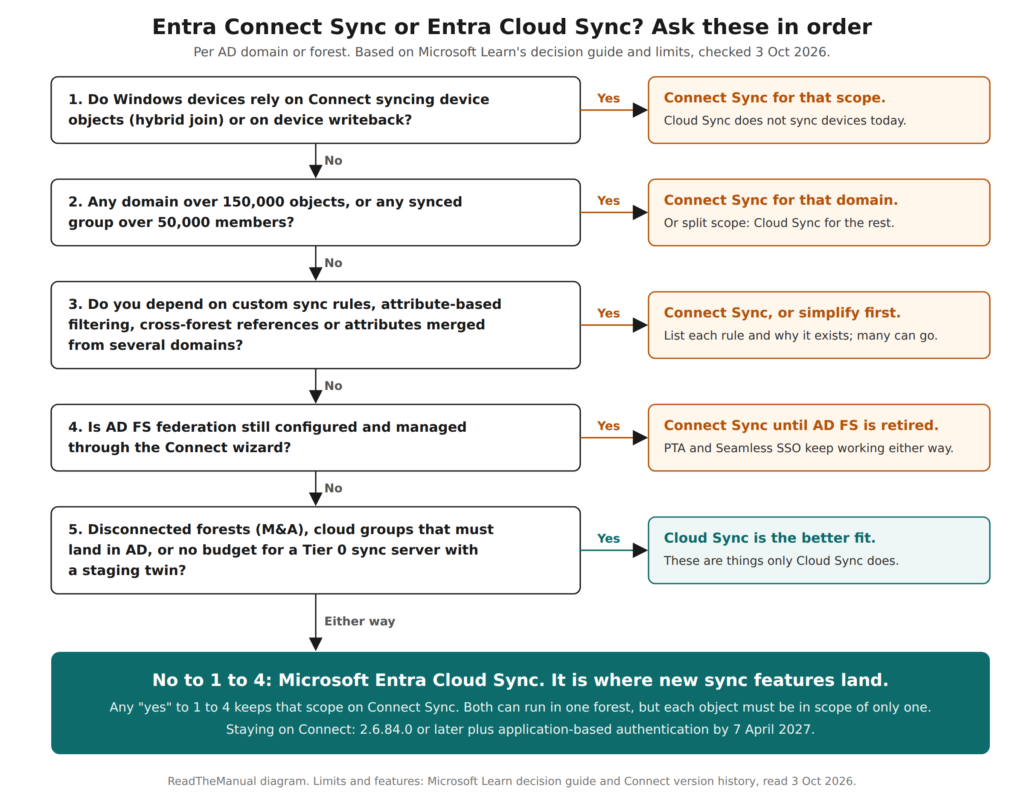
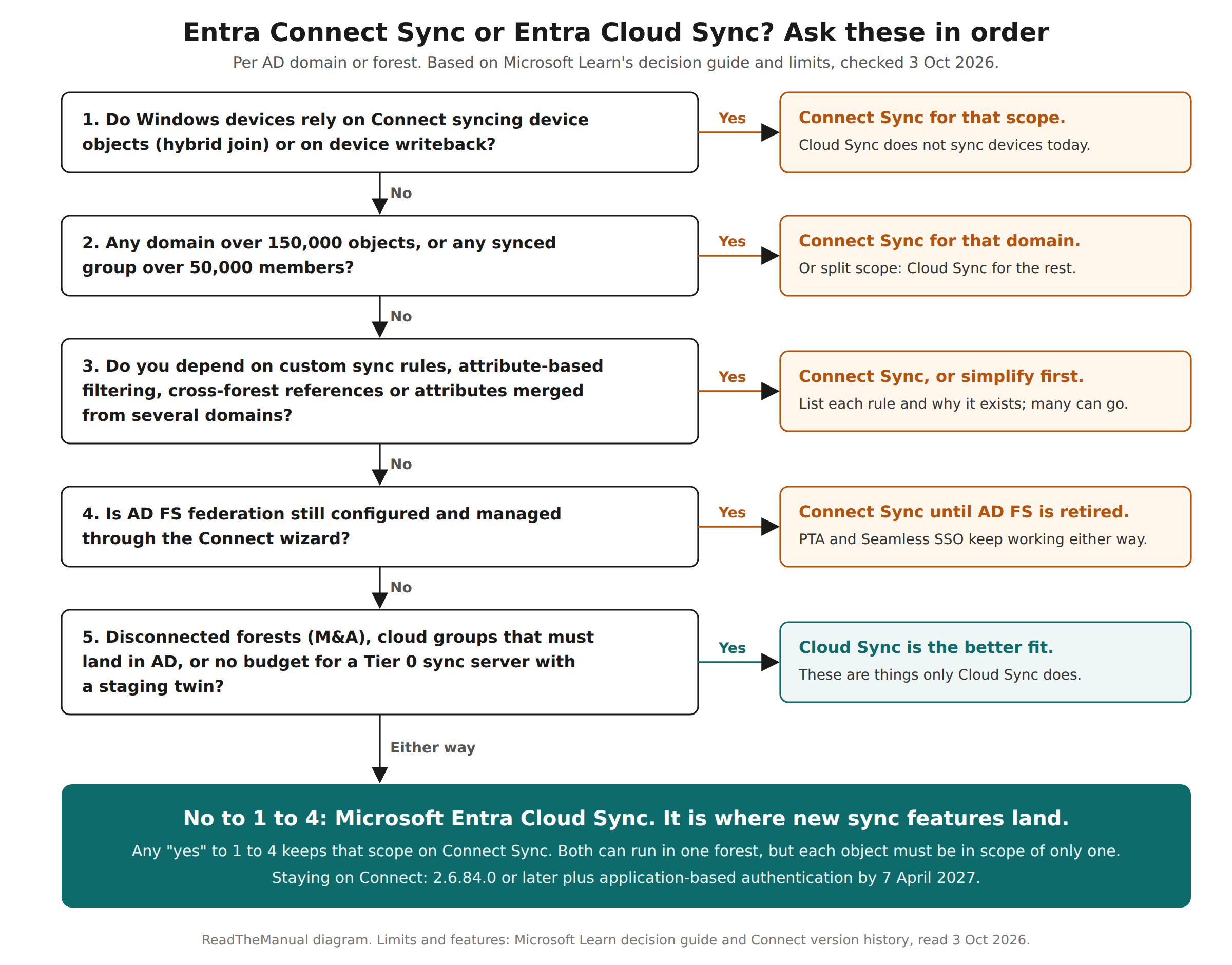
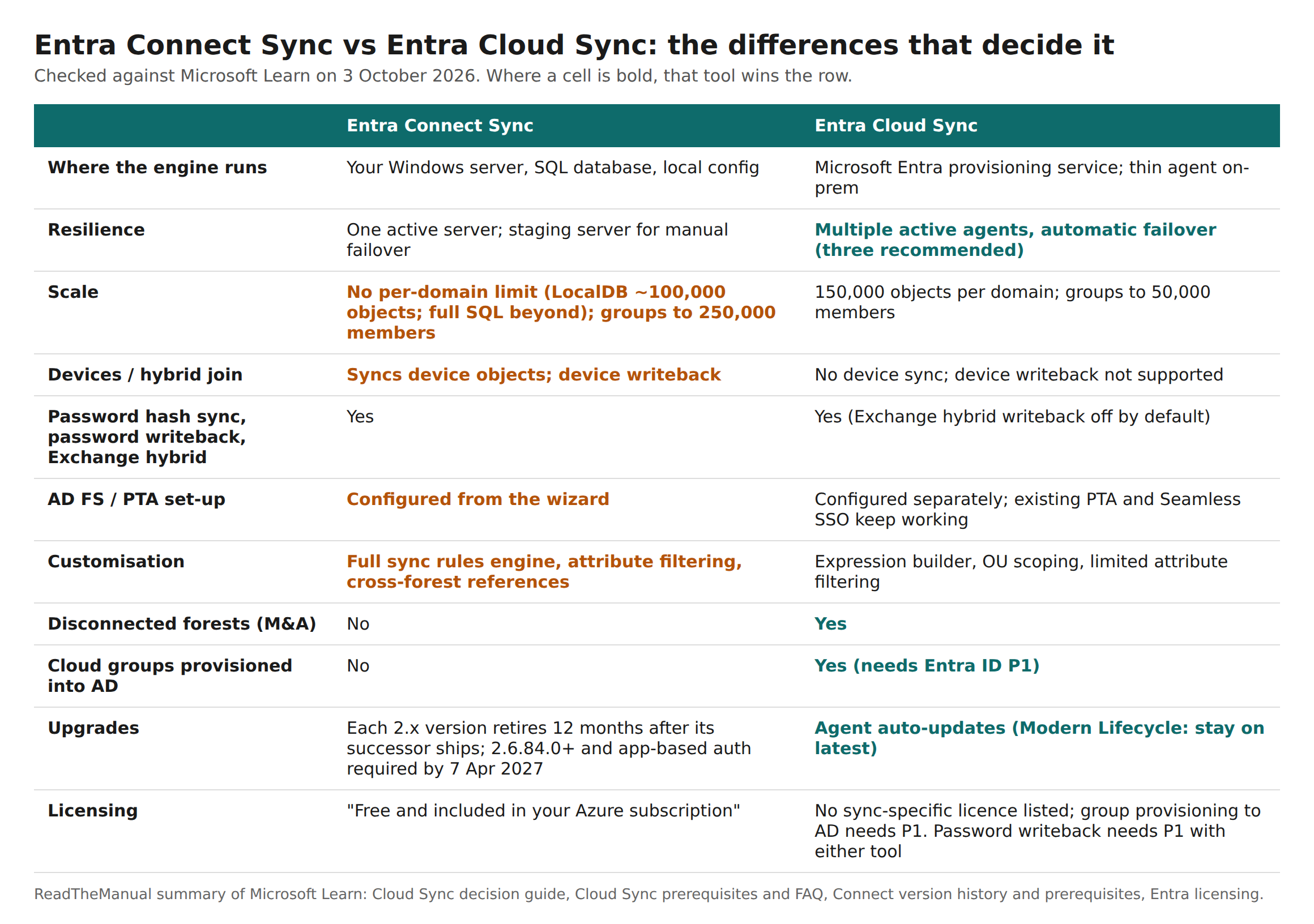
Stay on Entra Connect Sync, for now, if any of these is true: your devices depend on Connect syncing computer objects for hybrid join or device writeback; any domain holds more than 150,000 objects or any synced group has more than 50,000 members; you rely on custom sync rules, attribute-based filtering, cross-forest references or attributes merged from several domains; or AD FS is still configured through the Connect wizard. Those are Cloud Sync’s documented gaps.
You can run both. Cloud Sync can pilot alongside Connect in the same forest, as long as every object is in scope of only one of them. That is also how the migration works.
Active Directory and Entra ID: what the sync actually does
Active Directory and Entra ID are different directories that speak different protocols. AD is Kerberos, LDAP and Group Policy on domain controllers you run. Entra ID is OAuth, SAML and Conditional Access in Microsoft’s cloud. You cannot move AD into Entra ID; you synchronise users, groups and contacts from one to the other, and optionally a password hash so people sign in with the same password. The basics of AD itself are in Active Directory Essentials.
The two tools do the same job with the engine in different places, and that one difference explains most of the rest.
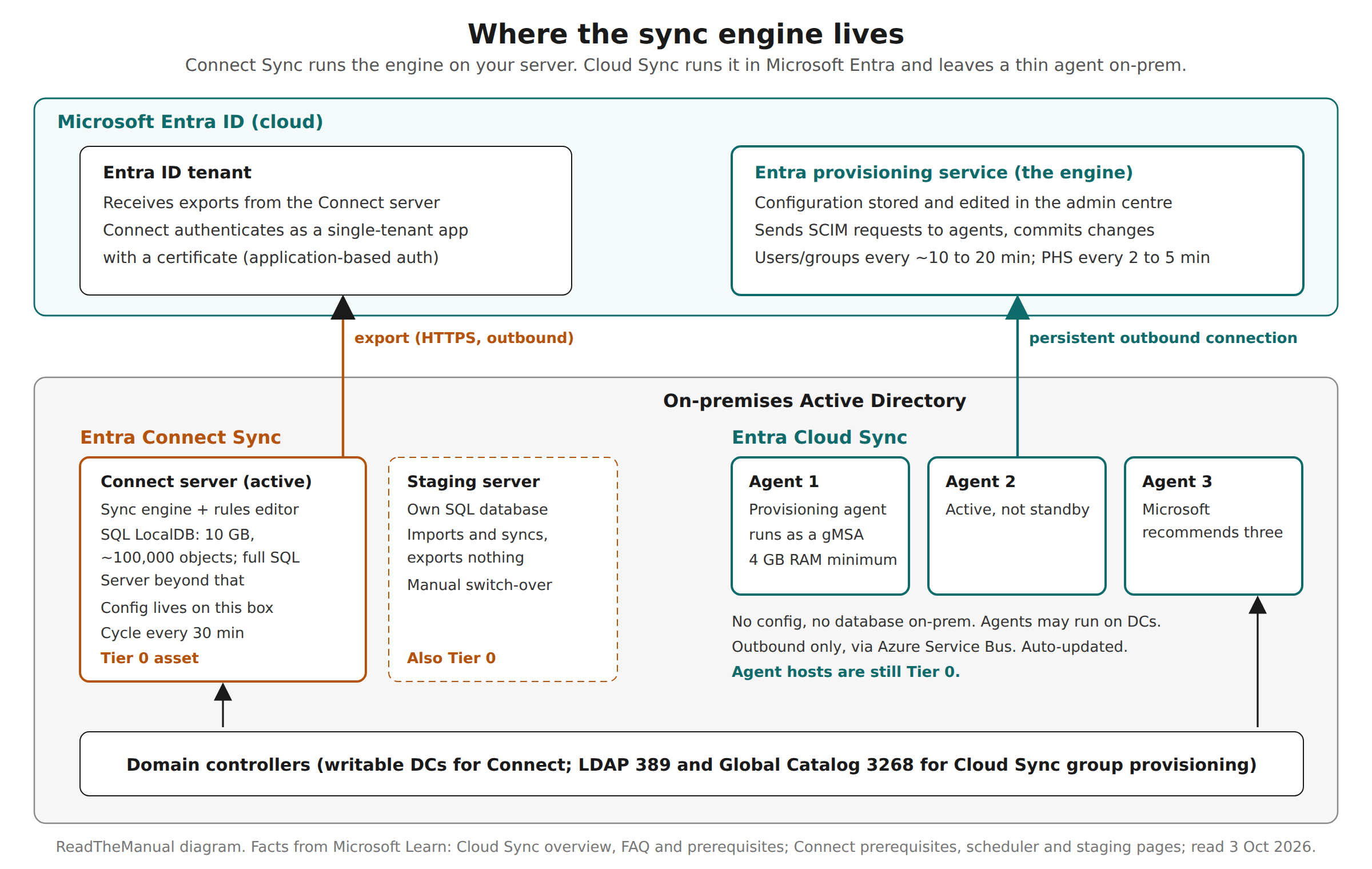
Entra Connect Sync is a Windows application with its own SQL database. By default it installs SQL Server Express LocalDB, which Microsoft says has a 10 GB limit good for about 100,000 objects; beyond that you need a full SQL Server. Its configuration, including any custom sync rules, lives on that server. It runs a sync cycle every 30 minutes by default. For resilience you build a second server in staging mode, which imports and synchronises but exports nothing, and you switch it to active by hand when the first one fails.
Entra Cloud Sync puts the engine and configuration in the Entra provisioning service. On-premises you install the provisioning agent on a domain-joined Windows Server (a domain controller is supported), running as a group managed service account, with a 4 GB RAM minimum. The agent holds an outbound connection to Microsoft through Azure Service Bus and answers SCIM requests from the cloud. Several agents are active at once and Microsoft recommends three. Microsoft’s FAQ gives the cadence: password hash sync every 2 to 5 minutes, users and groups roughly every 10 to 20 minutes depending on how much has changed.
Both are Tier 0. Microsoft’s prerequisites for each tell you to harden the server as a control-plane asset, because whoever controls it can manipulate users in Entra ID. Cloud Sync shrinks the footprint; it does not remove the need to protect the box the agent runs on.
Entra Connect vs Cloud Sync: the comparison that matters
Microsoft’s decision guide carries a 31-row feature table. Most rows are parity. These are the ones that change a decision:
For reference, this is the top of Microsoft’s own table, which is worth reading in full because it also notes what has been withdrawn rather than missing. Device writeback, for example, is listed as “discontinued in favor of Cloud Kerberos Trust”, not as a Cloud Sync gap waiting to be filled.
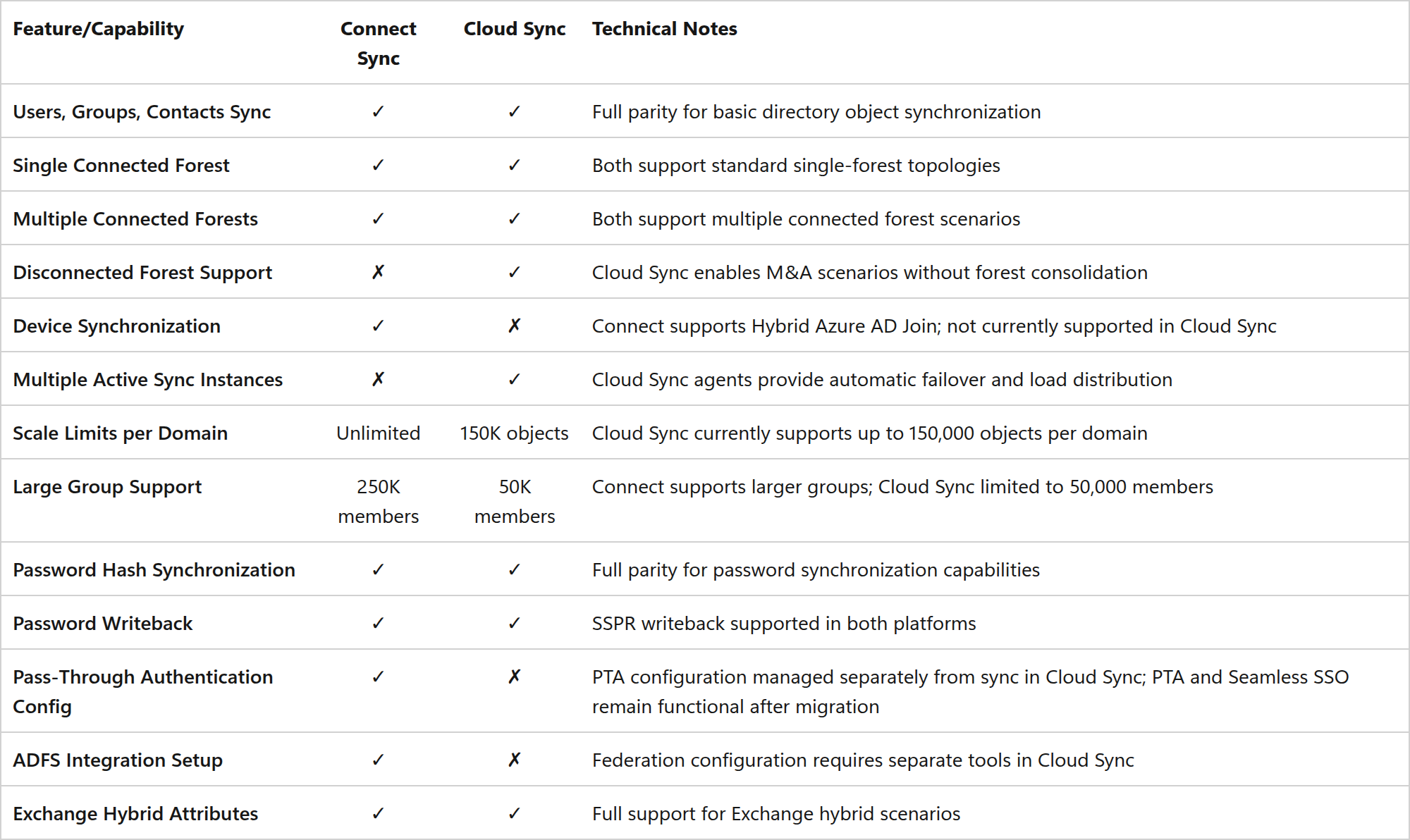
Three corrections to what older articles and forum threads still say. Cloud Sync does support password writeback for self-service password reset. It does support Exchange hybrid: it detects the Exchange schema and writes the Exchange Online attributes back to AD, but the feature is off by default, and if you extend the schema after installing the agent you have to restart the agent before the option will enable. And the Connect “Unlimited” scale row assumes you have moved off LocalDB; on the default install the practical ceiling is the 10 GB database.
The decision framework: five questions, in this order
The order is deliberate. The first four are blockers that keep a scope on Connect. The fifth is the set of things only Cloud Sync can do. Answer them per domain or forest, not per tenant, because you can split.
1. Do your devices depend on Connect?
Cloud Sync does not synchronise device objects. If your Windows estate uses Microsoft Entra hybrid join through Connect, the computer objects for that scope stay on Connect. Check the Entra admin centre’s device list for the hybrid joined join type and count them. If the answer is “a few hundred laptops we are replacing with Entra-joined devices anyway”, that is a migration you schedule after the device refresh, not a reason to keep Connect forever.
2. Are you over the scale limits?
150,000 objects per domain and 50,000 members per group. The group limit is the one that catches people: an “All Staff” group in a 60,000-user organisation fails it. Microsoft’s guidance for large estates is to consider segmenting the migration by domain or OU rather than waiting.
3. What do your sync rules actually do?
This is the question that takes longest to answer honestly. Cloud Sync has an expression builder for attribute mappings and OU-based scoping, but no equivalent of Connect’s rules engine, only “limited” attribute filtering, no cross-forest references and no merging of attributes from several domains. Export the Connect configuration (Microsoft documents an import and export of Connect settings, and the migration steps tell you to take it first), list every non-default rule, and write next to each one why it exists. Rules that nobody can explain are a finding in their own right.
4. Is AD FS still managed from Connect?
Cloud Sync does not configure federation, and federation set-up needs separate tools. Pass-through authentication and Seamless SSO are different: Microsoft says they remain functional after migration and are just configured separately. If you are still federated, moving to password hash sync and retiring AD FS is usually the bigger win, and the sync tool decision follows it.
5. Do you need anything only Cloud Sync does?
Synchronising disconnected forests, which matters after a merger when the networks cannot be joined. Provisioning cloud security groups into AD so on-premises applications can be governed from Entra (this needs Entra ID P1). Multiple active agents instead of a manual staging failover. On-demand provisioning to test one object. And no SQL database, local configuration or version-retirement treadmill to own. If none of the first four questions stopped you, these tip it.
If you are staying on Connect Sync: the 2027 deadline and its trap
Microsoft’s version history is blunt: upgrade to 2.6.84.0 or later and configure application-based authentication by 7 April 2027, because legacy authentication is being retired and sync stops if you have not. Application-based authentication replaces the username-and-password connector account with a single-tenant Entra application that signs in with a certificate. By default Connect manages the certificate itself, with a 90-day lifetime and automatic rotation.
The trap is in the 2.6.84.0 release notes: “Microsoft Entra Connect no longer automatically switches existing servers from the legacy directory synchronization account to Application-Based Authentication during background sync.” New installations get it; existing servers do not, even after an auto-upgrade. To switch, you run the wizard and choose Configure application-based authentication to Microsoft Entra ID. A server that auto-upgraded to a current version and was never touched by a person can still be on legacy authentication on 7 April 2027.
The rest of the upgrade checklist from the same page, in the order it bites:
- Go straight to 2.6.92.0. It is the current release and carries security fixes. 2.6.84.0 had a known failure (error 0xE0474352) when upgrading with an existing ADSync database, fixed in 2.6.91.0, and 2.6.79.0 was recalled after release. Installers are now only available from the Microsoft Entra admin center, not the Download Center.
- Check the retirement table. Each 2.x version retires 12 months after its successor ships. 2.5.79.0 retires on 23 October 2026 and 2.5.190.0 on 2 February 2027. A retired version “might unexpectedly stop working”.
- Do not leave the scheduler suspended. Microsoft notes that certificate rotation runs from the scheduler, so a suspended scheduler means the managed certificate does not rotate.
- Give it a TPM. Microsoft recommends a TPM-backed certificate. On Hyper-V that means a generation 2 VM; generation 1 VMs cannot be converted.
- Review Conditional Access. 2.6.91.0 added Microsoft Graph permissions to Connect, and the release notes tell you to review any app-scoped Conditional Access policies that target Microsoft.Azure.SyncFabric or Microsoft 365 Reporting Service.
- Watch who holds Application Administrator. Microsoft’s application-identity page points out that the role can add credentials to applications, “notably the Connect Sync” app, and use them to impersonate it. With application-based authentication, that role becomes a path to your sync identity, so treat it accordingly.
- Check the modified-config issue. If you ever edited
miiserver.exe.config(earlier FIPS guidance told people to), upgrades to 2.5.190.0 and 2.6.1.0 could fail to start sync with aSystem.Diagnostics.DiagnosticSourceload error. Microsoft documents a manual binding fix.
The migration path from Connect to Cloud Sync
Microsoft’s documented path is a pilot by OU, then batches, with Connect kept running until the end. Since 2.6.91.0 (16 September 2026) the Connect wizard also includes a guided migration workflow with configuration assessment, agent set-up, staged activation and validation, available in the Azure public cloud only. The manual sequence underneath it:
- Confirm Cloud Sync fits (the five questions above) and check its prerequisites: Windows Server 2016 or later (2022 or 2025 recommended), not Server Core, .NET 4.7.1 or later, the
msDS-ExternalDirectoryObjectIdschema attribute (Windows Server 2016 schema), and a gMSA. - Create a cloud-only Hybrid Identity Administrator account first. Microsoft calls this “critical” so you are not locked out of the tenant if on-premises services fail.
- Back up the Connect configuration with its export feature.
- Pick a pilot OU and leave it in Connect’s scope. Stop the Connect scheduler.
- In the Synchronization Rules Editor, add an inbound rule that sets
cloudNoFlowto True for the pilot OU and an outbound rule with link typeJoinNoFlowscoped on it. These stop Connect exporting adds, deletes and ordinary attribute changes for those objects while it keeps resolving references. - Install the provisioning agents, configure Cloud Sync scoped to the pilot OU, and verify the counts match.
- Restart the Connect scheduler, then repeat in batches.
- When everything is on Cloud Sync and memberships and manager links are intact, stop Connect, leave the server disabled for a while as Microsoft recommends, then decommission it.
Microsoft notes the step-by-step guidance assumes Connect was installed with Express settings and is not synchronising devices. If yours was a custom install, you are doing question 3 in earnest.
The gotchas
- Do not remove objects from Connect’s scope during the pilot. Microsoft’s migration page says removing OUs, groups or users from Connect scope before final cutover “can drop references” and export reference deletes, such as group membership removals. The no-flow rules are the supported coexistence model; descoping is not.
- One object, one tool. In a pilot, Microsoft is explicit that an object should be in scope of only one of them.
- Moving a user out of a Cloud Sync OU deletes it. Per the FAQ, moving a user from a Cloud Sync-scoped OU is treated as a delete; if it lands in a Connect-managed OU it is reprovisioned as a new user. Renaming or moving the scoped OU itself is harmless.
- Deleting a Cloud Sync configuration leaves the users behind. To clean up, change the scope to an empty OU or group, let it run, then delete the configuration.
- The source anchor is not yours to choose. Cloud Sync uses
ms-DS-ConsistencyGuidif present, otherwiseobjectGUID, and you cannot change it. It also does not writems-DS-ConsistencyGuidback. Check what your Connect install used before you migrate. - “Must change password at next logon” users. Cloud Sync does not sync their hash until they change the password, so a freshly onboarded user’s first cloud sign-in can surprise the service desk.
- Password hash sync errors on the first run are expected. The FAQ says the user objects do not exist in Entra yet; they clear after a couple of cycles.
- A stopped agent lingers in the portal. It shows as inactive after about an hour and disappears after about ten days.
Licensing
Microsoft’s Entra licensing page says Connect “is free and included in your Azure subscription”, and the Entra pricing page lists syncing your on-premises directory under Entra ID Free. Neither Cloud Sync’s overview nor its FAQ lists a licence for directory sync itself. Two features around the sync do need Entra ID P1: password writeback (the licensing table lists SSPR with writeback under P1 and P2) and Cloud Sync’s group provisioning to AD. Connect Health also needs P1. Most organisations with Microsoft 365 E3 or Business Premium already have P1.
Why this matters at work
Identity sync is the least glamorous component in a Microsoft estate and one of the most dangerous. The Connect server holds the keys to change every synced user in the tenant, it usually runs on a VM somebody built years ago, and it now has a hard date by which a person has to log on to it and run the wizard. That makes it a good piece of work to own. Whoever writes the one-page answer to “which sync tool, which scopes, and what by April 2027” is doing identity architecture, not server maintenance.
The answer that lands with a CISO is short: how many objects, whether devices or rules pin you to Connect, what moves to Cloud Sync and when, and who is accountable for the Tier 0 boxes that remain. The bigger argument for treating identity as the boundary is in Identity is the new castle walls. If you run AD in a homelab, Cloud Sync is also the easier of the two to practise with: one small agent, configuration in the portal, nothing to back up on-premises.
Frequently asked questions
Is Azure AD Connect the same as Entra Connect?
Yes. Azure AD Connect was renamed Microsoft Entra Connect, and its sync component is Entra Connect Sync. All 1.x versions no longer work, and 2.x versions retire 12 months after a newer version is released.
Can Entra Connect and Cloud Sync run at the same time?
Yes, in the same forest or across forests, as long as each object is in scope of only one tool. Microsoft documents this for piloting and for adding a new forest with Cloud Sync while an existing one stays on Connect.
Does Entra Cloud Sync support password writeback?
Yes. Microsoft’s comparison lists password writeback for self-service password reset as supported in both tools, and SSPR with writeback needs Entra ID P1 or P2.
Is Entra Connect Sync being retired?
Microsoft’s version history gives no end date for Connect Sync as a product, but Microsoft describes Cloud Sync as the recommended path, and Connect Sync stops working on 7 April 2027 unless it is on 2.6.84.0 or later with application-based authentication configured.
Related reading
- Active Directory Essentials: set up your first domain
- Identity is the new castle walls
- Azure identity and governance: Entra ID, RBAC and Policy (AZ-104)
Official sources used for this page:
- Microsoft Learn: Migrate from Microsoft Entra Connect to Cloud Sync: Decision Guide
- Microsoft Learn: Microsoft Entra Connect version release history
- Microsoft Learn: Migrating from Microsoft Entra Connect to Cloud Sync
- Microsoft Learn: Prerequisites for Microsoft Entra Cloud Sync
- Microsoft Learn: Authenticate to Microsoft Entra ID by using application identity
- Microsoft Learn: Cloud Sync FAQ

ReadTheManual is run, written and curated by Eric Lonsdale.
Eric has over 20 years of professional experience in IT infrastructure, cloud architecture, and cybersecurity, but started with PCs long before that.
He built his first machine from parts bought off tables at the local college campus, hoping they worked. He learned on BBC Micros and Atari units in the early 90s, and has built almost every PC he’s used between 1995 and now.
From helpdesk to infrastructure architect, Eric has worked across enterprise datacentres, Azure environments, and security operations. He’s managed teams, trained engineers, and spent two decades solving the problems this site teaches you to solve.
ReadTheManual exists because Eric believes the best way to learn IT is to build things, break things, and actually read the manual. Every guide on this site runs on infrastructure he owns and maintains.
Enjoyed this guide?
New articles on Linux, homelab, cloud, and automation every 2 days. No spam, unsubscribe anytime.