The Commands You’ll Use 100+ Times Daily
Before you can manage servers, you need to move around them. Directory navigation is so fundamental that experienced admins don’t think about it—it’s pure muscle memory.
That’s exactly where you need to get. When someone asks you to check a log file, you shouldn’t be thinking about how to get there. You should already be there, reading it.
This article covers the navigation commands that become second nature in any Linux role. Simple? Yes. Essential? Absolutely.
Navigation commands are muscle memory for anyone who works in infrastructure. I probably type ls -la and cd hundreds of times a day without thinking about it. These are the foundations that every other Linux skill builds on.
The Core Three: pwd, ls, cd
pwd – Where Am I?
# Print working directory
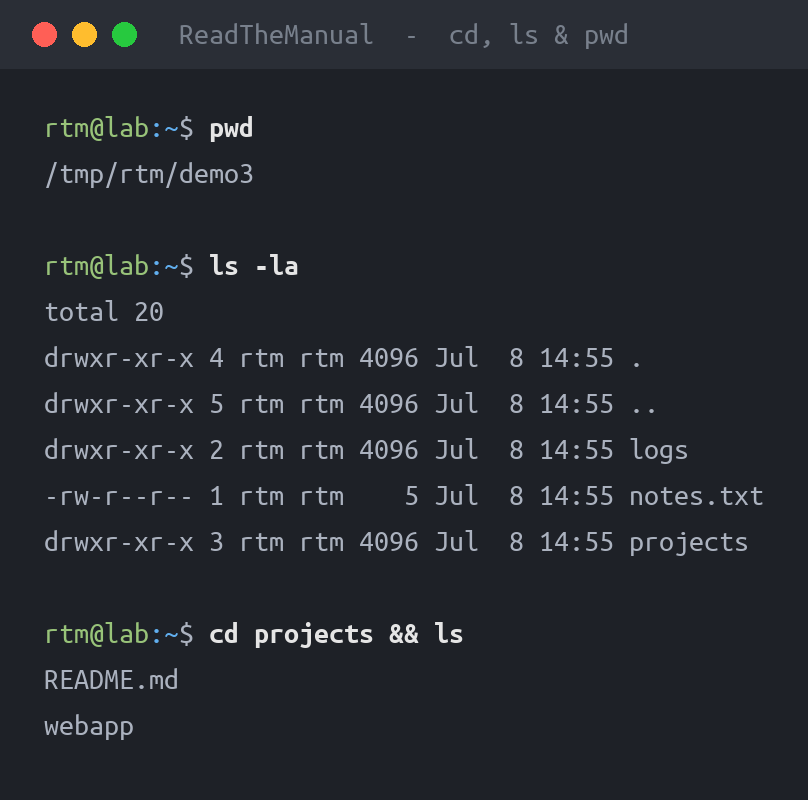
pwd
/home/user/projects

# Use it when you're lost
cd /some/path && pwd
Always know where you are. It sounds obvious until you’re five directories deep and about to run a destructive command.
ls – What’s Here?
# Basic listing
ls

# Detailed listing (permissions, owner, size, date)
ls -l

# Include hidden files (starting with .)
ls -la

# Human-readable sizes
ls -lh

# Sort by time (newest first)
ls -lt

# Sort by size (largest first)
ls -lS

# Recursive (all subdirectories)
ls -R
The combination you’ll use most: ls -la shows everything including hidden files with full details.
| Flag | Meaning | When to Use |
|---|---|---|
-l |
Long format | Always, basically |
-a |
Show hidden files | Looking for dotfiles/configs |
-h |
Human sizes | When sizes matter |
-t |
Sort by time | Finding recent changes |
-S |
Sort by size | Finding large files |
-R |
Recursive | Exploring structure |
cd – Go There
# Change to specific directory
cd /var/log

# Go to home directory
cd
cd ~

# Go up one level
cd ..

# Go up two levels
cd ../..

# Go to previous directory
cd -

# Follow a path step by step
cd /var && cd log && cd nginx
Pro tip: cd - toggles between your current and previous directory. Incredibly useful when working between two locations.
Path Concepts
Absolute vs Relative Paths
# Absolute path (starts with /)
cd /var/log/nginx

# Relative path (from current directory)
cd ../logs
cd ./scripts
| Symbol | Meaning | Example |
|---|---|---|
/ |
Root directory | cd / |
~ |
Home directory | cd ~/scripts |
. |
Current directory | ./script.sh |
.. |
Parent directory | cd .. |
- |
Previous directory | cd - |
Tab Completion
This is non-negotiable. Press Tab to autocomplete paths:
# Type: cd /var/lo[TAB]
# Becomes: cd /var/log/

# Multiple matches? Press Tab twice for options
cd /var/[TAB][TAB]
If you’re typing full paths without Tab completion, you’re working too hard.
Practitioner tip: Get into the habit of using tab completion early. It’s faster and prevents typos in paths. On a production server, a typo in the wrong directory can have consequences.
The Linux Filesystem Structure
Know where things live:
| Directory | Contains | You’ll Go Here For |
|---|---|---|
/ |
Root filesystem | Everything starts here |
/home |
User home directories | User files, SSH keys |
/root |
Root user’s home | Root’s configs |
/etc |
Configuration files | Editing app configs |
/var/log |
Log files | Troubleshooting |
/var/www |
Web content | Web server files |
/tmp |
Temporary files | Scratch space |
/opt |
Optional software | Third-party apps |
/usr/bin |
User programs | Finding executables |
/usr/local |
Locally installed software | Manual installations |
- Interview question: “Where would you look for nginx configuration?” Answer:
/etc/nginx/
Finding Things
find – Search by Name/Attributes
# Find files by name
find /var/log -name "*.log"

# Find files modified in last 24 hours
find /var/log -mtime -1

# Find files larger than 100MB
find / -size +100M

# Find and do something
find /tmp -name "*.tmp" -delete

# Find directories only
find /var -type d -name "log*"

# Find files only
find /home -type f -name "*.conf"
locate – Fast Filename Search
# Not installed by default on Ubuntu Server: sudo apt install plocate
# Update the database first
sudo updatedb

# Search
locate nginx.conf

# Case-insensitive
locate -i readme
locate is faster but uses a pre-built database. find searches in real-time.
which/whereis – Find Commands
# Where is this command?
which python3
/usr/bin/python3

# More details: binary, library and man page locations (trimmed; paths vary)
whereis python3
python3: /usr/bin/python3 /usr/lib/python3 /usr/share/man/man1/python3.1.gz
Efficient Navigation
pushd/popd – Directory Stack
# Save current directory and change
pushd /var/log
# Now in /var/log, original saved

# Go somewhere else
cd /etc/nginx

# Pop back to saved directory
popd
# Back to original location
Creating Navigation Aliases
Add to your ~/.bashrc:
# Common directories
alias logs='cd /var/log'
alias www='cd /var/www/html'
alias configs='cd /etc'

# Useful shortcuts
alias ..='cd ..'
alias ...='cd ../..'
alias ll='ls -la'
alias lt='ls -lat | head -20'
Reload with source ~/.bashrc.
Using History
# See the pushd directory stack (not a history of every cd)
dirs -v

# Search history for cd commands
history | grep "cd /"

# Repeat last command starting with cd
!cd
Working with Paths
basename/dirname
# Get filename from path
basename /var/log/nginx/error.log
# error.log

# Get directory from path
dirname /var/log/nginx/error.log
# /var/log/nginx
realpath/readlink
# Get absolute path
realpath ./relative/path

# Resolve symbolic links (on Ubuntu 24.04 this prints /usr/bin/python3.12)
readlink -f /usr/bin/python3
Common Patterns
Quick Config Check
# Jump to config, check, jump back
pushd /etc/nginx
cat nginx.conf | head -20
popd
Find and Navigate to Large Files
# Find largest files
du -ah /var | sort -rh | head -10

# Navigate to one
cd $(dirname /var/log/huge-file.log)
Check What Changed Recently
# Recent changes in /etc
find /etc -mtime -1 -type f

# Last modified files in current directory
ls -lt | head -10
Quick Reference
# Navigation
pwd                     # Where am I?
cd /path                # Go to path
cd                      # Go home
cd -                    # Previous directory
cd ..                   # Up one level

# Listing
ls -la                  # Everything with details
ls -lt                  # Sort by time
ls -lS                  # Sort by size
ls -lh                  # Human-readable sizes

# Finding
find /path -name "*.txt"    # Find by name
find /path -mtime -1        # Modified in the last 24 hours
find /path -size +100M      # Large files
locate filename             # Fast search
which command               # Find command location

# Utilities
pushd /path             # Save location, go there
popd                    # Return to saved location
realpath ./file         # Get absolute path
The Career Translation
Navigation speed matters. In an interview practical or on-the-job troubleshooting, fumbling around the filesystem signals inexperience. Smooth, confident navigation shows you live in the terminal.
| Speed Level | Indicator | Role Readiness |
|---|---|---|
| Slow | Types full paths, no Tab | Still learning |
| Basic | Uses Tab, knows structure | Junior ready (£28-35k) |
| Fluent | Aliases, quick find, history | Mid-level (£35-45k) |
| Expert | Scripted navigation, automation | Senior (£45k+) |
Practice Exercises
- Explore a new server – Navigate to /etc, /var/log, /home without typing full paths
- Find the largest log file – Use find or du to locate it, navigate there
- Set up aliases – Create shortcuts for your common directories
- Time yourself – How fast can you get to /var/log/nginx/error.log from anywhere?

Next Steps
- Process management – Now that you can find things, learn to manage what’s running
- File manipulation – cp, mv, rm, mkdir in depth
- Scripting – Automate navigation patterns
Navigation is the foundation. Everything else builds on moving confidently through the filesystem.
Part 7 of the Linux Fundamentals series. Next: process management with ps, top, htop, and kill—controlling what runs on your systems.
Linux Fundamentals Series – Part 7 of 12
Previous: Understanding sudo
RTFM Apparel · printed in the UK


ReadTheManual is run, written and curated by Eric Lonsdale.
Eric has over 20 years of professional experience in IT infrastructure, cloud architecture, and cybersecurity, but started with PCs long before that.
He built his first machine from parts bought off tables at the local college campus, hoping they worked. He learned on BBC Micros and Atari units in the early 90s, and has built almost every PC he’s used between 1995 and now.
From helpdesk to infrastructure architect, Eric has worked across enterprise datacentres, Azure environments, and security operations. He’s managed teams, trained engineers, and spent two decades solving the problems this site teaches you to solve.
ReadTheManual exists because Eric believes the best way to learn IT is to build things, break things, and actually read the manual. Every guide on this site runs on infrastructure he owns and maintains.
Enjoyed this guide?
New articles on Linux, homelab, cloud, and automation every 2 days. No spam, unsubscribe anytime.