Azure dropped an email in my inbox this morning. It waves a comfortable 2028 retirement date at you, so most people will archive it and move on.
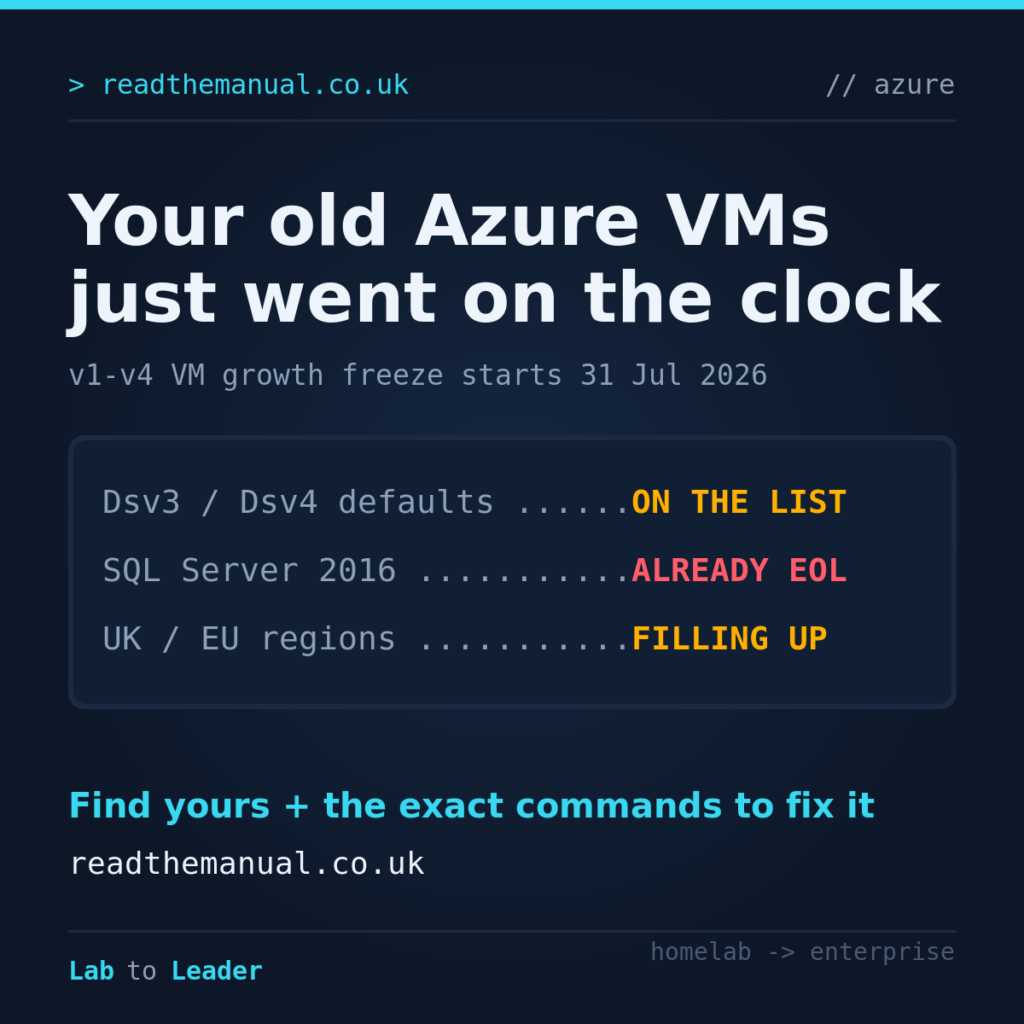
The part that could actually bite lands next week. From 31 July 2026, a large chunk of the estate people are quietly running can no longer scale or expand. And if you know where to look, there’s a second deadline in the background that already passed.
Here’s what actually changed, how to find out in minutes whether you’re exposed, and the exact commands to plan your way out.
What Microsoft actually announced
The email is titled “Capacity growth restrictions for older generation v1 to v4 Azure VM series.” The wording matters, because two different things are happening at once.
Growth restrictions (from 31 July 2026): For the older series, Azure will no longer approve new deployments, capacity expansion, quota increases, or scale-out. Quota you already hold is untouched, and existing VMs keep running. You just cannot grow.
Retirement (2028): The same families are scheduled for full retirement in 2028. That is the date the email leads with, and it is the one that makes the whole thing feel like a problem for future-you.
The series in the firing line include:
- Compute optimised: F, Fs, Fsv2
- General purpose: D, Ds, Dv2, Dsv2, Dv3, Dsv3, Dv4, Dsv4, Ddv4, Ddsv4, Dav4, Dasv4, Av2, Amv2, B, Bs
- Memory optimised: Ev3, Esv3, Ev4, Esv4, Edv4, Edsv4, Eav4, Easv4, G, Gs
- Storage optimised: Ls, Lsv2
Read that list again. Dsv3 and Dsv4 are on it. Those have been the sensible, widely available default for years, especially if you deploy infrastructure as code and never explicitly overrode the SKU. A lot of production estates are sitting on exactly these sizes right now, often without a clear picture of how those subscriptions and resource groups are even carved up.
Step 1: Find out if you’re affected
Do not trust your memory of what you deployed. Query it.
The fastest way to see every VM size across every subscription you can reach is Azure Resource Graph. Install the extension once:
az extension add --name resource-graph
Then list every VM and its size, sorted so the old generations group together:
az graph query -q "Resources
| where type =~ 'microsoft.compute/virtualmachines'
| extend vmSize = tostring(properties.hardwareProfile.vmSize)
| project name, vmSize, location, resourceGroup, subscriptionId
| order by vmSize asc" --first 1000 -o table
To narrow it down to the likely-restricted families, use the query below. The cleanest place to run it is Azure Resource Graph Explorer in the portal, which sidesteps all the shell-quoting pain (paste the KQL from the first pipe onwards). The logic is: match the affected family letters at v2/v3/v4 or unversioned (v1), and explicitly exclude anything on v5, v6 or v7. Treat it as a first pass and cross-check the results against the affected-series list above, because a handful of newer sizes (for example Bsv2) share family letters:
Resources
| where type =~ 'microsoft.compute/virtualmachines'
| extend vmSize = tostring(properties.hardwareProfile.vmSize)
| where vmSize matches regex @'(?i)_(D|DS|E|ES|F|FS|G|GS|A|B|L|LS)[0-9].*'
    and not(vmSize matches regex @'(?i)_v[567]$')
| summarize count() by vmSize, location
| order by count_ desc
If that returns rows, you have workloads on the clock. The count() by vmSize, location view tells you how big the job is and which regions it lands in, which matters for the next part.
PowerShell equivalent, if that’s your world:
Search-AzGraph -Query "Resources
| where type =~ 'microsoft.compute/virtualmachines'
| extend vmSize = tostring(properties.hardwareProfile.vmSize)
| project name, vmSize, location, resourceGroup, subscriptionId
| order by vmSize asc" -First 1000
Step 2: Check what you’re actually allowed to deploy
Microsoft’s recommended fix is to move to v5 or newer (Dv5, Dv6, Dv7 for general purpose; Ev5, Ev6, Ev7 for memory). Before you plan around that, confirm those sizes are actually available to you in the region you care about, because “recommended” and “available” are not the same thing this year.
List the target SKUs in a region and, crucially, their restrictions:
az vm list-skus \
  --location uksouth \
  --resource-type virtualMachines \
  --size Standard_D \
  --all \
  --query "[?contains(name, 'v5') || contains(name, 'v6')].{Name:name, Zones:locationInfo[0].zones, Restrictions:restrictions[].reasonCode}" \
  -o table
A NotAvailableForSubscription restriction against a zone means Azure will not let you deploy that size there right now. If your target size comes back restricted in your target region, that is your capacity crunch made visible, before it bites you in a failed deployment at 2am.
To see which of your subscription’s quotas have headroom for the new families:
az vm list-usage --location uksouth -o table | grep -Ei "DSv5|Dv5|Ev5|Dv6"
Step 3: Get a real migration recommendation
You do not have to guess the right target size. Two options.
Azure Migrate (for estates): Azure Migrate’s assessment engine will right-size your current VMs and recommend a supported target SKU, with a cost estimate. If you’re moving more than a handful of machines, run an assessment rather than eyeballing it. It also flags workloads that are oversized, which is where the migration can quietly pay for itself. And if you’re re-platforming rather than just resizing in place, it’s worth revisiting which landing zone those workloads actually belong in while you have the bonnet up.
Manual mapping (for a few machines): The like-for-like jump is usually the same number, same suffix, next generation. A Standard_D4s_v3 maps to Standard_D4s_v5. Confirm the target exists and is unrestricted with the list-skus command above, then resize:
az vm resize \
  --resource-group my-rg \
  --name my-vm \
  --size Standard_D4s_v5
Resizing deallocates and reallocates the VM, so it reboots. If the new size lives on different underlying hardware (it will, that’s the point), the VM stops and restarts. Schedule it. And here’s the catch that trips people up in a constrained region: if the target size has no capacity in that region when you resize, the VM may not start again. Which is the whole reason to check availability first.
Step 4: The deadline the email doesn’t mention
Now the part that turns this from housekeeping into a real problem.
The capacity email says nothing about what’s running inside those VMs. But if you deployed on v2 or v3 boxes several years ago, there’s a good chance the operating system and database went end-of-life on roughly the same timeline as the hardware.
SQL Server 2016 reached the end of extended support on 14 July 2026. That is not a future date. It has already passed. Instances still on it get no security updates unless you’re paying for Extended Security Updates.
Windows Server 2016 follows on 12 January 2027.
So your most business-critical databases can end up in the worst possible position: unsupported operating system, unsupported database engine, sitting on a restricted VM SKU, and needing to move to a region that may not have room for them.
Find the SQL Server versions across your estate. On any individual instance:
SELECT
  SERVERPROPERTY('ProductVersion')      AS Version,
  SERVERPROPERTY('ProductMajorVersion') AS MajorVersion,  -- 13 = SQL Server 2016
  SERVERPROPERTY('ProductLevel')        AS PatchLevel,
  SERVERPROPERTY('Edition')             AS Edition;
Major version 13 is SQL Server 2016. For fleet-wide discovery, Azure Arc-enabled SQL Server inventories every instance and surfaces the version in Azure, which beats logging into boxes one at a time.
Find the Windows Server version on a box:
Get-CimInstance Win32_OperatingSystem | Select-Object Caption, Version, BuildNumber
Across Azure VMs, the original image SKU gives you a fast (if imperfect) first pass:
az graph query -q "Resources
| where type =~ 'microsoft.compute/virtualmachines'
| extend imageSku = tostring(properties.storageProfile.imageReference.sku)
| where imageSku contains '2016'
| project name, imageSku, resourceGroup, location" -o table
Note the caveat: imageReference reflects the image the VM was created from, so it can be blank for specialised or in-place-upgraded machines. Azure Update Manager or Arc gives you the authoritative current build.
Step 5: Watch the cost angle
One more thing that catches people out. If those workloads are covered by a Reserved Instance (a one or three year billing commitment you bought for the discount) and you now plan to change SKU or region, there can be a cost impact when you exchange or cancel the reservation. Reserved Instance and Capacity Reservation are two different products that unfortunately share the word “reserved”: one is a billing discount, the other is a capacity guarantee. Know which you hold before you move anything.
List your reservation orders so you know what’s committed:
az reservations reservation-order list -o table
If you’re moving into a genuinely constrained region and the workload cannot tolerate a failed allocation, an on-demand Capacity Reservation for the target size reserves the compute for you ahead of time (you pay for it whether or not a VM occupies it):
# Create the reservation group (zonal)
az capacity reservation group create \
  -n my-crg -g my-rg -l uksouth --zones 1 2 3

# Reserve capacity for a specific size in that group
az capacity reservation create \
  -c my-crg -n my-cr -g my-rg -l uksouth \
  --sku Standard_D4s_v5 --capacity 10 --zone 1
The realistic capacity picture
Why does any of this matter if the “fix” is just newer hardware? Because the newer hardware isn’t evenly available.
Through 2026, Azure’s popular European regions have been visibly tight. UK South has reportedly turned capacity requests away, West Europe saw allocation failures earlier in the year, and it isn’t only VMs – stand up a zone-resilient platform service like Cosmos DB in those regions and you may find yourself steered towards newer regions such as Sweden Central or Poland Central instead. For a UK business with data residency requirements, “just deploy to another region” is not a free move.
If leaning this hard on a single provider’s regions makes you nervous, it should. It’s the same single-point-of-failure lesson three major cloud outages taught us last year. It’s also part of why UK and European sovereign cloud spending is set to triple by 2027: organisations are quietly rethinking how much of their estate sits on infrastructure they do not control.
That is the real message under the polite email: move off the old tin, onto hardware that is already under pressure, before the door closes.
Your migration checklist
If you run anything on Azure, this is a genuine Friday-afternoon job:
- Run the Resource Graph query in Step 1. Know which VMs are on the restricted list.
- Check your target v5/v6 sizes are unrestricted in your region (Step 2).
- Run an Azure Migrate assessment for anything beyond a handful of machines (Step 3).
- Inventory Windows Server and SQL Server versions. Flag anything on 2016 (Step 4).
- Check your Reserved Instances before you change SKU or region (Step 5).
- For critical workloads in tight regions, put a Capacity Reservation in now.
None of these deadlines is dramatic on its own. Stacked together – a growth freeze next week, an already-expired database engine, an OS that expires in January, and regions that are running hot – they turn a “someday” migration into a this-quarter one.
Lab to Leader
Here’s why this is worth understanding properly rather than just reacting to the email. Anyone can forward a Microsoft notice. The person who gets promoted is the one who can open a terminal, tell their manager exactly how many VMs are affected, which ones carry an end-of-life database, what the target sizes cost, and whether the region has room – all before the panic starts.
That is the difference between reading the manual and running the estate. Capacity planning, lifecycle management, and knowing your cloud provider’s roadmap better than your provider assumes you do: that’s senior cloud architect work, and this email is a free chance to practise it on your own environment.
Go and run the query. You might be pleasantly surprised. Or you might find out you have a very productive next two weeks ahead of you.
RTFM Apparel · printed in the UK


ReadTheManual is run, written and curated by Eric Lonsdale.
Eric has over 20 years of professional experience in IT infrastructure, cloud architecture, and cybersecurity, but started with PCs long before that.
He built his first machine from parts bought off tables at the local college campus, hoping they worked. He learned on BBC Micros and Atari units in the early 90s, and has built almost every PC he’s used between 1995 and now.
From helpdesk to infrastructure architect, Eric has worked across enterprise datacentres, Azure environments, and security operations. He’s managed teams, trained engineers, and spent two decades solving the problems this site teaches you to solve.
ReadTheManual exists because Eric believes the best way to learn IT is to build things, break things, and actually read the manual. Every guide on this site runs on infrastructure he owns and maintains.
Enjoyed this guide?
New articles on Linux, homelab, cloud, and automation every 2 days. No spam, unsubscribe anytime.