It’s Always DNS
There’s a running joke in IT: when something breaks, it’s always DNS. Like most good jokes, it’s funny because it’s true. I’ve been woken up at 3am more times than I can count, and the root cause is DNS more often than everything else combined.
DNS — the Domain Name System — is one of those things that everyone uses and almost nobody understands. It’s the system that translates human-readable names like readthemanual.co.uk into machine-readable IP addresses like 104.21.48.226. Without it, you’d need to memorise IP addresses for every website you visit. The internet would technically still work. Nobody would use it.
Understanding DNS properly — how it resolves, how it caches, how it fails — is one of the highest-value skills in IT infrastructure. Not because it’s complicated (it isn’t, once you see it), but because it’s involved in almost everything. Web browsing, email delivery, VPN connections, API calls, certificate validation, service discovery — they all start with a DNS query. When DNS breaks, everything that depends on it breaks too, often in confusing ways that look like completely unrelated problems.
Let’s start with how it used to work, because that explains why it works the way it does now.
Career Impact: DNS knowledge separates the people who can troubleshoot from the people who restart things and hope. Every network engineer, sysadmin, and DevOps role requires it. It’s in almost every infrastructure interview. And when you can fix a DNS issue while others are still checking if the server is up, you become the person everyone calls.
Before DNS: One File to Rule Them All
Before DNS existed, name resolution was handled by a single text file called HOSTS.TXT. Every computer on the ARPANET had a copy. It was maintained by one person — Elizabeth Feinler at Stanford Research Institute’s Network Information Center (the SRI-NIC). If you wanted to add your machine to the internet, you called Elizabeth, she added it to the file, and everyone periodically downloaded the updated version via FTP.
This actually worked. In 1982, there were only a few hundred hosts on the internet. A flat text file mapping names to addresses was perfectly adequate. Your computer still has a descendant of this file:
# Linux/Mac
cat /etc/hosts

# Windows
type C:\Windows\System32\drivers\etc\hosts
Your /etc/hosts file is still checked before DNS on most systems. If you’ve ever added a line like 192.168.1.50 myserver.local to test something, you’ve used the same mechanism that ran the entire internet in 1982.
By 1983, the system was breaking down. The internet was growing too fast. The HOSTS.TXT file was getting large, downloads were consuming significant bandwidth, naming conflicts were constant (who gets to be called “mail”?), and the centralisation was becoming a bottleneck. Every time someone added a machine, every other machine needed to download the updated file. It didn’t scale.
Paul Mockapetris, a researcher at USC’s Information Sciences Institute, was tasked with solving this. In 1983, he published RFC 882 and RFC 883, defining the Domain Name System. It was, and remains, one of the most consequential pieces of internet architecture ever designed.
Fun Fact: The /etc/hosts file still takes priority over DNS on most operating systems. This is useful for testing (point a domain at a local IP without changing DNS), but it’s also a common attack vector. Malware that modifies your hosts file can redirect you to phishing sites without touching DNS at all. It’s also how Pi-hole works in reverse — it returns 0.0.0.0 for ad domains, and the request goes nowhere.
The DNS Hierarchy: How Names Become Numbers
DNS is a distributed, hierarchical database. That sounds technical, but the concept is straightforward: instead of one file with every name in it, the responsibility is split across millions of servers, each responsible for their own piece of the namespace.
Think of it like a postal system. If you need to deliver a letter to “42 Oak Street, Manchester, UK,” you don’t need a single directory of every address in the world. You need to know that the UK handles UK addresses, within the UK Manchester handles Manchester addresses, and within Manchester the local sorting office knows about Oak Street. Each level only needs to know about its own piece.
DNS works the same way, reading domain names right to left:
Take www.readthemanual.co.uk:
.(the root) — The starting point. There’s an invisible dot at the end of every domain name. It’s the root of the entire DNS tree.uk— The Top-Level Domain (TLD). The root servers know which servers handle.uk.co.uk— Second-level delegation. The.ukservers know which servers handle.co.uk.readthemanual.co.uk— The domain itself. The.co.ukservers know which nameservers are authoritative forreadthemanual.co.uk.www.readthemanual.co.uk— The specific host record. The authoritative nameserver forreadthemanual.co.ukreturns the IP address.
The Resolution Process
When you type a URL into your browser, here’s what happens at the DNS level:
Step 1: Your computer checks its local cache. Have you looked this up recently? If yes, use the cached answer. Done.
Step 2: If not cached, your computer asks its configured recursive resolver — usually your ISP’s DNS server, or a public one like Cloudflare (1.1.1.1) or Google (8.8.8.8). “I need the IP for www.readthemanual.co.uk. Go find it.”
Step 3: The recursive resolver, if it doesn’t have the answer cached, starts at the top. It asks a root server: “Where do I find .uk?” The root server responds: “I don’t know the final answer, but here are the servers responsible for .uk.”
Step 4: The resolver asks the .uk TLD server: “Where do I find readthemanual.co.uk?” The TLD server responds: “Here are the authoritative nameservers for that domain.”
Step 5: The resolver asks the authoritative nameserver: “What’s the IP for www.readthemanual.co.uk?” The authoritative server responds with the IP address.
Step 6: The resolver caches the answer (for the duration specified by the TTL) and returns it to your computer. Your computer caches it too. Your browser makes the HTTP connection.
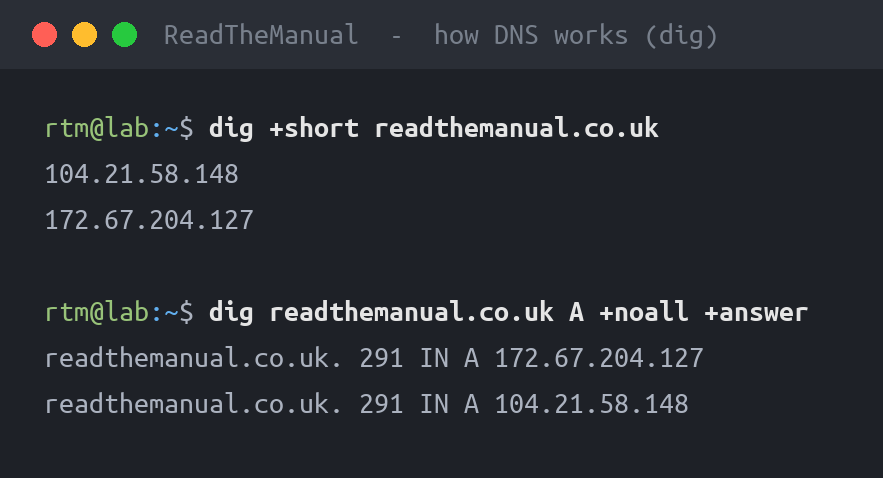
This entire process takes milliseconds. You can watch it happen:
# Show the full resolution chain
dig +trace readthemanual.co.uk

# Simple query with timing
dig readthemanual.co.uk

# Query a specific DNS server
dig @1.1.1.1 readthemanual.co.uk

# Windows equivalent
nslookup readthemanual.co.uk
The 13 Root Server Clusters
At the top of the DNS hierarchy sit the root servers, labelled A through M. There are exactly 13 root server identities, and the reason is mundane: a DNS response needs to fit in a single 512-byte UDP packet (the original specification limit), and 13 server addresses is the maximum that fits alongside the necessary protocol overhead.
In practice, each “root server” is actually a cluster of hundreds of servers distributed globally using anycast — the same IP address is advertised from multiple physical locations, and your query is routed to the nearest one. Root server “L,” operated by ICANN, has instances in over 160 locations worldwide. So “13 root servers” is technically true but practically misleading — there are over 1,500 root server instances globally.
Root servers don’t actually know the IP address of any website. They only know which servers are responsible for each TLD (.com, .uk, .org, etc.). They’re the starting point of the chain, not the answer.
DNS Record Types: What Each One Actually Does
DNS isn’t just “name → IP address.” There are multiple record types, each serving a different purpose. Here are the ones you’ll actually encounter in practice:
| Record | Purpose | Example |
|---|---|---|
| A | Maps a name to an IPv4 address | readthemanual.co.uk → 104.21.48.226 |
| AAAA | Maps a name to an IPv6 address | readthemanual.co.uk → 2606:4700:3030::6815:30e2 |
| CNAME | Alias — points one name to another name | www.readthemanual.co.uk → readthemanual.co.uk |
| MX | Mail server for the domain | readthemanual.tech → mail.readthemanual.tech (priority 10) |
| TXT | Arbitrary text (SPF, DKIM, domain verification) | "v=spf1 include:_spf.google.com ~all" |
| NS | Nameservers authoritative for this domain | readthemanual.co.uk → ns1.cloudflare.com |
| SOA | Start of Authority — zone metadata, serial number | Primary NS, admin email, refresh intervals |
| PTR | Reverse DNS — maps an IP back to a name | 104.21.48.226 → readthemanual.co.uk |
| SRV | Service location (port + host for a service) | Used by Active Directory, SIP, XMPP |
The records that cause the most trouble in practice:
CNAME records can’t coexist with other record types at the same name. If you have a CNAME for readthemanual.co.uk, you can’t also have an MX record there. This trips people up constantly when setting up email on domains that use CNAME-based CDN configurations. Cloudflare’s “CNAME flattening” works around this by resolving the CNAME to an A record at the edge.
MX records must point to an A/AAAA record, never a CNAME. Get this wrong and email breaks silently — messages bounce or disappear, and the sender gets a cryptic error three days later.
TXT records have become the Swiss Army knife of DNS. SPF for email authentication, DKIM for email signing, DMARC for email policy, domain verification for Google/Microsoft/Cloudflare, ACME challenges for SSL certificates. A domain with properly configured email might have five or six TXT records.
PTR records (reverse DNS) are overlooked until email stops working. Many mail servers reject messages from IPs without valid reverse DNS. If you’re self-hosting email, PTR records are not optional — they’re the first thing receiving servers check.
DNS “Propagation” — The Biggest Misconception in IT
You change a DNS record. Your registrar says “changes may take 24-48 hours to propagate.” This language implies that your change slowly spreads around the internet, like a ripple in a pond. That’s not what happens.
There is no propagation. There is only cache expiry.
When a DNS resolver looks up a record, it caches the result for the duration specified by the TTL (Time to Live). If the TTL is 3600 seconds (1 hour), the resolver will serve the cached answer for up to an hour before checking again. Change the record, and anyone whose resolver cached the old answer will keep getting the old answer until their cache expires.
This is why you see different answers from different locations — it’s not that the change hasn’t “reached” them, it’s that their resolver cached the old answer and hasn’t re-queried yet.
The practical lesson: lower your TTL before making changes. If you’re planning a migration, reduce the TTL to 300 seconds (5 minutes) a day or two before the cutover. By the time you make the change, most resolvers will have the low TTL cached and will re-query quickly. I’ve seen engineers schedule weekend migrations, make the DNS change, and then wait hours for traffic to shift because nobody lowered the TTL in advance. Don’t be that engineer.
# Check the current TTL of a record
dig readthemanual.co.uk | grep -A1 "ANSWER SECTION"

# The number after the record name is the remaining TTL in seconds
# readthemanual.co.uk.  300  IN  A  104.21.48.226
#                       ^^^
#                       TTL: 300 seconds remaining
Why It’s Always DNS: Real Failure Scenarios
Here are the DNS issues I’ve dealt with repeatedly over 20 years. You’ll encounter all of these.
High TTL after migration: You move a website to a new server but the DNS TTL was 86400 (24 hours). Some users see the new site, others see the old one. You spend a day fielding “it works for me but not for my colleague” tickets. Always lower the TTL before migrating.
CNAME loop: Record A is a CNAME pointing to Record B, which is a CNAME pointing back to Record A. Some resolvers detect this and return an error. Others just time out. The user sees a blank page and no helpful error message.
Missing reverse DNS breaking email: You set up a mail server. Sending works. Receiving works. But half your outbound emails are being rejected by recipients. The reason: your sending IP has no PTR record, and the receiving server’s spam filter rejects mail from IPs that can’t prove who they are via reverse DNS. You didn’t even know PTR records existed until today.
Split-horizon DNS confusion: Internally, app.company.com resolves to 10.0.1.50 (the internal server). Externally, it resolves to 203.0.113.50 (the public IP). Someone works from home, connects to the VPN, and gets the internal IP. They disconnect from the VPN, and their laptop’s DNS cache still has the internal IP. “The app is broken from home.” No — their cache is stale. ipconfig /flushdns fixes it, but first you need to understand why.
Expired domain: The domain registration lapses because the credit card on file expired and nobody updated it. DNS stops resolving. Everything on that domain — website, email, API endpoints — goes dark. I’ve seen production systems go down because a domain expired on a Saturday and the billing contact was on holiday. Set calendar reminders for domain renewals. Better yet, enable auto-renewal.
DNS and Privacy: Your ISP Sees Everything
Every traditional DNS query is sent in plain text. Your ISP can see every domain you look up — not the specific pages, but the domains. They know you visited nhs.uk and indeed.co.uk and reddit.com, even if the subsequent HTTPS connection is encrypted.
This is why DNS privacy matters, and why several technologies have emerged to address it:
DNS over HTTPS (DoH) encrypts DNS queries inside HTTPS connections to a resolver like Cloudflare (1.1.1.1) or Google (8.8.8.8). Your ISP sees that you’re connecting to Cloudflare’s DNS service, but can’t see what you’re looking up.
DNS over TLS (DoT) encrypts DNS queries using TLS on port 853. Same privacy benefit, different transport mechanism.
Pi-hole is the homelab solution. Run your own DNS resolver on a Raspberry Pi, block ads and trackers at the DNS level, and optionally forward your queries upstream via DoH/DoT. Your ISP sees you talking to your Pi. The Pi talks to Cloudflare encrypted. The ad and tracking domains? They resolve to 0.0.0.0 and never leave your network.
Running your own DNS resolver is one of the most impactful privacy and sovereignty moves you can make. It’s also one of the easiest — Pi-hole takes 10 minutes to set up and immediately improves your entire network. See our Pi-hole guide for the full walkthrough.
“Walk me through what happens during a DNS lookup.”
“The client checks its local cache first. If there’s no cached answer, it sends a recursive query to its configured resolver — usually the ISP or a public resolver like 1.1.1.1. The resolver, if it doesn’t have the answer cached, starts an iterative resolution: it queries a root server, which refers it to the TLD server, which refers it to the authoritative nameserver for the domain. The authoritative server returns the IP address. The resolver caches the answer for the duration of the TTL and returns it to the client.”
Walk through the chain step by step. Mention root, TLD, and authoritative — that shows you understand the hierarchy rather than treating DNS as a magic black box.
“A website migration is planned for Saturday. What DNS preparation would you do?”
“I’d lower the TTL on the affected records to 300 seconds at least 48 hours before the cutover. This ensures that by the time we make the change, most resolvers worldwide have the short TTL cached and will pick up the new records within minutes. After confirming the migration is stable, I’d raise the TTL back to a longer value — typically 3600 or higher — to reduce query load on the authoritative servers.”
This answer demonstrates practical experience. The 48-hour lead time on TTL reduction is the detail that separates someone who’s done this from someone who’s read about it.
“What’s the difference between a CNAME and an A record?”
“An A record maps a domain name directly to an IPv4 address. A CNAME maps a domain name to another domain name — it’s an alias. The resolver follows the CNAME to the target, then resolves that to an IP. CNAMEs can’t coexist with other record types at the same name, which is a common gotcha when configuring CDNs alongside email — you can’t have both a CNAME and an MX record at the zone apex.”
Mentioning the CNAME restriction unprompted shows depth. Most candidates only explain the basic difference.
Career Application
On your CV:
- “Managed DNS infrastructure for 200+ domains including zone transfers, DNSSEC, and SPF/DKIM/DMARC configuration”
- “Planned and executed zero-downtime DNS migrations using TTL pre-staging”
- “Implemented Pi-hole across corporate network, reducing ad-related bandwidth by 15% and improving security posture”
In your homelab:
- Set up Pi-hole — you’ll learn DNS by watching it work in real time. Every blocked domain is a mini lesson in how resolution works.
- Register a cheap domain and experiment with record types. Create A records, CNAMEs, MX records. Break things deliberately and fix them.
- Use
dig +traceregularly. Understanding the resolution chain from root to authoritative makes you dramatically better at troubleshooting. - Try running a local recursive resolver like Unbound. It resolves queries from root without forwarding to a third party.
Series Navigation
- Part 1: From ARPANET to Your Router — The physical internet and how data travels.
- Part 2: How DNS Actually Works (And Why It’s Always DNS) — You are here.
- Part 3: What Happens When You Type a URL — The full request journey.
- Part 4: The Birth of Cloud Computing — From MIT time-sharing to hyperscalers.
DNS is the foundation of everything. Master it, and half your troubleshooting career gets easier.
RTFM Apparel · printed in the UK


ReadTheManual is run, written and curated by Eric Lonsdale.
Eric has over 20 years of professional experience in IT infrastructure, cloud architecture, and cybersecurity, but started with PCs long before that.
He built his first machine from parts bought off tables at the local college campus, hoping they worked. He learned on BBC Micros and Atari units in the early 90s, and has built almost every PC he’s used between 1995 and now.
From helpdesk to infrastructure architect, Eric has worked across enterprise datacentres, Azure environments, and security operations. He’s managed teams, trained engineers, and spent two decades solving the problems this site teaches you to solve.
ReadTheManual exists because Eric believes the best way to learn IT is to build things, break things, and actually read the manual. Every guide on this site runs on infrastructure he owns and maintains.
Enjoyed this guide?
New articles on Linux, homelab, cloud, and automation every 2 days. No spam, unsubscribe anytime.