
You’ve built an app. Containerized it. Set up a registry. Automated the build. The image is sitting there, ready.
Now we run it. On your server. Your infrastructure. No Vercel, no Netlify, no monthly bills that scale with traffic.
This final post completes the journey from vibe-coded prototype to production deployment on hardware you control.
DevOps Skills Demonstrated
- Production deployment and server management
- Reverse proxy configuration (Traefik)
- SSL/TLS with Let’s Encrypt automation
- Container orchestration and updates
- Monitoring and maintenance
Market Value: Production deployment skills are essential for DevOps, SRE, and Platform Engineering roles at £60-85k+
What You’ll Learn
- Preparing your server
- Pulling and running from your registry
- Reverse proxy with SSL (Traefik)
- Updating deployments
- Basic monitoring and maintenance
The Target Architecture
Internet
    |
    v
[Your Domain] ---> [Reverse Proxy (Traefik)]
                          |
                          +---> [Your App Container]
                          +---> [Another App]
                          +---> [More Apps...]
One server, one reverse proxy, many apps. Each app gets its own subdomain and SSL certificate automatically.
Server Prerequisites
Hour 0-1: What You Need
- VPS or home server with Docker installed
- Domain name pointing to server
- Ports 80 and 443 open
- SSH access
Minimum Specs
For a few small apps:
- 1-2 CPU cores
- 2GB RAM
- 20GB storage
A $5-10/month VPS handles this easily.
Docker Installation
If not already installed:
curl -fsSL https://get.docker.com -o get-docker.sh
sudo sh get-docker.sh
sudo usermod -aG docker $USER
# Log out and back in
DNS Setup
Hour 1-2: Point Your Domain
Point your domain to your server:
A Records:
app.yourdomain.com    ->  YOUR_SERVER_IP
another.yourdomain.com ->  YOUR_SERVER_IP
Or use a wildcard:
*.yourdomain.com -> YOUR_SERVER_IPWildcard means any subdomain works without adding records.
Reverse Proxy Setup (Traefik)
Hour 2-4: Why Traefik?
- Automatic SSL via Let’s Encrypt
- Docker-native (reads container labels)
- Handles multiple apps on one server
- Zero-downtime updates
Directory Structure
mkdir -p ~/traefik
cd ~/traefik
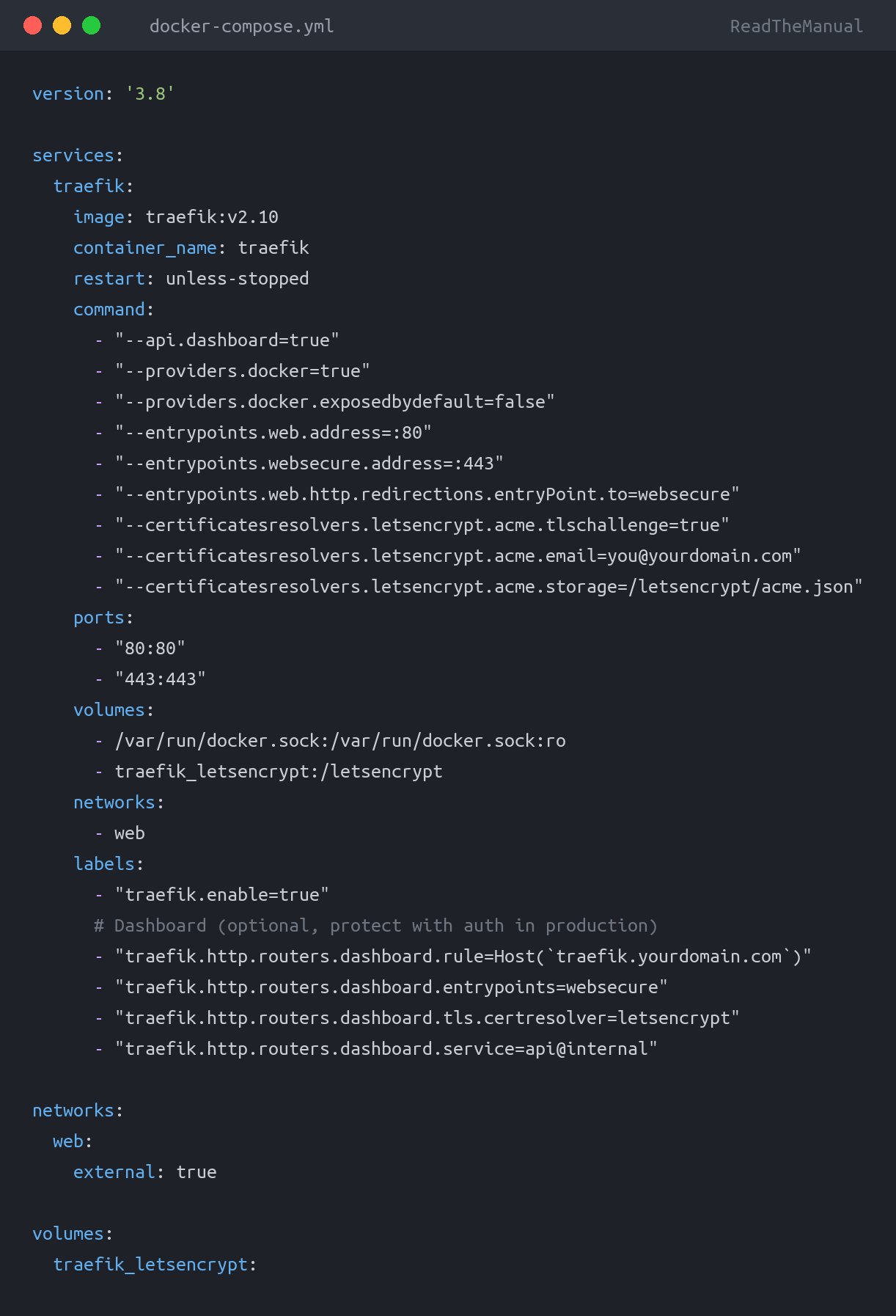
Docker Compose for Traefik
Create docker-compose.yml:
version: '3.8'

services:
  traefik:
    image: traefik:v2.10
    container_name: traefik
    restart: unless-stopped
    command:
      - "--api.dashboard=true"
      - "--providers.docker=true"
      - "--providers.docker.exposedbydefault=false"
      - "--entrypoints.web.address=:80"
      - "--entrypoints.websecure.address=:443"
      - "--entrypoints.web.http.redirections.entryPoint.to=websecure"
      - "--certificatesresolvers.letsencrypt.acme.tlschallenge=true"
      - "--certificatesresolvers.letsencrypt.acme.email=you@yourdomain.com"
      - "--certificatesresolvers.letsencrypt.acme.storage=/letsencrypt/acme.json"
    ports:
      - "80:80"
      - "443:443"
    volumes:
      - /var/run/docker.sock:/var/run/docker.sock:ro
      - traefik_letsencrypt:/letsencrypt
    networks:
      - web
    labels:
      - "traefik.enable=true"
      # Dashboard (optional, protect with auth in production)
      - "traefik.http.routers.dashboard.rule=Host(`traefik.yourdomain.com`)"
      - "traefik.http.routers.dashboard.entrypoints=websecure"
      - "traefik.http.routers.dashboard.tls.certresolver=letsencrypt"
      - "traefik.http.routers.dashboard.service=api@internal"

networks:
  web:
    external: true

volumes:
  traefik_letsencrypt:
Create the Network
docker network create webStart Traefik
docker compose up -dTraefik is now running, ready to proxy your apps.
Deploying Your App
Hour 4-6: Create App Directory
mkdir -p ~/apps/my-app
cd ~/apps/my-app
Docker Compose for Your App
Create docker-compose.yml:
version: '3.8'

services:
  app:
    image: registry.yourdomain.com/username/my-app:latest
    container_name: my-app
    restart: unless-stopped
    networks:
      - web
    labels:
      - "traefik.enable=true"
      - "traefik.http.routers.my-app.rule=Host(`app.yourdomain.com`)"
      - "traefik.http.routers.my-app.entrypoints=websecure"
      - "traefik.http.routers.my-app.tls.certresolver=letsencrypt"
      - "traefik.http.services.my-app.loadbalancer.server.port=80"

networks:
  web:
    external: true
Login to Registry
docker login registry.yourdomain.comDeploy
docker compose up -dVerify
Visit https://app.yourdomain.com – your app is live with SSL.
Updating Deployments
Hour 6-7: Manual Update
When you push new code and CI/CD builds a new image:
cd ~/apps/my-app

# Pull latest image
docker compose pull

# Restart with new image
docker compose up -d
Zero downtime – Traefik handles the switchover.
Real Example: Update Script
Create update.sh:
#!/bin/bash
set -euo pipefail

cd ~/apps/my-app
echo "Pulling latest image..."
docker compose pull
echo "Restarting container..."
docker compose up -d
echo "Cleaning old images..."
docker image prune -f
echo "Done!"
Automated Updates (Watchtower)
For automatic updates when new images are pushed:
# Add to traefik docker-compose.yml or separate file
services:
  watchtower:
    image: containrrr/watchtower
    container_name: watchtower
    restart: unless-stopped
    volumes:
      - /var/run/docker.sock:/var/run/docker.sock
      - ~/.docker/config.json:/config.json:ro
    environment:
      - WATCHTOWER_CLEANUP=true
      - WATCHTOWER_POLL_INTERVAL=300  # Check every 5 minutes
    command: --interval 300
Watchtower checks for new images and updates containers automatically.
Multiple Apps
Add Another App
mkdir -p ~/apps/another-app
cd ~/apps/another-app
Create docker-compose.yml:
version: '3.8'

services:
  app:
    image: registry.yourdomain.com/username/another-app:latest
    container_name: another-app
    restart: unless-stopped
    networks:
      - web
    labels:
      - "traefik.enable=true"
      - "traefik.http.routers.another-app.rule=Host(`another.yourdomain.com`)"
      - "traefik.http.routers.another-app.entrypoints=websecure"
      - "traefik.http.routers.another-app.tls.certresolver=letsencrypt"
      - "traefik.http.services.another-app.loadbalancer.server.port=80"

networks:
  web:
    external: true
docker compose up -dNow another.yourdomain.com works with automatic SSL.
The Pattern
Each app:
- Has its own directory
- Has its own docker-compose.yml
- Connects to the
webnetwork - Gets Traefik labels for routing
- Gets automatic SSL
Add as many as your server can handle.
Environment Variables
For Sensitive Config
Create .env file (not committed to Git):
DATABASE_URL=postgres://user:pass@host/db
API_KEY=secret123
Reference in docker-compose.yml:
services:
  app:
    image: registry.yourdomain.com/username/my-app:latest
    environment:
      - DATABASE_URL=${DATABASE_URL}
      - API_KEY=${API_KEY}
Secrets Management
For more security, use Docker secrets or external secret managers. For personal projects, .env files are usually sufficient.
Basic Monitoring
Container Status
# All running containers
docker ps

# Resource usage
docker stats

# Logs for specific container
docker logs -f my-app
Health Checks
Add to your Dockerfile:
HEALTHCHECK --interval=30s --timeout=3s --start-period=5s --retries=3 \
  CMD wget --quiet --tries=1 --spider http://localhost/ || exit 1
Traefik will only route to healthy containers.
Simple Uptime Monitoring
For external monitoring, use:
- Uptime Kuma (self-hosted)
- UptimeRobot (free tier)
- Healthchecks.io (free tier)
Backup Strategy
What to Backup
- Docker Compose files – Your deployment config
- Environment files – Your secrets
- Persistent volumes – If apps have data
Simple Backup Script
#!/bin/bash
# backup-apps.sh

BACKUP_DIR="/backup/apps/$(date +%Y%m%d)"
mkdir -p $BACKUP_DIR

# Backup compose files and env
for app in ~/apps/*/; do
  app_name=$(basename $app)
  cp -r $app $BACKUP_DIR/$app_name
done

# Backup Traefik
cp -r ~/traefik $BACKUP_DIR/traefik

echo "Backed up to $BACKUP_DIR"
Troubleshooting
App Not Accessible:
- Check container is running:
docker ps - Check logs:
docker logs my-app - Check Traefik logs:
docker logs traefik - Check DNS:
nslookup app.yourdomain.com - Check labels: Typos in docker-compose labels?
SSL Certificate Issues:
# Check Traefik logs for ACME errors
docker logs traefik | grep -i acme
Common issues:
- DNS not pointing to server
- Port 80/443 blocked
- Rate limited (wait and retry)
Container Keeps Restarting:
# Check logs
docker logs my-app

# Check exit code
docker inspect my-app --format='{{.State.ExitCode}}'
Usually an application error – check your app code.
The Complete Picture
Local Machine
    |
    | git push
    v
GitHub/Gitea ---> CI/CD Pipeline
                      |
                      | docker push
                      v
               Your Registry
                      |
                      | docker pull (manual or Watchtower)
                      v
               Your Server
                      |
                      +-- Traefik (reverse proxy + SSL)
                      |       |
                      |       +-- app.yourdomain.com
                      |       +-- another.yourdomain.com
                      |       +-- more.yourdomain.com
The workflow:
- Write code
- Push to Git
- CI/CD builds image
- Image pushed to your registry
- Server pulls new image
- App updated with zero downtime
All on your infrastructure. All under your control.
What You’ve Accomplished
Over this series, you’ve gone from:
“I have an idea” to “It’s running in production on my server”
- Built an app with AI tools in 24 hours
- Set up local development
- Containerized with Docker
- Pushed to your own registry
- Automated builds with CI/CD
- Deployed to your own infrastructure
No monthly platform fees. No vendor lock-in. Skills that transfer to professional work.
How to Talk About This in Interviews
On your resume:
- “Production deployment with Traefik reverse proxy”
- “Automated SSL with Let’s Encrypt”
- “Container orchestration and zero-downtime updates”
- “End-to-end DevOps pipeline implementation”
In interviews:
“I’ve built a complete deployment pipeline from scratch. Code goes to Git, triggers CI/CD which builds and pushes Docker images to my private registry, then deploys to my server with Traefik handling routing and automatic SSL. Updates are zero-downtime. I understand every layer of this stack because I built it myself.”
That’s not just theory. That’s demonstrable, production experience.
The Journey Complete
- Step 1: Built app with AI tools
- Step 2: Set up local development environment
- Step 3: Containerize with Docker
- Step 4: Push to private registry
- Step 5: Automate with CI/CD
- Step 6: Deploy to your infrastructure (You are here)
Series Complete! You now have the complete playbook for taking any project from idea to production.
What’s Next?
Build something. The best way to solidify these skills is to use them.
Ideas:
- Internal tools for your work
- Apps for your family
- Side projects you’ve been putting off
- Portfolio pieces that demonstrate real skills
The infrastructure is ready. Go build.
From idea to production in a weekend. No platform fees. No vendor lock-in. Just you and your code, running on your infrastructure.
Frequently Asked Questions
How do I deploy a Docker application to my own server?
Set up Docker and Docker Compose on your server, configure a reverse proxy (Traefik or Nginx Proxy Manager) for HTTPS and routing, point your domain’s DNS to your server’s IP, create a docker-compose.yml defining your application stack, and run docker compose up -d. Use a CI/CD pipeline to automate updates when you push code changes.
What is Traefik and how does it differ from Nginx?
Traefik is a modern reverse proxy designed for containerized environments. It auto-discovers Docker containers via labels and automatically provisions SSL certificates from Let’s Encrypt. Nginx Proxy Manager provides similar features through a web GUI. Traefik is more DevOps-oriented (config as code), while NPM is more beginner-friendly (point and click).
What server specs do I need to self-host a web application?
Minimum for a single small application: 1 vCPU, 1GB RAM, 20GB SSD. Recommended for multiple services: 2 vCPUs, 4GB RAM, 40GB SSD. A VPS from providers like Hetzner (3-5 euros per month) or a homelab mini PC both work. The reverse proxy, database, and application each need their own resources, so plan for the total stack.
How do I get HTTPS certificates for my self-hosted application?
Use Let’s Encrypt with your reverse proxy. Both Traefik and Nginx Proxy Manager have built-in Let’s Encrypt integration that automatically requests and renews certificates. You need a domain name pointing to your server and port 80/443 accessible from the internet. For homelab-only services behind a VPN, self-signed certificates are acceptable.
 DevOps tees & hoodies
Docker, Kubernetes and Friday deploys.
Tees £19.99 · Hoodies £39.99 · 10% off any 2+ · Free UK shipping over £50
DevOps tees & hoodies
Docker, Kubernetes and Friday deploys.
Tees £19.99 · Hoodies £39.99 · 10% off any 2+ · Free UK shipping over £50

ReadTheManual is run, written and curated by Eric Lonsdale.
Eric has over 20 years of professional experience in IT infrastructure, cloud architecture, and cybersecurity, but started with PCs long before that.
He built his first machine from parts bought off tables at the local college campus, hoping they worked. He learned on BBC Micros and Atari units in the early 90s, and has built almost every PC he’s used between 1995 and now.
From helpdesk to infrastructure architect, Eric has worked across enterprise datacentres, Azure environments, and security operations. He’s managed teams, trained engineers, and spent two decades solving the problems this site teaches you to solve.
ReadTheManual exists because Eric believes the best way to learn IT is to build things, break things, and actually read the manual. Every guide on this site runs on infrastructure he owns and maintains.
Enjoyed this guide?
New articles on Linux, homelab, cloud, and automation every 2 days. No spam, unsubscribe anytime.