Your app runs locally. Great. But “it works on my machine” isn’t deployment.
Docker containers solve this. They package your app with everything it needs to run – anywhere. Build once, run anywhere. No “but I have different Node version” issues. No dependency hell.
This post takes your vibe-coded app and puts it in a container, ready for deployment.
DevOps Skills Demonstrated
- Docker containerization and multi-stage builds
- Nginx web server configuration
- Production optimization techniques
- Infrastructure as Code principles
Market Value: Container skills are essential for DevOps, Platform Engineering, and SRE roles at £55-75k+
What You’ll Learn
- What Docker actually does (simply explained)
- Writing a Dockerfile for React/Vite apps
- Multi-stage builds for smaller images
- Testing your container locally
- Docker Compose for development
Why Containers?
The Problem
Your app needs:
- Specific Node.js version
- Specific npm packages
- Specific build process
- Web server to serve files
Setting this up on every server is tedious and error-prone.
The Solution
A container includes:
- Your code
- Node.js (exact version)
- All dependencies
- Build process
- Web server
One package. Runs identically everywhere.
Docker Concepts
| Term | What It Is |
|---|---|
| Image | The blueprint (like a class) |
| Container | Running instance (like an object) |
| Dockerfile | Instructions to build an image |
| Registry | Storage for images (like GitHub for code) |
Install Docker
Hour 0-1: Installation
Windows/macOS: Download Docker Desktop from docker.com.
Linux (Ubuntu):
curl -fsSL https://get.docker.com -o get-docker.sh
sudo sh get-docker.sh
sudo usermod -aG docker $USER
# Log out and back in
Verify:
docker --version
docker run hello-world
The Dockerfile
Hour 1-2: Create the Dockerfile
Create Dockerfile in your project root (no extension):
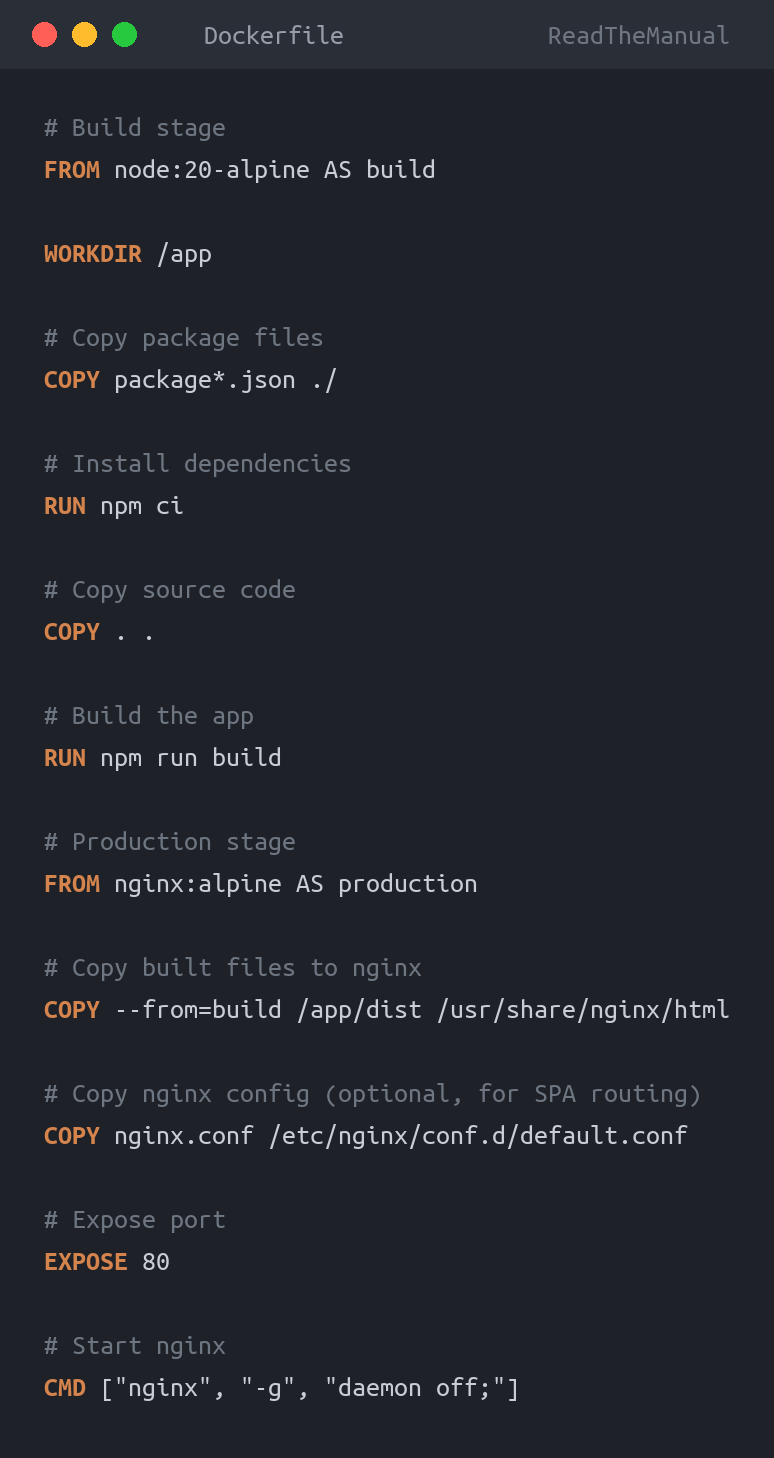
# Build stage
FROM node:20-alpine AS build

WORKDIR /app

# Copy package files
COPY package*.json ./

# Install dependencies
RUN npm ci

# Copy source code
COPY . .

# Build the app
RUN npm run build

# Production stage
FROM nginx:alpine AS production

# Copy built files to nginx
COPY --from=build /app/dist /usr/share/nginx/html

# Copy nginx config (optional, for SPA routing)
COPY nginx.conf /etc/nginx/conf.d/default.conf

# Expose port
EXPOSE 80

# Start nginx
CMD ["nginx", "-g", "daemon off;"]
What This Does
Stage 1 (Build):
- Start with Node.js 20 Alpine (small Linux)
- Copy package.json
- Install dependencies (
npm ciis faster thannpm install) - Copy all source code
- Run the build (
npm run buildcreatesdist/folder)
Stage 2 (Production):
- Start fresh with nginx Alpine (tiny web server)
- Copy ONLY the built files from stage 1
- Configure nginx
- Expose port 80
- Start the server
Why Two Stages?
The build stage includes Node.js, npm, all dev dependencies – hundreds of MB.
Your production image only needs the built HTML/JS/CSS files and nginx – about 30MB.
Multi-stage builds give you small, secure production images.
Nginx Configuration
Hour 2-3: Create nginx.conf
Create nginx.conf for single-page app routing:
server {
    listen 80;
    server_name localhost;
    root /usr/share/nginx/html;
    index index.html;

    # Handle SPA routing - all routes serve index.html
    location / {
        try_files $uri $uri/ /index.html;
    }

    # Cache static assets
    location ~* \.(js|css|png|jpg|jpeg|gif|ico|svg|woff|woff2)$ {
        expires 1y;
        add_header Cache-Control "public, immutable";
    }

    # Gzip compression
    gzip on;
    gzip_types text/plain text/css application/json application/javascript text/xml application/xml;
}
This handles:
- SPA routing (React Router works)
- Static asset caching
- Gzip compression
Build and Run
Hour 3-4: Build the Image
docker build -t my-app:latest .-t my-app:latest– Name and tag the image.– Use current directory (where Dockerfile is)
Watch the build progress. First build downloads base images (cached for future).
Run the Container
docker run -d -p 8080:80 --name my-app my-app:latest-d– Run in background (detached)-p 8080:80– Map port 8080 on host to port 80 in container--name my-app– Name the containermy-app:latest– Image to use
Test It
Open http://localhost:8080 – your app is running in a container.
Useful Docker Commands
# List running containers
docker ps

# List all containers (including stopped)
docker ps -a

# View logs
docker logs my-app

# Stop container
docker stop my-app

# Remove container
docker rm my-app

# List images
docker images

# Remove image
docker rmi my-app:latest
Docker Compose for Development
Hour 4-5: Create docker-compose.yml
For easier management, create docker-compose.yml:
version: '3.8'

services:
  app:
    build:
      context: .
      dockerfile: Dockerfile
    ports:
      - "8080:80"
    restart: unless-stopped
Using Docker Compose
# Build and start
docker compose up -d

# View logs
docker compose logs -f

# Stop
docker compose down

# Rebuild after changes
docker compose up -d --build
Development vs Production
For Development
Don’t use Docker for active development. Use:
npm run devDocker adds build time on every change. Hot reload is faster.
For Testing Production Build
Use Docker to test the production build:
docker compose up -d --build
# Test at localhost:8080
docker compose down
For Deployment
Docker is essential. We’ll cover deployment in post 6.
Create .dockerignore
Hour 5-6: Optimize the Build
Create .dockerignore to exclude unnecessary files:
node_modules
dist
.git
.gitignore
*.md
.env
.env.*
Dockerfile
docker-compose.yml
.dockerignore
This speeds up builds by not copying:
node_modules(reinstalled in container).git(not needed in image)- Local build outputs
Optimizing Your Image
Check Image Size
docker images my-appWith multi-stage build, expect ~30-50MB.
Further Optimization
Use specific versions:
FROM node:20.10-alpine AS build
FROM nginx:1.25-alpine AS production
Pinned versions are more reproducible.
Minimize layers: Combine RUN commands where logical:
RUN npm ci && npm run buildCommon Issues and Fixes
Build Fails at npm ci:
npm ERR! Could not resolve dependencyFix: Ensure package-lock.json exists and is committed:
npm install
git add package-lock.json
git commit -m "Add package-lock.json"
Container Starts but App Doesn’t Load:
Check logs: docker logs my-app
Common causes:
- Build failed silently (check for errors in log)
- Port mapping wrong
- Nginx config issue
“Permission denied” on Linux:
sudo usermod -aG docker $USER
# Log out and back in
What You’ve Built
Your app is now:
- Containerized – Everything packaged together
- Portable – Runs on any Docker host
- Production-ready – Optimized nginx serving
- Small – Multi-stage build, ~30MB
The same container that runs on your laptop will run on your server.
Files Created
your-app/
├── Dockerfile          # Build instructions
├── docker-compose.yml  # Easy management
├── nginx.conf          # Web server config
├── .dockerignore       # Exclude from build
└── ... (existing files)
Add these to Git:
git add Dockerfile docker-compose.yml nginx.conf .dockerignore
git commit -m "Add Docker configuration"
git push
How to Talk About This in Interviews
On your resume:
- “Docker containerization with multi-stage builds”
- “Nginx web server configuration for SPAs”
- “Production image optimization (sub-50MB images)”
In interviews:
“I containerize applications using multi-stage Docker builds to keep production images small and secure. I understand the difference between build-time and runtime dependencies, and I configure nginx for SPA routing and asset caching. My typical React image is under 50MB.”
The Journey So Far
- Step 1: Built app with AI tools
- Step 2: Set up local development environment
- Step 3: Containerize with Docker (You are here)
- Step 4: Push to private registry
- Step 5: Automate with CI/CD
- Step 6: Deploy to your infrastructure
Practical Exercise
Today:
- Create the Dockerfile, nginx.conf, .dockerignore
- Build the image:
docker build -t my-app . - Run it:
docker run -d -p 8080:80 my-app - Test at localhost:8080
- Commit the Docker files to Git
Verification:
docker imagesshows your image (~30-50MB)- App loads at localhost:8080
- Files are committed to GitHub
Docker is how you ship software. Now your app ships like a professional project.
Frequently Asked Questions
What is a Dockerfile and why do I need one?
A Dockerfile is a text file with instructions to build a Docker image. It defines the base operating system, installs dependencies, copies your code, and sets the startup command. You need one to package your application into a container that runs identically everywhere – your laptop, a Raspberry Pi, a cloud server, or a Kubernetes cluster.
What is a multi-stage Docker build?
A multi-stage build uses multiple FROM statements in a single Dockerfile. The first stage installs build tools and compiles your application. The second stage copies only the compiled output into a minimal base image (like nginx:alpine). This produces much smaller final images because build tools and node_modules are not included in the deployed container.
How do I containerize a Vite React application?
Create a multi-stage Dockerfile: stage 1 uses node:alpine to run npm install and npm run build, producing static files. Stage 2 uses nginx:alpine and copies the build output from stage 1 into nginx’s HTML directory. The final image serves your React app via Nginx and is typically under 50MB compared to 1GB+ with node_modules included.
What is the difference between Docker images and containers?
An image is a read-only template containing your application code, dependencies, and configuration. A container is a running instance of an image. You can run multiple containers from the same image. Images are built from Dockerfiles and stored in registries. Containers are created from images and can be started, stopped, and deleted independently.
 DevOps tees & hoodies
Docker, Kubernetes and Friday deploys.
Tees £19.99 · Hoodies £39.99 · 10% off any 2+ · Free UK shipping over £50
DevOps tees & hoodies
Docker, Kubernetes and Friday deploys.
Tees £19.99 · Hoodies £39.99 · 10% off any 2+ · Free UK shipping over £50

ReadTheManual is run, written and curated by Eric Lonsdale.
Eric has over 20 years of professional experience in IT infrastructure, cloud architecture, and cybersecurity, but started with PCs long before that.
He built his first machine from parts bought off tables at the local college campus, hoping they worked. He learned on BBC Micros and Atari units in the early 90s, and has built almost every PC he’s used between 1995 and now.
From helpdesk to infrastructure architect, Eric has worked across enterprise datacentres, Azure environments, and security operations. He’s managed teams, trained engineers, and spent two decades solving the problems this site teaches you to solve.
ReadTheManual exists because Eric believes the best way to learn IT is to build things, break things, and actually read the manual. Every guide on this site runs on infrastructure he owns and maintains.
Enjoyed this guide?
New articles on Linux, homelab, cloud, and automation every 2 days. No spam, unsubscribe anytime.