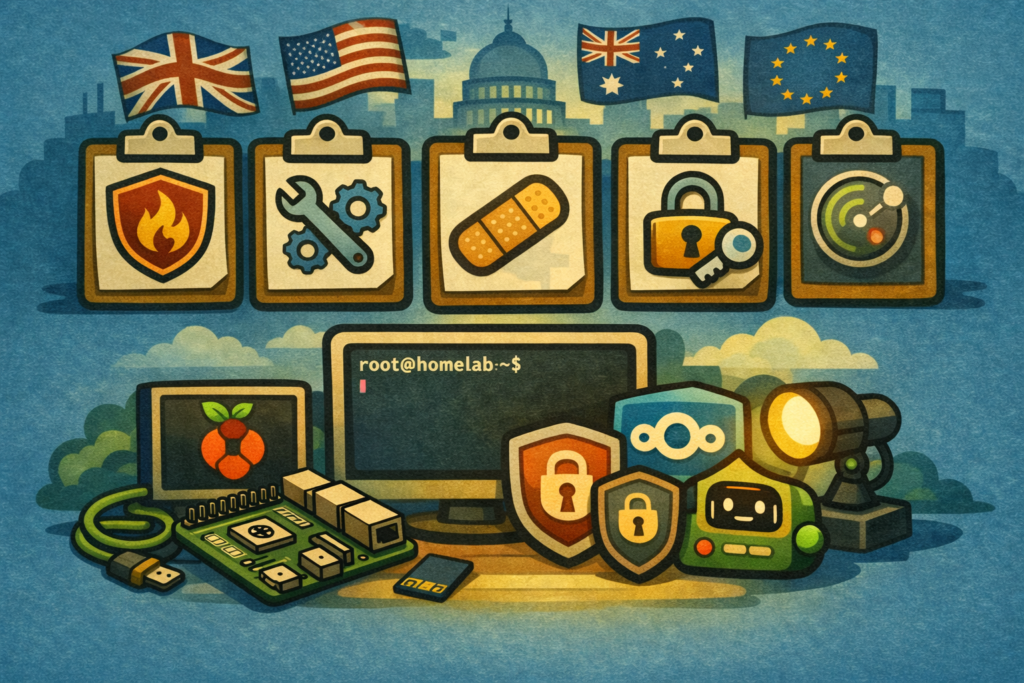
The UK Government just launched a campaign called “Lock the Door.” The message to businesses is pretty simple: get five security basics in place or you’re leaving yourself wide open.
Firewalls. Secure configurations. Patching. Access control. Malware protection.
Five things. Not complicated. Not expensive. And yet 50% of UK small businesses were breached in the last 12 months.
Here’s the thing though – this isn’t just a UK problem, and it isn’t a new message. Every major government has been saying the same thing for years, in slightly different packaging:
- UK: Cyber Essentials – five controls, certifiable
- US: NIST Cybersecurity Framework – Identify, Protect, Detect, Respond, Recover
- Australia: Essential Eight – eight mitigation strategies ranked by maturity
- EU: ENISA guidelines – baseline security for SMEs across member states
- Canada: Canadian Centre for Cyber Security – baseline controls for small and medium organisations
Different branding. Different acronyms. Same core message: do the basics properly and you stop the vast majority of attacks before they start.
What caught my attention is that the five things every government keeps asking for are the same five things you naturally learn when you run a homelab. Not because you’re studying a framework. Because things break if you don’t.
1. Firewalls – Configured Properly
Every framework starts here. Control what traffic gets in and what gets out.
The government version sounds corporate: “boundary firewalls and internet gateways.” But strip away the compliance language and it’s just: know what’s talking to what, and block everything you haven’t explicitly allowed.
What your homelab teaches you
If you’ve ever set up Docker networking, you’ve already had this lesson. The first time you expose a container port and realise it’s listening on 0.0.0.0 – accessible to everything on your network – you learn fast. You start binding to specific interfaces, creating Docker bridge networks, isolating service groups from each other.
Running Pi-hole teaches you something else entirely. You set it up for ad blocking, sure. But then you look at the query log and see just how many outbound connections your devices make without you knowing. Smart TVs phoning home every few minutes. Apps pinging analytics endpoints constantly. IoT devices talking to servers in countries you’ve never been to. That’s your “what’s talking to what” education right there. No textbook needed.
If you’ve gone further – pfSense, OPNsense, even just iptables rules on a Linux box – you’ve built the same thing enterprises pay consultants to design. VLAN segmentation for your IoT devices, firewall rules between subnets, logging dropped traffic. The concepts scale identically from a home network to a corporate one. The tools are often literally the same.
2. Secure Configuration – Hardening Your Defaults
“Secure configuration” is the one that sounds vague until you’ve been bitten by it. What it actually means: don’t leave things running with default settings. Turn off what you don’t need. Lock down what you do.
NIST calls this “configuration management.” The Essential Eight talks about “hardening user applications.” The UK’s Cyber Essentials says “secure configuration.” They all mean the same thing: defaults are designed for convenience, not security.
What your homelab teaches you
Every Docker container you’ve ever deployed came with defaults that weren’t ideal for production use. Portainer’s first-run admin account. Nginx Proxy Manager’s admin[at]example.com with changeme. Database containers with no root password set. If you’ve been running a homelab for more than a month, you’ve already learned to check these.
SSH is the classic one. You set up a new Linux box, immediately disable root login, switch to key-based auth, change the default port if you’re feeling thorough. Not because someone told you to follow a framework – because you looked at /var/log/auth.log and saw hundreds of brute force attempts from IPs you’ve never seen before. That’s the lesson that sticks.
Docker socket mounting is another one. The first time you read that mounting /var/run/docker.sock gives a container full control over your Docker daemon, you start thinking more carefully about what gets that privilege and what doesn’t. Read-only mounts where possible. Non-root container users. Dropping unnecessary Linux capabilities. These aren’t theoretical security measures – they’re things you implement because your homelab made the risks tangible.
3. Patching – Keeping Software Up to Date
Every government framework says the same thing: patch your systems. Apply security updates promptly. Don’t run end-of-life software. It’s the most boring recommendation on every list, and the one most often ignored.
The stats are brutal. The average time to exploit a newly disclosed vulnerability is now measured in days, sometimes hours. The average time for organisations to apply patches? Weeks. Sometimes months. That gap is where most breaches happen.
What your homelab teaches you
You’ve already had this education if you’ve ever ignored updates for a few weeks and then tried to do them all at once. Dependency conflicts, breaking changes, containers that won’t restart because the config format changed between versions. You learn quickly that little and often beats a big-bang update every quarter.
Running Watchtower (or Diun, or Renovate Bot) teaches you about automated patching – the benefits and the risks. You set it up, it auto-updates a container at 3am, and something breaks. Now you understand why enterprises have change windows and rollback plans. You implement update monitoring, maybe exclude critical containers from auto-updates, test on a staging stack first. That’s a patching strategy. You built it yourself because your Nextcloud broke at a bad time.
The homelabbers running Proxmox or bare-metal Linux have an even deeper version of this lesson. Kernel updates, unattended-upgrades, reboot scheduling. You learn the difference between a security patch and a feature update. You learn that “I’ll update it later” is how systems end up three major versions behind with known CVEs wide open.
4. Access Control – Who Gets Access to What
“User access control” sounds like corporate speak for Active Directory policies. But the principle is universal: only give people (and services) the access they actually need. Verify identity before granting it.
The Essential Eight calls this “restricting administrative privileges.” NIST frames it as “Identity Management and Access Control.” Cyber Essentials just says “user access control.” All of them are saying: default to no access, then grant specifically what’s needed.
What your homelab teaches you
The moment your homelab goes beyond just you, this becomes real. Maybe your partner uses Nextcloud, your kids use Jellyfin, a friend has a WireGuard profile. Suddenly you’re thinking about user accounts, permissions, what each person should and shouldn’t be able to access.
If you’ve set up Authelia or Authentik as an authentication layer in front of your services, you’ve implemented single sign-on and multi-factor authentication – the same things enterprises spend serious money on with Okta and Entra ID. You’ve dealt with access policies, session management, and the eternal question of “how annoying can I make the security before people just go around it.”
Running services with non-root users inside containers is the same principle at a different layer. Dropping Linux capabilities, using read-only filesystems where possible, creating service accounts with minimal permissions. You didn’t do this because an auditor told you to. You did it because you read about a container escape vulnerability and thought “I should probably sort that out.”
5. Malware Protection – Detecting and Responding to Threats
The last one on every framework’s list: detect bad things and respond to them. Traditionally this meant “install antivirus,” but modern guidance is broader. It’s about monitoring, detection, and response – knowing when something’s wrong and having a plan for it.
NIST’s “Detect” and “Respond” functions cover this. The Essential Eight includes “application control” and “Microsoft Office macro settings” (which is really about preventing initial execution). The UK framework calls it “malware protection.” The intent is the same: don’t just prevent attacks – detect the ones that get through.
What your homelab teaches you
If you’ve set up CrowdSec, you’re running a collaborative intrusion prevention system that shares threat intelligence with the community. Every IP that attacks your infrastructure gets flagged, and you benefit from everyone else’s data too. That’s the same model that enterprise threat intelligence platforms charge thousands a year for.
Running a SIEM stack – even a basic one with Wazuh or Grafana Loki – teaches you what “security monitoring” actually means in practice. You learn which logs matter, what normal traffic patterns look like, and how to build alerts that catch real problems without drowning you in false positives. The first time you see a genuine brute force attempt in your logs, or spot a container doing something unexpected in the network traffic, the concept of “threat detection” stops being abstract.
Uptime Kuma is the simpler version of this. It’s not security-specific, but knowing within 60 seconds that a service has gone down – and being notified automatically – is the same operational awareness that security teams build with much more expensive tooling.
Even running fail2ban on an SSH server teaches you the basics: monitor logs, detect patterns, respond automatically. That’s the detect-and-respond cycle in its simplest form.
The Pattern
Here’s what every government framework is really saying, stripped of the compliance language:
| Government Requirement | What They Mean | Homelab Equivalent |
|---|---|---|
| Firewall configuration | Control network traffic | Pi-hole, Docker networks, pfSense, VLANs |
| Secure configuration | Harden defaults | SSH hardening, container security, non-root users |
| Patch management | Keep things updated | Watchtower, unattended-upgrades, Renovate |
| Access control | Least privilege, verify identity | Authelia/Authentik, MFA, user permissions |
| Malware protection | Detect and respond to threats | CrowdSec, Wazuh, fail2ban, Uptime Kuma |
Five controls. Five things your homelab has been teaching you through trial and error.
The difference between a homelabber and someone who’s just read the framework is that the homelabber has seen these things fail. You’ve seen what happens when a firewall rule is too permissive, when a default password isn’t changed, when an update is skipped. That lived experience is worth more than any certification exam, because it sticks.
Why This Matters Beyond Your Lab
The skills gap here is real. Organisations are spending money on compliance certifications and security tooling, but the people operating those tools often learned security as a checklist rather than a practice. Meanwhile, the person running CrowdSec and Wazuh on a mini PC in their spare room has a deeper intuition for how attacks actually work and how defences actually fail.
If you run a homelab and you’ve implemented even half of the things mentioned in this post, you understand these five security controls better than a lot of people who’ve studied them for a certification. Not because you’re smarter – because you’ve done it. You’ve been on call for your own infrastructure. You’ve been the security team, the sysadmin, the network engineer, and the incident responder, all at once.
That’s not something you learn from a PDF.

Getting Started
If you’re reading this and thinking “I should probably sort my homelab security out,” here’s a practical starting point:
- Audit your network – Run Pi-hole or Adguard Home for a week and look at the query log. You’ll be surprised what’s talking and where.
- Harden SSH – Key-based auth, disable root login, consider fail2ban. Takes 10 minutes.
- Check your Docker defaults – Are any containers running as root that don’t need to? Are any ports exposed wider than they should be?
- Set up basic monitoring – Uptime Kuma for availability, CrowdSec for threat detection. Both free, both lightweight.
- Enable 2FA everywhere – If a service supports it, turn it on. If you’re feeling ambitious, put Authelia in front of everything.
None of this requires expensive hardware or enterprise software. A Raspberry Pi and some curiosity is genuinely all you need to start building security skills that translate directly to any professional environment.
Governments keep publishing frameworks telling businesses to do things that homelabbers already do for fun. Maybe the best security training isn’t a course or a cert. Maybe it’s a spare PC, a network cable, and the stubbornness to fix things yourself when they break at midnight.
Frequently Asked Questions
What is Firewalls – Configured Properly?
Every framework starts here. Control what traffic gets in and what gets out. The government version sounds corporate: “boundary firewalls and internet gateways.” But strip away the compliance language and it’s just: know what’s talking to what, and block everything you haven’t explicitly allowed.
What your homelab teaches you?
If you’ve ever set up Docker networking, you’ve already had this lesson. The first time you expose a container port and realise it’s listening on 0.0.0.0 – accessible to everything on your network – you learn fast. You start binding to specific interfaces, creating Docker bridge networks, isolating service groups from each other. Running Pi-hole teaches you something else entirely.
What is Secure Configuration – Hardening Your Defaults?
“Secure configuration” is the one that sounds vague until you’ve been bitten by it. What it actually means: don’t leave things running with default settings. Turn off what you don’t need. Lock down what you do.
What is Patching – Keeping Software Up to Date?
Every government framework says the same thing: patch your systems. Apply security updates promptly. Don’t run end-of-life software. It’s the most boring recommendation on every list, and the one most often ignored. The stats are brutal. The average time to exploit a newly disclosed vulnerability is now measured in days, sometimes hours. The average time for organisations to apply patches? Weeks.
What is Access Control – Who Gets Access to What?
“User access control” sounds like corporate speak for Active Directory policies. But the principle is universal: only give people (and services) the access they actually need. Verify identity before granting it.
RTFM Apparel · printed in the UK


ReadTheManual is run, written and curated by Eric Lonsdale.
Eric has over 20 years of professional experience in IT infrastructure, cloud architecture, and cybersecurity, but started with PCs long before that.
He built his first machine from parts bought off tables at the local college campus, hoping they worked. He learned on BBC Micros and Atari units in the early 90s, and has built almost every PC he’s used between 1995 and now.
From helpdesk to infrastructure architect, Eric has worked across enterprise datacentres, Azure environments, and security operations. He’s managed teams, trained engineers, and spent two decades solving the problems this site teaches you to solve.
ReadTheManual exists because Eric believes the best way to learn IT is to build things, break things, and actually read the manual. Every guide on this site runs on infrastructure he owns and maintains.
Enjoyed this guide?
New articles on Linux, homelab, cloud, and automation every 2 days. No spam, unsubscribe anytime.