What’s Running and How Do I Stop It?
Every application, service, and script on a Linux system runs as a process. Managing processes—finding them, understanding them, and sometimes killing them—is core sysadmin work.
When production is on fire and something is consuming all the CPU, you need to identify and handle it in seconds, not minutes. This is where process management skills separate helpdesk thinking from engineering responses.
Understanding what’s running on your system and how to manage it is fundamental to Linux administration. I use these commands daily — from checking resource usage on my Proxmox hosts to tracking down runaway processes that are eating CPU.
Viewing Processes
ps – Snapshot of Processes
# Your processes
ps

# All processes, full format
ps aux

# All processes, tree format
ps auxf

# Specific columns
ps -eo pid,ppid,user,%cpu,%mem,comm

# Find specific process
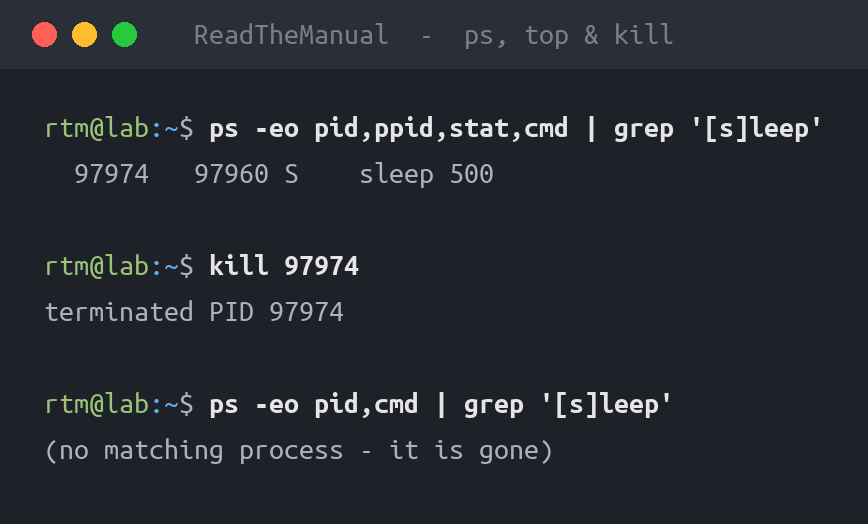
ps aux | grep nginx

# Avoid grep showing itself
ps aux | grep [n]ginx
Understanding ps aux output:
| Column | Meaning |
|---|---|
| USER | Process owner |
| PID | Process ID |
| %CPU | CPU usage |
| %MEM | Memory usage |
| VSZ | Virtual memory size |
| RSS | Resident memory (actual RAM used) |
| STAT | Process state |
| START | Start time |
| COMMAND | Command that started it |
Process States
| State | Meaning | Concern Level |
|---|---|---|
| R | Running | Normal |
| S | Sleeping (waiting for event) | Normal |
| D | Uninterruptible sleep (IO wait) | Watch if many |
| Z | Zombie (finished, not reaped) | Issue if accumulating |
| T | Stopped | Usually intentional |
top – Real-time View
# Launch top
top

# Key commands while running:
# q - quit
# k - kill a process (prompts for PID)
# r - renice (change priority)
# M - sort by memory
# P - sort by CPU
# 1 - show individual CPUs
# c - show full command line
The header shows system summary: load averages, CPU usage, memory usage. Learn to read it quickly.
htop – Better top
# Install if needed
sudo apt install htop

# Launch
htop
htop advantages:
- Colour-coded, visual CPU/memory bars
- Mouse support
- Horizontal scrolling for long commands
- Tree view built in (F5)
- Easier process killing (F9)
Interview tip: If asked about monitoring processes, mention htop. It shows you’ve used more than the bare minimum tools.
Finding Resource Hogs
CPU Usage
# Top 10 CPU consumers
ps aux --sort=-%cpu | head -10

# Real-time CPU monitoring
top -o %CPU

# In htop: press P to sort by CPU
Memory Usage
# Top 10 memory consumers
ps aux --sort=-%mem | head -10

# Check overall memory
free -h

# In htop: press M to sort by memory
Disk I/O
# Install iotop
sudo apt install iotop

# See disk usage by process
sudo iotop

# One-shot view
sudo iotop -o -n 1
Killing Processes
The kill Command
# Send SIGTERM (graceful shutdown request)
kill PID

# Send SIGKILL (force kill - last resort)
kill -9 PID


Practitioner tip: Before you kill -9 a process, try kill (SIGTERM) first. SIGTERM lets the process clean up after itself -- close file handles, flush buffers, release locks. SIGKILL is a last resort that can leave orphaned temp files and corrupted state.


# Kill by name
pkill nginx
killall nginx

# Kill all processes by user
pkill -u username
Signal Types
| Signal | Number | Meaning | Use Case |
|---|---|---|---|
| SIGTERM | 15 | Terminate gracefully | Normal shutdown (default) |
| SIGKILL | 9 | Force kill immediately | When SIGTERM fails |
| SIGHUP | 1 | Hangup/reload config | Reload without restart |
| SIGINT | 2 | Interrupt (like Ctrl+C) | Interactive stop |
| SIGSTOP | 19 | Pause process | Temporary freeze |
| SIGCONT | 18 | Continue paused process | Resume after STOP |
Always try SIGTERM first. SIGKILL doesn’t let the process clean up—it can leave files corrupted or locks in place.
# Proper escalation
kill 1234
# Wait a few seconds
ps aux | grep 1234
# If still there:
kill -9 1234
Zombie Processes
Zombies are finished processes whose parent hasn’t collected their exit status. They use no resources but clutter the process table.
# Find zombies
ps aux | grep Z

# Kill the parent process to clean up zombies
# (killing the zombie itself doesn't work)
kill PARENT_PID
Process Priority
Nice Values
Nice values range from -20 (highest priority) to 19 (lowest). Default is 0.
# Start process with lower priority
nice -n 10 ./long-running-script.sh

# Change running process priority
renice 10 -p PID

# Give root process high priority
sudo renice -10 -p PID
Use case: Running a backup script that shouldn’t impact production performance—set high nice value.
Background and Foreground
# Run command in background
./script.sh &

# List background jobs
jobs

# Bring job to foreground
fg %1

# Send to background
Ctrl+Z    # Pause current
bg %1     # Continue in background

# Detach completely (survives logout)
nohup ./script.sh &
# Or
disown %1
Practical Scenarios
Scenario 1: Server Is Slow
# Quick overview
top
# Press 1 to see all CPUs

# What's consuming CPU?
ps aux --sort=-%cpu | head -5

# What's consuming memory?
ps aux --sort=-%mem | head -5
free -h

# Disk I/O problems?
sudo iotop -o
Scenario 2: Application Won’t Stop
# Find the process
ps aux | grep appname

# Try graceful shutdown first
systemctl stop appname
# Or
kill PID

# Check if stopped
ps aux | grep appname

# Force kill if necessary
kill -9 PID
Scenario 3: Need to Free Memory Quickly
# Find biggest memory users
ps aux --sort=-%mem | head -10

# Restart services rather than killing if possible
sudo systemctl restart memory-hungry-app

# Clear filesystem cache (temporary)
sync && echo 3 | sudo tee /proc/sys/vm/drop_caches
Interview Questions
- “A process is using 100% CPU. What do you do?”
“First, identify it with
toporps aux --sort=-%cpu | head. Determine if it’s supposed to be running—maybe it’s a legitimate intensive task. If it’s stuck or misbehaving, I’d check logs for that application. For a runaway process, I’d send SIGTERM first, verify it stopped, and only use SIGKILL as a last resort.” - “What’s the difference between kill and kill -9?”
“
killsends SIGTERM which asks the process to terminate gracefully—it can save state, close files, clean up.kill -9sends SIGKILL which immediately terminates without cleanup. Always use SIGTERM first; SIGKILL is a last resort because it can leave things in an inconsistent state.” - “How do you find what’s using all the memory?”
“
ps aux --sort=-%mem | headfor a snapshot, orhtopsorted by memory for real-time monitoring. I’d also checkfree -hto see overall memory state and whether we’re into swap, which dramatically impacts performance.”
Quick Reference
# Viewing processes
ps aux                    # All processes
ps auxf                   # Tree format
ps aux --sort=-%cpu       # Sort by CPU
ps aux --sort=-%mem       # Sort by memory
top                       # Real-time
htop                      # Better real-time

# Finding processes
ps aux | grep name        # Search
pgrep -l name            # Get PIDs by name
pidof nginx              # Get PIDs of named process

# Killing processes
kill PID                  # Graceful (SIGTERM)
kill -9 PID              # Force (SIGKILL)
pkill name               # Kill by name
killall name             # Kill all with name

# Priority
nice -n 10 command       # Run with lower priority
renice 10 -p PID         # Change priority

# Background/foreground
command &                 # Run in background
jobs                      # List background jobs
fg %1                     # Bring to foreground
Ctrl+Z                    # Pause current job
bg %1                     # Continue in background
nohup command &           # Survive logout
The Career Translation
| Skill | Demonstrates | Role Level |
|---|---|---|
| Can use ps and kill | Basic process awareness | Helpdesk (£25-30k) |
| Interprets top, finds issues | Troubleshooting ability | Junior Sysadmin (£30-38k) |
| Full resource diagnosis | Production readiness | Mid-level (£38-48k) |
| Capacity planning, tuning | Performance engineering | Senior (£48k+) |

Next Steps
- systemd integration – Manage processes through services
- cgroups – Resource limits for containers and processes
- performance monitoring – Tools like Prometheus, Grafana
- profiling – strace, perf for deep diagnostics
Process management connects directly to application reliability. Master this and you can keep systems running when things go wrong.
Part 8 of the Linux Fundamentals series. Next: Linux log files and journalctl—finding out what went wrong.
Linux Fundamentals Series – Part 8 of 12
Previous: Directory Navigation Essentials
Next: Log Files and journalctl
RTFM Apparel · printed in the UK


ReadTheManual is run, written and curated by Eric Lonsdale.
Eric has over 20 years of professional experience in IT infrastructure, cloud architecture, and cybersecurity, but started with PCs long before that.
He built his first machine from parts bought off tables at the local college campus, hoping they worked. He learned on BBC Micros and Atari units in the early 90s, and has built almost every PC he’s used between 1995 and now.
From helpdesk to infrastructure architect, Eric has worked across enterprise datacentres, Azure environments, and security operations. He’s managed teams, trained engineers, and spent two decades solving the problems this site teaches you to solve.
ReadTheManual exists because Eric believes the best way to learn IT is to build things, break things, and actually read the manual. Every guide on this site runs on infrastructure he owns and maintains.
Enjoyed this guide?
New articles on Linux, homelab, cloud, and automation every 2 days. No spam, unsubscribe anytime.