Service Management for Junior Sysadmins
The Command You’ll Use More Than Any Other
In my first week as a junior sysadmin, I probably ran systemctl status about fifty times a day. Application not responding? Check the service. Website down? Check the service. Database timing out? You guessed it—check the service.
systemctl is the interface between you and every service running on a modern Linux system. It’s how you start, stop, restart, enable, disable, and troubleshoot every application from nginx to PostgreSQL to custom in-house software. If you’re moving from helpdesk to infrastructure, this is the command that proves you’re ready for production.
This isn’t the manual page. This is how systemctl actually gets used in production, with the context that helps you explain your experience in interviews.
systemd is the init system running on almost every modern Linux distribution. I interact with systemctl multiple times a day — checking service status, restarting Docker, enabling services to start on boot. If you manage Linux servers, you need to be fluent in this.
Understanding systemd (60-Second Version)
systemd is the init system that manages everything that starts when Linux boots. Every background service—web servers, databases, monitoring agents, cron alternatives—runs as a systemd “unit.”
systemctl is how you talk to systemd. Think of it as the control panel for all your services.
That’s all you need to know conceptually. Let’s get practical.
The Essential Commands
Checking Service Status
This is where 90% of your systemctl usage begins.
# Check if a service is running
systemctl status nginx

# What you'll see:
# - Active: active (running) or failed or inactive
# - Main PID: the process ID
# - Recent log entries
The status output tells you everything at a glance:
| Field | What It Means | What To Do |
|---|---|---|
active (running) |
Service is healthy | Problem is elsewhere |
inactive (dead) |
Service has stopped | Start it or check why it stopped |
failed |
Service crashed | Check logs immediately |
activating |
Service is starting | Wait, or check if it’s stuck |
Starting, Stopping, and Restarting
# Start a stopped service
sudo systemctl start nginx

# Stop a running service
sudo systemctl stop nginx

# Restart (stop then start)
sudo systemctl restart nginx

# Reload config without full restart
sudo systemctl reload nginx
Production wisdom: Use reload when available. It applies config changes without dropping connections. Not every service supports it—check with systemctl show nginx | grep ExecReload.
If reload isn’t supported, restart is your only option. On critical services, this means brief downtime. Know which services support reload before you need to use it at 2 AM.
Enable and Disable (Boot Behaviour)
# Start service at boot
sudo systemctl enable nginx

# Don't start at boot
sudo systemctl disable nginx

# Enable AND start right now
sudo systemctl enable --now nginx
- The interview question: “You’ve installed a new service. It’s running fine. How do you make sure it starts after a reboot?”
- Answer:
systemctl enable servicename. If you only ranstart, the service dies on reboot. This is one of the most common mistakes juniors make, and interviewers love testing it.
Troubleshooting Failed Services
The Troubleshooting Flow
When a service fails, follow this pattern:
# 1. Check the status (see the recent error)
systemctl status nginx

# 2. Get more log context
journalctl -u nginx -n 50

# 3. Follow logs in real-time while you test
journalctl -u nginx -f

# 4. Check the config for syntax errors (service-specific)
nginx -t
The status command usually shows you the last few log lines. If that’s not enough, journalctl -u servicename gives you the full history.
Practitioner tip: If a service won’t start, systemctl status is your first stop, but journalctl -u servicename -n 50 often gives you more detail. The status output truncates error messages that journalctl shows in full.
Common Failure Patterns
| Error Pattern | Likely Cause | Fix |
|---|---|---|
| “Address already in use” | Port conflict | ss -tulpn | grep :80 to find what’s using it |
| “Permission denied” | File/directory permissions | Check ownership and chmod |
| “No such file or directory” | Missing config or path | Verify paths in config file |
| “Failed to parse” | Config syntax error | Run config test (e.g., nginx -t) |
| Repeated restart loops | Service keeps crashing | Check dependencies, resources |
Real Scenario: Why Won’t nginx Start?
$ sudo systemctl start nginx
Job for nginx.service failed because the control process exited with error code.

$ systemctl status nginx
● nginx.service - A high performance web server
   Active: failed (Result: exit-code)
   Process: 15234 ExecStart=/usr/sbin/nginx (code=exited, status=1/FAILURE)

$ journalctl -u nginx -n 20
nginx: [emerg] bind() to 0.0.0.0:80 failed (98: Address already in use)

$ ss -tulpn | grep :80
tcp  LISTEN  0  511  0.0.0.0:80  0.0.0.0:*  users:(("apache2",pid=1234,fd=4))

# Apache is already using port 80. Stop it first:
$ sudo systemctl stop apache2
$ sudo systemctl start nginx
This is exactly how real troubleshooting works. The logs tell you everything if you read them.
Listing and Finding Services
# List all active services
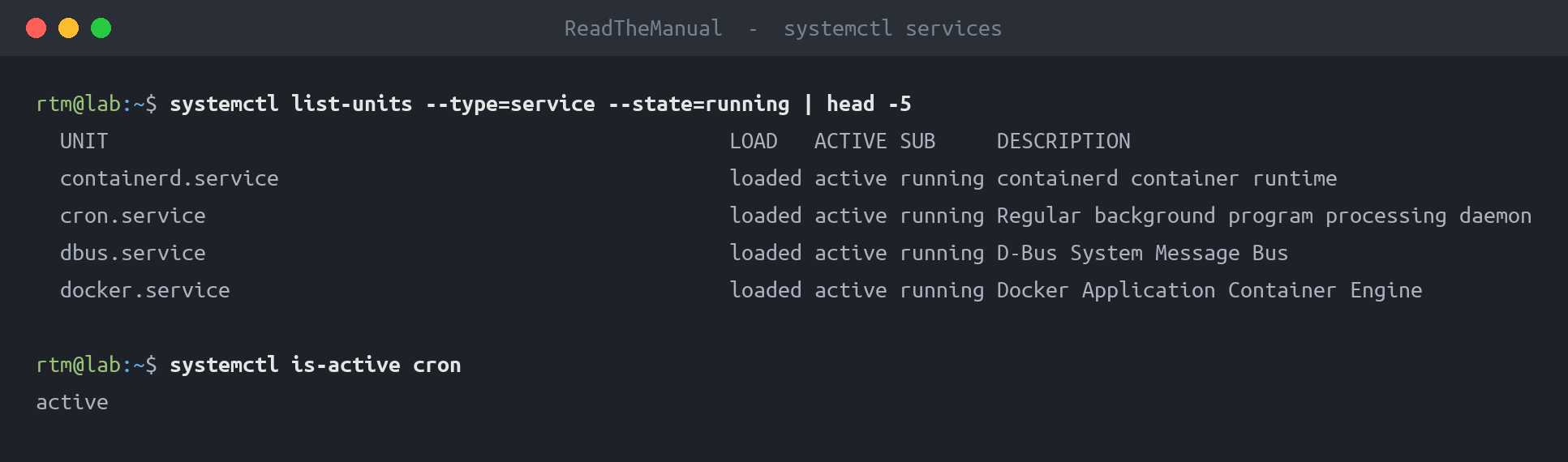
systemctl list-units --type=service --state=active

# List all services (including inactive)
systemctl list-units --type=service --all

# Find services by name
systemctl list-units --type=service | grep docker

# List failed services (very useful)
systemctl --failed
Pro tip: Run systemctl --failed regularly. It shows any service that’s crashed and not recovered. On a production server, this list should be empty.
Viewing Service Configuration
# Where is the service file?
systemctl show nginx --property=FragmentPath

# View the service file
systemctl cat nginx

# See all service properties
systemctl show nginx
Service files live in /etc/systemd/system/ (custom) or /lib/systemd/system/ (package defaults). Understanding these files is how you move from running services to creating them.
Creating Your Own Service
This is where you go from “I can restart nginx” to “I deploy applications.” Here’s a minimal service file:
# /etc/systemd/system/myapp.service
[Unit]
Description=My Application
After=network.target

[Service]
Type=simple
User=appuser
WorkingDirectory=/opt/myapp
ExecStart=/opt/myapp/start.sh
Restart=always
RestartSec=5

[Install]
WantedBy=multi-user.target
Then:
# Tell systemd about the new file
sudo systemctl daemon-reload

# Start and enable
sudo systemctl enable --now myapp

# Check it's working
systemctl status myapp
Being able to write service files is a significant skill jump. It means you can deploy any application properly, not just the ones with pre-built packages.
Advanced Commands for Production
Masking Services
# Prevent a service from being started (even manually)
sudo systemctl mask nginx

# Undo the mask
sudo systemctl unmask nginx
Masking is stronger than disabling. Use it when you absolutely don’t want something to start—like preventing both apache2 and nginx from conflicting.
Service Dependencies
# What does this service need?
systemctl list-dependencies nginx

# What needs this service?
systemctl list-dependencies nginx --reverse
Quick One-Liners
# Restart all failed services
systemctl restart $(systemctl --failed --no-legend | awk '{print $1}')

# Check if a service is enabled
systemctl is-enabled nginx && echo "Will start at boot"

# Check if a service is active
systemctl is-active nginx && echo "Currently running"
The Interview Translation
Questions You’ll Get
- “A critical service has stopped. What do you do?”
- Answer: “First,
systemctl status servicenameto see the current state and recent errors. Thenjournalctl -u servicename -n 50for more context. Fix the underlying issue—don’t just restart blindly, because it’ll fail again. Once fixed, restart and verify with status.” - “What’s the difference between restart and reload?”
- Answer: “Restart fully stops and starts the service—connections are dropped. Reload tells the service to re-read its configuration without stopping—connections stay active. Use reload when available to avoid downtime.”
- “How do you make a service start at boot?”
- Answer: “
systemctl enable servicename. This creates symlinks in the appropriate target directories. Just running start only starts it now—it won’t survive a reboot.”
Skill Salary Mapping
| Skill Level | What You Can Do | Role Level |
|---|---|---|
| Basic | status, start, stop, restart | Helpdesk/Junior Support (£25-32k) |
| Intermediate | + enable/disable, journalctl, troubleshooting | Junior Sysadmin (£32-40k) |
| Advanced | + writing service files, dependencies | Mid-Level Infrastructure (£40-55k) |
| Expert | + timers, socket activation, hardening | Senior DevOps/SRE (£55-75k) |
Practice Exercises
On your homelab or a VM:
- Break nginx on purpose – Put a syntax error in the config, try to restart, and follow the troubleshooting flow
- Create a custom service – Write a service file for a simple script and make it run at boot
- Explore the system – Run
systemctl list-units --type=serviceand investigate three services you don’t recognise - Simulate an interview – Have someone give you a service name and ask you to demonstrate checking its status and finding its logs
Quick Reference
# Daily operations
systemctl status nginx         # Check health
systemctl restart nginx        # Restart service
systemctl reload nginx         # Reload config (if supported)

# Boot behaviour
systemctl enable nginx         # Start at boot
systemctl disable nginx        # Don't start at boot
systemctl enable --now nginx   # Enable + start

# Troubleshooting
systemctl --failed             # List broken services
journalctl -u nginx -n 50      # Recent logs
journalctl -u nginx -f         # Follow logs live

# Information
systemctl list-units --type=service    # All services
systemctl cat nginx                    # View service file
systemctl list-dependencies nginx      # Service dependencies

# Service files
sudo systemctl daemon-reload   # After editing .service files

Next Steps
You now know more about systemctl than most junior sysadmin candidates. To keep building:
- Learn journalctl deeply – The logging side of systemd has powerful filtering
- Explore timers – systemd timers are replacing cron in many environments
- Understand targets – What does
multi-user.targetactually mean? - Read service files –
systemctl cat nginxand understand every line
Service management is the foundation of Linux system administration. Master this, and you’ve unlocked the core skill that every infrastructure role requires.
Part 2 of the Linux Fundamentals series. Next up: apt package management—installing, updating, and maintaining software like a production sysadmin.
RTFM Apparel · printed in the UK


ReadTheManual is run, written and curated by Eric Lonsdale.
Eric has over 20 years of professional experience in IT infrastructure, cloud architecture, and cybersecurity, but started with PCs long before that.
He built his first machine from parts bought off tables at the local college campus, hoping they worked. He learned on BBC Micros and Atari units in the early 90s, and has built almost every PC he’s used between 1995 and now.
From helpdesk to infrastructure architect, Eric has worked across enterprise datacentres, Azure environments, and security operations. He’s managed teams, trained engineers, and spent two decades solving the problems this site teaches you to solve.
ReadTheManual exists because Eric believes the best way to learn IT is to build things, break things, and actually read the manual. Every guide on this site runs on infrastructure he owns and maintains.
Enjoyed this guide?
New articles on Linux, homelab, cloud, and automation every 2 days. No spam, unsubscribe anytime.