Built for people who are learning networking the real way: by breaking stuff, fixing it, and doing it again.
From the field: I have seen engineers push a full /16 network for a single web service because it was the default in the Azure template they cloned. Understanding IP addressing is not optional — it is the foundation of every network decision you will ever make, whether in the cloud or on-prem.
Introduction
If you’re building a home lab, studying for certs like CCNA or AZ-900, or just trying to get your Wi-Fi and Raspberry Pi talking to each other without drama, you need to understand IP addressing.
Every device on a network — your laptop, your NAS, your smart TV, your lab firewall — needs an IP address. If two devices have the wrong addresses, nothing talks. If two devices have the same address, everything breaks. This is the core of how all networking works. No IP address = no connection.
In this guide, we’ll walk through the IP address fundamentals you actually need:
- What an IP address is (and what 192.168 actually means)
- Public vs private IP addresses
- Subnet masks and IP classes
- Static vs dynamic IPs
- Common problems and how to fix them
We’ll keep this practical and hands-on, not textbook. This is for:
- Career changers trying to get comfortable with networking
- Home lab people wiring up VLANs at 1am
- Anyone who wants to know “how do I find my IP address and what do I do with it?”
When you’re ready to play with real networks and see how ranges are split up, try our free subnet calculator: /subnet-calculator/. It’s also linked from the Networking hub at /networking/.
What is an IP Address?
An IP address is a unique identifier that a device uses to talk on a network. You can think of it like a house address for devices.
When your PC wants to send something to a printer or out to the internet, it needs to know where to send it. That “where” is an IP address.
We’re going to focus on IPv4, because:
- It’s still everywhere.
- It’s what you’ll see in home networks, small offices, and most cert exams at the beginner level.
IPv4 format
An IPv4 address looks like this:
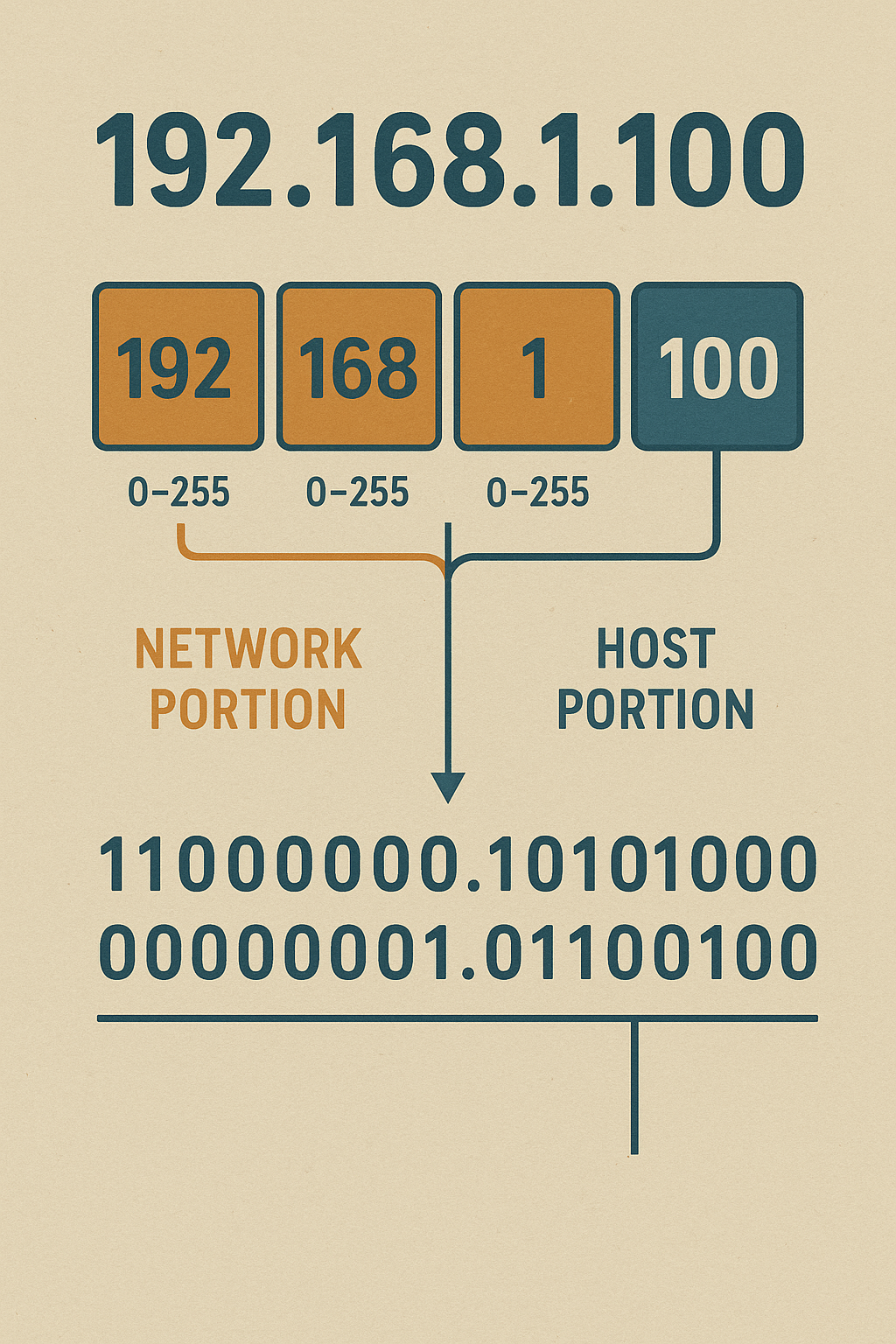
192.168.1.100
That’s four numbers separated by dots. Each of those numbers is called an octet.
- First octet:
192 - Second octet:
168 - Third octet:
1 - Fourth octet:
100
Each octet is a number from 0 to 255.
Why 0–255? Because under the hood, each octet is actually 8 bits of binary. 8 bits can represent numbers from 00000000 (0) to 11111111 (255). You don’t need to do binary math in your head all day, but you should know this one thing:
Binary is why IP addresses stop at 255. There’s literally no way to represent 256 in 8 bits.
Now let’s break down 192.168.1.100 in plain English.
192.168.1usually identifies the network..100usually identifies the device on that network.
So if your laptop is 192.168.1.100, your router might be 192.168.1.1, your NAS might be 192.168.1.50, etc. They’re all in the same “street” (192.168.1), but each has a different “house number.”
You’ll hear people say things like:
- “My IP is 192.168.1.100”
- “The printer is 192.168.1.40”
- “Point your browser at 192.168.1.1”
That’s all IP addressing in action.
Important mindset
An IP address answers two questions:
- Which network is this device on?
- Which device is it on that network?
You’ll see those two ideas again when we talk about subnets and subnet masks (we’ll get there later). If you want to visualise it now, you can experiment using our subnet calculator: /subnet-calculator/.
Public vs Private IP Addresses
This part confuses almost everyone at first. After this section, it won’t.
There are two kinds of IPv4 addresses you’ll deal with:
- Public IP addresses
- Private IP addresses
They are not the same, and you use them in different places.
Private IP addresses
Private IP addresses are used inside a network you control — like your home network, your office LAN, your lab.
These ranges are reserved for private/internal use:
- 10.0.0.0 – 10.255.255.255
- 172.16.0.0 – 172.31.255.255
- 192.168.0.0 – 192.168.255.255
You’ve almost definitely seen something that starts with 192.168. That’s by design. It’s one of the most common private IP ranges.
Example:
- Laptop:
192.168.1.100 - NAS:
192.168.1.50 - Home firewall:
192.168.1.1
Those devices can talk to each other locally, but those IPs don’t exist on the internet. The wider internet will ignore anything in those private ranges.
Quick reference
Private = local only.
You can reuse private ranges in different places with no conflict. My house can use 192.168.1.x, and your house can also use 192.168.1.x, and that’s fine.
Public IP addresses
A public IP address is routable on the internet. It’s how the rest of the world sees you.
Your internet provider (ISP) assigns you a public IP. That’s what websites and online services see when you connect.
Example:
- Your home router might have a public IP like
81.2.140.22.
Try this:
- Google “what is my IP” from home.
- You’ll see something like:
81.2.140.22. That’s your public IP.
Now open a terminal/command prompt on your laptop and check your IP there:
- On Windows:
ipconfig - On macOS/Linux:
ip addrorifconfig
You’ll see something like 192.168.1.100. That’s your private IP.
So yes — your machine effectively has two identities:
- A private IP (inside your network)
- A public IP (to the outside world)
Why do we have both?
Because we ran out of public IPv4 addresses years ago. There aren’t enough public IPv4 addresses for every phone, smart fridge, PlayStation, VM, Docker container, and Raspberry Pi.
Private IP ranges let you build huge internal networks without needing thousands of public IPs.
NAT (Network Address Translation), briefly
Here’s the magic trick that makes it all work:
Your router/firewall does NAT. It sits between your private network and the public internet.
Example flow (visual idea for a diagram: Home PC → Router → Internet):
- Your laptop
192.168.1.100wants to view readthemanual.co.uk. - It sends traffic to the router.
- The router swaps the source IP from
192.168.1.100to your public IP (like81.2.140.22). - The website replies to
81.2.140.22. - The router knows which internal device asked for it, and sends it back to
192.168.1.100.
To the internet, it looks like everything in your house is coming from one public IP.
That lets:
- 30 devices in your house
- All with private IPs
- Share 1 public IP
How to check yours
- Your public IP address:
Search “what is my IP address” in a browser. That’s your public address. - Your private IP address:
Check your network settings locally. If it starts with192.168,10, or172.16–31, that’s private.
IP Address Classes
Before modern networking, IPs were handed out in big “classes.” You’ll still see this in study material, so you need to know it. In real life, we mostly use CIDR now (we’ll mention that), but understanding the classes helps subnetting make sense.
The three common classes
| Class | First Octet Range | Default Subnet Mask | Typical Use |
|---|---|---|---|
| A | 1 – 126 | 255.0.0.0 | Huge networks (millions of hosts) |
| B | 128 – 191 | 255.255.0.0 | Medium networks |
| C | 192 – 223 | 255.255.255.0 | Small networks (home/small business) |
Notes:
127.x.x.xis special (loopback). We’ll cover that soon.- Class D and E exist, but they’re not relevant for basic IP addressing fundamentals.
Why this matters
Look at Class C:
- Range starts with 192–223.
- Default subnet mask is
255.255.255.0. - That means: first three octets = network, last octet = host.
So if you’re on 192.168.1.100 with a mask of 255.255.255.0, you’re in a classic Class C style network. That’s most home networks.
Class A (10.x.x.x) and Class B (172.16.x.x etc.) are also used internally in bigger environments because they allow more addresses per network.
Use our subnet calculator (/subnet-calculator/) to plug in a Class A, B, or C range and see how many usable hosts you actually get.
Quick reality check
Modern networks don’t strictly follow “Class A/B/C” anymore. We use something called CIDR notation (like /24 or /16) to say how big a network is.
But:
- Exams still talk about classes.
- People still say things like “Class C range.”
- It helps you understand default subnet masks.
So it’s still worth knowing.
Special IP Addresses
Some IP addresses aren’t for normal devices. They have special meanings.
127.0.0.1 (localhost)
127.0.0.1 is the loopback address, also called localhost.
When you ping 127.0.0.1, you’re basically asking: “Can I talk to myself?”
It’s a way to test the TCP/IP stack on your own machine.
You’ll use this when testing:
- Web servers running locally
- Databases running on the same box
- “Is networking even alive on this machine?”
If ping 127.0.0.1 fails, something is seriously broken.
0.0.0.0
This one means “no specific address” or “all interfaces,” depending on context.
Examples:
- A service might bind to
0.0.0.0, which means “listen on every network interface.” - A route of
0.0.0.0sometimes means “default route” (send unknown traffic this way — usually to your router).
Good mental model: 0.0.0.0 = “everything/nowhere.”
255.255.255.255 (broadcast)
This is the limited broadcast address.
Broadcast = “send this to everyone on the local network.”
Your device can shout to all other devices in its subnet using a broadcast. It’s used by things like DHCP (“hey, is there a DHCP server out there?”).
169.254.x.x (APIPA)
If you see something like 169.254.12.54, that’s APIPA (Automatic Private IP Addressing).
Translation: your device tried to get an IP automatically (via DHCP) and it failed.
You’ll see this when:
- The DHCP server is down.
- The cable is unplugged.
- Wi-Fi is connected but not really connected.
If you’re troubleshooting and you see a 169.254 address, the device is basically saying “I gave myself an address so I have something, but I’m not really on the network.”
Network address vs broadcast address
Inside any subnet:
- The network address is the first IP in the range.
Example: in192.168.1.0/24, the network address is192.168.1.0. - The broadcast address is the last IP in the range.
Example:192.168.1.255.
You normally don’t assign those to devices. They’re used to describe the subnet and to talk to “everyone” in that subnet.
Static vs Dynamic IP Addresses
Now we’re talking about how devices get their IPs.
Dynamic IP (DHCP)
Most devices get an address automatically using DHCP (Dynamic Host Configuration Protocol).
Here’s how it works in normal human terms:
- Device joins the network and shouts: “Can someone give me an IP?”
- The DHCP server (usually your router) answers: “Yep, you can be 192.168.1.100. Use this gateway. Use this DNS.”
- The device says: “Cool, thanks.”
This is why you don’t have to manually configure the IP on your phone, TV, Xbox, etc.
Dynamic is great for:
- Phones
- Laptops
- Guest devices
- Anything that doesn’t need to live at a predictable address
Static IP
A static IP address is manually set and doesn’t change.
You tell the device:
- “Your IP is 192.168.1.50.”
- “Your subnet mask is 255.255.255.0.”
- “Your gateway is 192.168.1.1.”
- “Your DNS is 192.168.1.1 or 8.8.8.8,” etc.
You normally use static IPs for things you want to always reach at the same address:
- Home lab servers (Proxmox box, TrueNAS, Unifi controller)
- Printers (so scanning doesn’t break)
- Cameras / NVR
- Routers, firewalls, switches, access points
If the IP of your NAS keeps changing, your mapped drives break. That’s why static matters.
How to assign static IPs in practice
You’ve got two main approaches:
Option 1: Set it on the device itself
In the network settings, choose “Manual / Static” and enter the IP, subnet mask, gateway, DNS.
Option 2: DHCP reservation
Tell your router:
“When this device with MAC address AA:BB:CC:DD:EE:FF asks for an IP, always give it 192.168.1.50.”
This is cleaner for home labs. You get “static behaviour,” but you’re still managing it centrally from the router.
Home lab tip:
Put core gear (like your hypervisor or storage box) on reserved IPs. You’ll thank yourself at 2am when something’s offline and you need to get back into Proxmox or TrueNAS without guessing the address.
Why Subnetting Matters
Subnetting sounds scary at first, but the idea is simple.
A subnet is just a smaller logical network inside a bigger network.
Why do we split networks into subnets?
- Organization
Example: Keep servers on192.168.10.xand users on192.168.20.x. You instantly know what you’re looking at. - Security
Devices in separate subnets don’t automatically talk to each other without routing/firewall rules. That means you can keep “IoT junk” away from “work laptop.” - Efficiency
Broadcast traffic stays inside its subnet. Fewer devices in a subnet means less noise.
Here’s why you care:
- If you’re doing a home lab, subnetting lets you isolate services (lab VLANs, DMZ, IoT).
- If you’re going for a tech job, subnetting is considered “basic knowledge.” Interviewers will absolutely ask.
We’ll go deep on subnet masks, CIDR notation (like /24), and calculating usable host ranges in the Subnetting Deep Dive article. For now, play with it using our subnet calculator at /subnet-calculator/. Change the prefix length and watch how the number of usable hosts changes.
Practical Examples & Exercises
Let’s make this real.
Example 1: Typical home network
- Router’s internal IP:
192.168.1.1 - Subnet mask:
255.255.255.0 - DHCP range:
192.168.1.100–192.168.1.200 - Your laptop:
192.168.1.124 - Your NAS (static):
192.168.1.50
What this means:
- Everything is in the same subnet (
192.168.1.x). - The NAS lives at a known address.
- Your laptop gets something in the DHCP pool.
If you can’t reach the NAS, you can ping 192.168.1.50. If it answers, network is fine. If it doesn’t, you start troubleshooting there.
Example 2: Small office network
Let’s say a small business uses:
- Staff PCs:
192.168.10.x - Servers:
192.168.20.x - Wi-Fi guests:
192.168.30.x
These are three different subnets.
Benefits:
- Guests can get internet without touching internal resources.
- Servers can be firewalled off.
- You can apply different rules per subnet. For example, “No printing from Guest Wi-Fi.”
This is how real networks are built. Not everything in one giant flat 192.168.1.x pond.
Example 3: Is an IP public or private?
Look at these and decide:
10.23.5.7→ Private (10.x.x.x range)172.20.10.4→ Private (172.16–172.31 range)192.168.50.12→ Private (192.168.x.x range)81.2.140.22→ Public
Practice this. You should be able to glance at an address and instantly say “public” or “private.” That shows you understand IP addressing fundamentals.
Exercises for you
Do these right now on your own network:
- Find your private IP address.
- Windows: open Command Prompt, run
ipconfig, look for “IPv4 Address.” - macOS/Linux: run
ip addrorifconfig.
- Windows: open Command Prompt, run
- Find your public IP address.
- Search “how to find my IP address” in a browser. That result is your public IP.
- Identify the network you’re on.
- If your IP is
192.168.0.42and your subnet mask is255.255.255.0, then you’re on the192.168.0.xnetwork.
- If your IP is
- Open the subnet calculator at /subnet-calculator/
- Enter
192.168.1.0with a/24mask. - See how many usable hosts you get.
- Change it to
/25. Notice how the network splits in half.
- Enter
That’s subnetting, live.
Common Troubleshooting
Networking breaks. Here’s the fast way to read what the network is telling you.
Problem: IP conflict
You’ll sometimes see a message like “Another device on the network is using your IP address.”
That means two devices have the same IP. Example:
- You manually set your NAS to
192.168.1.50 - Your DHCP server also gave
192.168.1.50to someone’s laptop
Fix:
- Change one of them.
- Or create a DHCP reservation so the DHCP server never hands out
.50again.
Problem: You can’t reach something by IP
You try to ping 192.168.1.50 (your NAS) and it doesn’t answer.
Check:
- Are you on the same subnet?
If you’re on192.168.0.x, and the NAS is192.168.1.x, your traffic might not be routed. - Can you ping your default gateway (often
192.168.1.1)?
If you can’t reach your own gateway, your local connection is broken. - Is the device actually on? (Yes, this sounds obvious. Yes, this is 30% of “network outages.”)
Problem: You’ve got a 169.254.x.x address
You’ve got Wi-Fi, but no internet. IP is 169.254.27.90.
That means:
- Your device asked for an IP.
- No one answered.
- It gave itself an APIPA address just so it had something.
Fix steps:
- Check if the router/DHCP server is on and healthy.
- Check if the cable is plugged in (for wired).
- Check if you’re on the correct Wi-Fi SSID.
- Reconnect and see if you get a proper private IP (like 192.168.x.x).
If you’re getting APIPA on multiple devices, your DHCP server (often the router) is probably down. Rebooting that box fixes “internet is down” in a scary number of cases.
Watch out for this: If you are running a homelab and a VPN, plan your subnets to avoid overlap. Using 192.168.1.0/24 at home and the same range in a cloud VNet means your VPN will not route properly. I use 10.x.x.x ranges for different environments specifically to avoid this.
Conclusion & Next Steps
At this point, you should be comfortable with the basics of IP addressing:
- You know what an IP address is and why it matters.
- You know the difference between public and private IP addresses.
- You’ve seen static vs dynamic IP in real life terms.
- You can recognise special addresses like
127.0.0.1and169.254.x.x. - You’ve seen why subnetting exists and how networks get split for control, security, and sanity.
You don’t need to be an expert yet. But you should now be able to look at an IP like 192.168.1.100 and say:
- That’s private.
- It’s probably part of a /24 style network with a subnet mask of 255.255.255.0.
- It’s probably a normal internal client, not a public-facing server.
From here, you’ve got two next steps:
- Subnetting Deep Dive
We’ll go into CIDR notation (/24,/27, etc.), usable host counts, and how to design your own subnets without breaking everything. We’ll use real lab-style examples. - OSI Model
You’ll hear people say “That’s a Layer 3 problem” or “That’s not DNS.” Learning the OSI model gives you a shared language with other engineers and makes troubleshooting 10x faster.
In the meantime:
- Go to /subnet-calculator/ and experiment with different ranges.
- Try carving one network into smaller subnets and imagine how you’d isolate “lab,” “work,” and “IoT.”
This is how you go from “I followed a YouTube tutorial” to actually designing networks. From lab to leader.
Related Guides
If you found this useful, these guides continue the journey:
- Network Troubleshooting Commands — put your addressing knowledge into practice
- Subnet Calculator — a practical tool for planning your networks
- Azure Virtual Networks — see IP addressing in action in the cloud
- WireGuard VPN Setup — networking fundamentals applied to VPN configuration
- Build Your First Homelab — put this knowledge into practice

Frequently Asked Questions
What is an IP address?
An IP address is a unique identifier a device uses to communicate on a network. It’s like a postal address: every device that sends or receives data needs one. IPv4 addresses look like 192.168.1.100 (four numbers separated by dots); IPv6 addresses are longer and hexadecimal.
What is the difference between a public and a private IP address?
Public IPs are globally unique and routable on the internet. Private IPs (10.0.0.0/8, 172.16.0.0/12 and 192.168.0.0/16) only work inside your own network and are hidden behind NAT when you reach the internet. Every home router has one public IP and typically hands out private IPs to devices.
How does subnetting actually work?
Subnetting splits a single network into smaller ones by extending the subnet mask. A /24 gives you 256 addresses in one subnet; /25 splits that into two subnets of 128 each; /26 into four of 64. The bits you borrow from the host portion go to the network portion.
What is CIDR notation?
Classless Inter-Domain Routing notation writes a network as address/prefix, for example 192.168.1.0/24. The number after the slash is how many bits of the address identify the network. /24 means the first 24 bits are network, leaving 8 bits (256 addresses) for hosts.
Why do IP addresses matter in infrastructure interviews?
Because nearly every production outage touches networking. Interviewers ask about subnetting, NAT, CIDR and routing not to test trivia, but to check you can reason about packet flow, firewall rules and VPC design. It is the single most tested networking fundamental in cloud and DevOps interviews.
RTFM Apparel · printed in the UK


ReadTheManual is run, written and curated by Eric Lonsdale.
Eric has over 20 years of professional experience in IT infrastructure, cloud architecture, and cybersecurity, but started with PCs long before that.
He built his first machine from parts bought off tables at the local college campus, hoping they worked. He learned on BBC Micros and Atari units in the early 90s, and has built almost every PC he’s used between 1995 and now.
From helpdesk to infrastructure architect, Eric has worked across enterprise datacentres, Azure environments, and security operations. He’s managed teams, trained engineers, and spent two decades solving the problems this site teaches you to solve.
ReadTheManual exists because Eric believes the best way to learn IT is to build things, break things, and actually read the manual. Every guide on this site runs on infrastructure he owns and maintains.
Enjoyed this guide?
New articles on Linux, homelab, cloud, and automation every 2 days. No spam, unsubscribe anytime.