Why Docker Is the Right Way to Run Minecraft
I have set up Minecraft servers on bare metal, on VMs, on Raspberry Pis, and in Docker containers. Docker wins. Not because it is trendy, but because it solves every annoyance you will hit with a bare-metal installation.
Updating to a new Minecraft version? Change one line in your compose file and recreate the container. Your world data is on a volume, untouched. Want to run a second server for creative mode alongside your survival world? Copy the compose file, change the port, done. Need to back up everything? Snapshot the volume. Want to nuke the server and start fresh? Delete the container, keep the volume. Want to nuke everything? Delete both. The entire thing rebuilds in about 60 seconds.
The itzg/minecraft-server image is the community standard. It has been maintained since 2014, has over 10,000 GitHub stars, and handles everything: Java version selection, server type (Vanilla, PaperMC, Forge, Fabric), EULA acceptance, memory allocation, whitelist management, and automatic updates. It is one of the best-maintained Docker images in the entire ecosystem.
This guide assumes you have Docker and Docker Compose installed. If not, follow the Docker installation guide for Ubuntu 24.04 first.
Step 1: Basic Docker Compose Setup
Create a directory for your Minecraft server and the compose file:
mkdir -p ~/minecraft-server && cd ~/minecraft-serverCreate docker-compose.yml:
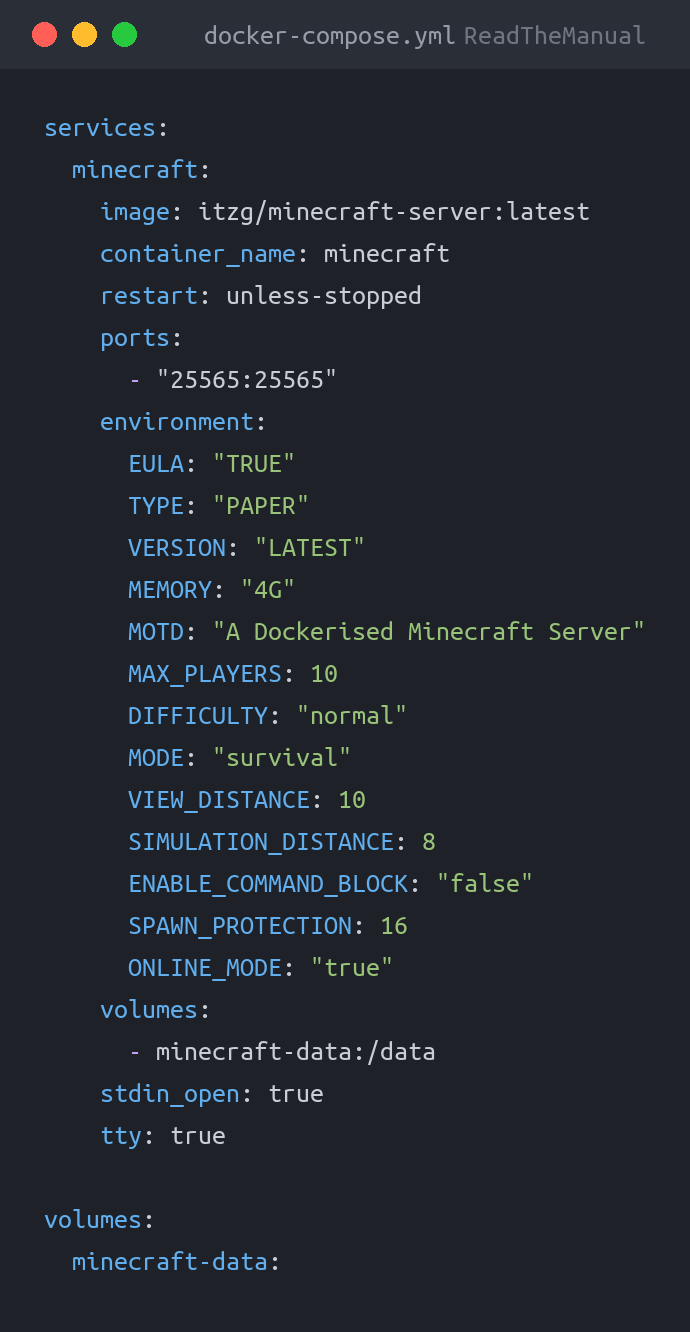
services:
  minecraft:
    image: itzg/minecraft-server:latest
    container_name: minecraft
    restart: unless-stopped
    ports:
      - "25565:25565"
    environment:
      EULA: "TRUE"
      TYPE: "PAPER"
      VERSION: "LATEST"
      MEMORY: "4G"
      MOTD: "A Dockerised Minecraft Server"
      MAX_PLAYERS: 10
      DIFFICULTY: "normal"
      MODE: "survival"
      VIEW_DISTANCE: 10
      SIMULATION_DISTANCE: 8
      ENABLE_COMMAND_BLOCK: "false"
      SPAWN_PROTECTION: 16
      ONLINE_MODE: "true"
    volumes:
      - minecraft-data:/data
    stdin_open: true
    tty: true

volumes:
  minecraft-data:
Start the server:
docker compose up -dThat is it. The container will download PaperMC, accept the EULA, apply your configuration, and start the server. Watch the logs to see when it is ready:
docker compose logs -fWhen you see a line like Done (12.345s)! For help, type "help", the server is ready to accept connections. Press Ctrl+C to stop following the logs (the server keeps running).
The itzg/minecraft-server image handles Java version selection automatically based on the Minecraft version. You do not need to worry about installing Java 21 or managing JDK versions. The image takes care of it. This is one of the key advantages of containerising the server.
Understanding the Environment Variables
Every server.properties setting can be controlled via environment variables. The image translates them automatically. Here are the important ones:
- EULA=TRUE – Accepts Minecraft’s EULA. Required, the container will not start without it.
- TYPE=PAPER – Uses PaperMC instead of vanilla. Other options:
VANILLA,FORGE,FABRIC,SPIGOT,PURPUR. I recommend PAPER for most use cases. - VERSION=LATEST – Uses the latest Minecraft release. Pin to a specific version (e.g.,
1.21.4) if you want stability. - MEMORY=4G – Sets both
-Xmxand-Xms. For separate values, useJVM_XX_OPTSorMAX_MEMORYandINIT_MEMORY. - ONLINE_MODE=true – Authenticates players against Mojang. Leave this on.
For the full list of environment variables, check the official documentation. There are hundreds. You can control practically every aspect of the server without ever touching a config file directly.
Step 2: Whitelist and Ops Management
There are two approaches. The simpler option for a small server is environment variables:
    environment:
      # ... other variables ...
      WHITELIST: "Player1,Player2,Player3"
      OPS: "Player1"
      ENFORCE_WHITELIST: "true"
This sets the whitelist and operator list at container startup. If you change these values, recreate the container:
docker compose down && docker compose up -dThe world data is on the volume, so nothing is lost. The server restarts with the updated player lists.
For a larger server where you need to manage players without restarts, use the server console:
# Attach to the server console
docker attach minecraft

# Then type commands:
whitelist add PlayerName
op PlayerName

# Detach without stopping: Ctrl+P, then Ctrl+Q
Be careful with docker attach. If you press Ctrl+C instead of the detach sequence (Ctrl+P, Ctrl+Q), you will stop the server. The stdin_open and tty options in the compose file enable this interactive console, but the detach sequence is easy to forget. An alternative is to use RCON: set ENABLE_RCON=true and RCON_PASSWORD=something_secure, then use an RCON client to send commands without attaching to the container.
Step 3: Proper Volume Configuration
The compose file above uses a Docker named volume (minecraft-data). This is simple and works, but you might want to bind-mount a specific directory instead, especially for easier backups:
    volumes:
      - ./data:/data
This maps a data directory in your project folder to the container’s /data directory. All server files, including the world, config, and logs, live here. You can browse them, back them up, or edit config files directly.
With a bind mount, the directory structure inside ./data will look like:
data/
  server.properties
  whitelist.json
  ops.json
  world/
  world_nether/
  world_the_end/
  logs/
  plugins/         (if using PaperMC)
  config/          (PaperMC config)
If you use a bind mount and see permission errors, the container runs as UID 1000 by default. Set ownership accordingly: sudo chown -R 1000:1000 ./data. You can also change the container’s UID with the UID and GID environment variables.
Step 4: Running Multiple Servers
This is where Docker really shows its value. Want a creative mode server alongside your survival world? Create a second compose file or add a second service:
services:
  survival:
    image: itzg/minecraft-server:latest
    container_name: mc-survival
    restart: unless-stopped
    ports:
      - "25565:25565"
    environment:
      EULA: "TRUE"
      TYPE: "PAPER"
      VERSION: "LATEST"
      MEMORY: "4G"
      MOTD: "Survival Server"
      MODE: "survival"
      DIFFICULTY: "hard"
      VIEW_DISTANCE: 10
      ONLINE_MODE: "true"
      WHITELIST: "Player1,Player2,Player3"
      OPS: "Player1"
      ENFORCE_WHITELIST: "true"
    volumes:
      - survival-data:/data
    stdin_open: true
    tty: true

  creative:
    image: itzg/minecraft-server:latest
    container_name: mc-creative
    restart: unless-stopped
    ports:
      - "25566:25565"
    environment:
      EULA: "TRUE"
      TYPE: "PAPER"
      VERSION: "LATEST"
      MEMORY: "2G"
      MOTD: "Creative Server"
      MODE: "creative"
      DIFFICULTY: "peaceful"
      VIEW_DISTANCE: 12
      ONLINE_MODE: "true"
      WHITELIST: "Player1,Player2,Player3"
      OPS: "Player1"
      ENFORCE_WHITELIST: "true"
    volumes:
      - creative-data:/data
    stdin_open: true
    tty: true

volumes:
  survival-data:
  creative-data:
The key is the port mapping: the survival server uses the default 25565, the creative server is mapped to 25566. In Minecraft, connect to the creative server by adding the port: your-server-ip:25566.
Each server has its own volume, so worlds, configs, and plugins are completely isolated. You can start, stop, update, or delete either server independently.
# Start both
docker compose up -d

# Stop just the creative server
docker compose stop creative

# View logs for survival only
docker compose logs -f survival
Step 5: Backup Strategy
Backups are where Docker makes your life significantly easier. With bind-mounted data, you can back up without stopping the server:
#!/bin/bash
# backup-minecraft.sh
BACKUP_DIR="/opt/backups/minecraft"
DATA_DIR="/home/$(whoami)/minecraft-server/data"
TIMESTAMP=$(date +%Y%m%d-%H%M%S)

mkdir -p "$BACKUP_DIR"

# Tell the server to save and disable autosave temporarily
docker exec minecraft rcon-cli save-all
docker exec minecraft rcon-cli save-off

# Copy the world
tar -czf "$BACKUP_DIR/minecraft-$TIMESTAMP.tar.gz" -C "$DATA_DIR" world world_nether world_the_end

# Re-enable autosave
docker exec minecraft rcon-cli save-on

# Keep last 7 days of backups
find "$BACKUP_DIR" -name "minecraft-*.tar.gz" -mtime +7 -delete

echo "Backup complete: minecraft-$TIMESTAMP.tar.gz"
For the RCON commands to work, add these environment variables to your compose file:
      ENABLE_RCON: "true"
      RCON_PASSWORD: "your-secure-password-here"
Schedule the backup with cron:
chmod +x backup-minecraft.sh
crontab -e
Add:
0 4 * * * /home/your-user/minecraft-server/backup-minecraft.shIf you are using Docker named volumes instead of bind mounts, you can back up volumes directly:
# Backup a named volume
docker run --rm -v minecraft-data:/source -v /opt/backups:/backup \
  alpine tar -czf /backup/minecraft-$(date +%Y%m%d).tar.gz -C /source .
Always use save-all and save-off before backing up a running server. Without this, you risk copying world files mid-write, which can corrupt the backup. The backup script above handles this automatically via RCON. If you do not have RCON enabled, stop the server before backing up: docker compose stop minecraft.
Step 6: Updating to New Minecraft Versions
With Docker, updates are trivial:
# Pull the latest image
docker compose pull

# Recreate the container with the new image
docker compose up -d
If you set VERSION=LATEST, the container will download and run the newest Minecraft release on next startup. Your world data is on the volume and is not affected by the container being recreated.
If you want to control when version changes happen (which you should for a server with active players), pin the version:
VERSION: "1.21.4"Then to update, change the version number in the compose file and run:
docker compose up -dBack up your world before updating, even with Docker. The container protects you from a bad image or broken config (just roll back the compose file), but Minecraft itself sometimes changes the world format between major versions, and that change happens to the data on your volume. Keep a pre-update backup so you can restore to the old version if something breaks.
Step 7: Firewall and Remote Access
If you are running UFW on the Docker host:
sudo ufw allow 25565/tcp comment 'Minecraft Server'
# If running a second server:
sudo ufw allow 25566/tcp comment 'Minecraft Creative'
Docker manipulates iptables directly, which means it can bypass UFW rules. By default, Docker-published ports are accessible from any network regardless of your UFW config. This is a well-known Docker gotcha. To prevent it, either bind to localhost ("127.0.0.1:25565:25565") and use a reverse proxy, or configure Docker’s iptables behaviour in /etc/docker/daemon.json with "iptables": false. Be aware that disabling Docker’s iptables management breaks container-to-container networking and outbound connectivity unless you write your own rules.
Advanced: JVM Tuning via Environment
The itzg image supports passing custom JVM flags through environment variables:
    environment:
      # ... other variables ...
      MEMORY: ""
      JVM_XX_OPTS: >-
        -Xmx4G -Xms2G
        -XX:+UseG1GC
        -XX:+ParallelRefProcEnabled
        -XX:MaxGCPauseMillis=200
        -XX:+UnlockExperimentalVMOptions
        -XX:+DisableExplicitGC
        -XX:G1NewSizePercent=30
        -XX:G1MaxNewSizePercent=40
        -XX:G1HeapRegionSize=8M
        -XX:G1ReservePercent=20
        -XX:InitiatingHeapOccupancyPercent=15
        -XX:G1MixedGCLiveThresholdPercent=90
        -XX:SurvivorRatio=32
        -XX:MaxTenuringThreshold=1
Set MEMORY to empty when using JVM_XX_OPTS to avoid conflicting heap settings. These are Aikar’s garbage collection flags, which are widely recommended in the Minecraft server community for reducing lag spikes caused by GC pauses.
Why Docker Is the Best Approach
After running Minecraft servers both ways, here is what you gain with Docker:
- Clean separation – No Java installation on the host. No files scattered across the filesystem. Everything is in a container and a volume.
- Reproducible setup – Your compose file is your documentation. Someone else can run the same server by cloning a single file.
- Easy updates – One command. No hunting for JAR files, no worrying about Java version mismatches.
- Multiple servers – Running several servers on different ports is trivial. Try doing that cleanly with bare-metal installations and systemd units.
- Portability – Move the compose file and volume data to any Docker host and it works. Different OS, different hardware, does not matter.
- Clean teardown –
docker compose down -vremoves everything. No orphaned config files, no leftover Java processes, no stale systemd units.
Docker Compose is how production applications are deployed across the industry. The workflow you have just learned – defining services in YAML, managing them with compose commands, persisting data in volumes, backing up, and updating – is identical to how teams manage databases, web applications, message queues, and monitoring stacks. You are not just running a game server. You are practising the deployment patterns used in every modern infrastructure team.
Key Takeaways
- The
itzg/minecraft-serverDocker image is the community standard, handling Java, server types, EULA, and configuration through environment variables - Use
TYPE=PAPERfor PaperMC andVERSION=LATESTor pin a specific version for stability - Bind-mount volumes (
./data:/data) for easier backups and direct config file access - Running multiple servers is just a matter of different port mappings and separate volumes
- Use RCON with
save-allandsave-offfor safe backups of a running server - Updates are a single
docker compose pull && docker compose up -dwith world data preserved on the volume - Docker bypasses UFW by default. Be aware of this if your server faces the internet.
Related Guides
If you found this useful, these guides continue the journey:
- Minecraft Server on Ubuntu — Set up a dedicated Minecraft server on Ubuntu Linux.
- Minecraft Server on Raspberry Pi — Run a Minecraft server on a Raspberry Pi for a low-power family server.
- Minecraft Server on Windows — Get a Minecraft server running on a spare Windows PC in minutes.
- Docker Compose Beginner’s Guide — Learn how to define and manage multi-container applications.
- Essential Docker Commands — The commands you will actually use day to day with Docker.
- How to Build Your First Homelab in 2026 — Start your self-hosting journey with a practical homelab build.

RTFM Apparel · printed in the UK


ReadTheManual is run, written and curated by Eric Lonsdale.
Eric has over 20 years of professional experience in IT infrastructure, cloud architecture, and cybersecurity, but started with PCs long before that.
He built his first machine from parts bought off tables at the local college campus, hoping they worked. He learned on BBC Micros and Atari units in the early 90s, and has built almost every PC he’s used between 1995 and now.
From helpdesk to infrastructure architect, Eric has worked across enterprise datacentres, Azure environments, and security operations. He’s managed teams, trained engineers, and spent two decades solving the problems this site teaches you to solve.
ReadTheManual exists because Eric believes the best way to learn IT is to build things, break things, and actually read the manual. Every guide on this site runs on infrastructure he owns and maintains.
Enjoyed this guide?
New articles on Linux, homelab, cloud, and automation every 2 days. No spam, unsubscribe anytime.